> ## Documentation Index
> Fetch the complete documentation index at: https://help.experro.com/llms.txt
> Use this file to discover all available pages before exploring further.
# Authentication
Welcome to the Experro API authentication guide. In this section, you’ll learn how you can generate and manage your own API tokens. Proper authentication is the first step toward integrating your applications or services with Experro’s powerful platform.
All Experro API endpoints require a valid API access token. You must have administrator privileges in the Experro Admin Panel to create and manage tokens.
## Obtaining Your Access Token
1. **Log in** to the Experro Admin Panel.
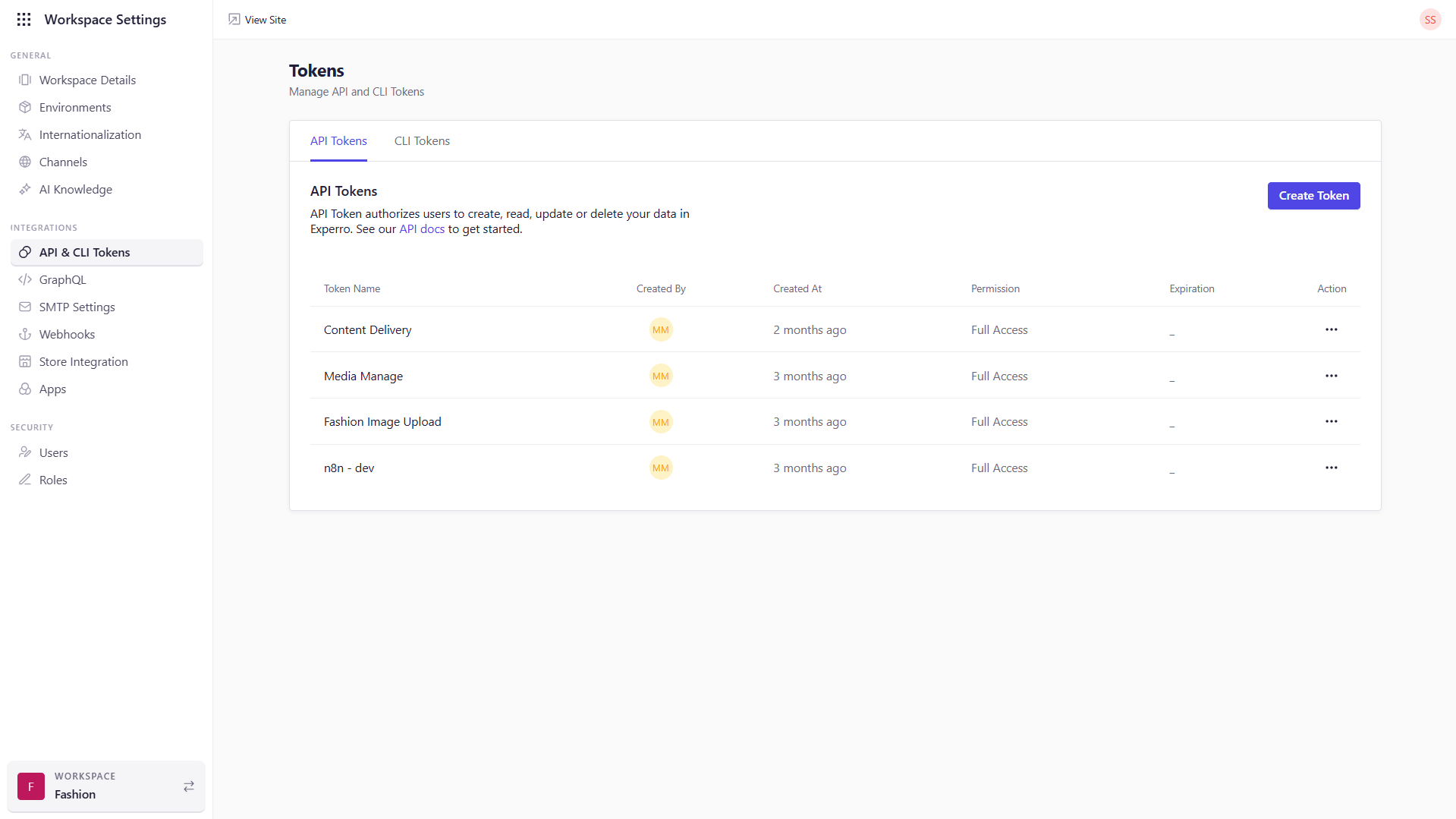
2. Go to **Workspace Settings → API & CLI Tokens**.
3. The **API Tokens** tab is selected by default.
 ## Viewing Existing Tokens
On the **API Tokens** screen, you’ll see a table of your organization’s tokens with these columns:
* **Token Name** : The unique label you assigned at creation.
* **Created By** : The user who generated the token.
* **Created At** : Timestamp of token creation.
* **Permissions**
* **Read-Only**: Only `GET` requests.
* **Full Access**: `GET`, `POST`, `PUT`, and `DELETE`.
* **Expiration** : The date (and optional time) when the token expires. (If blank, the token never expires.)
## Creating a New Token
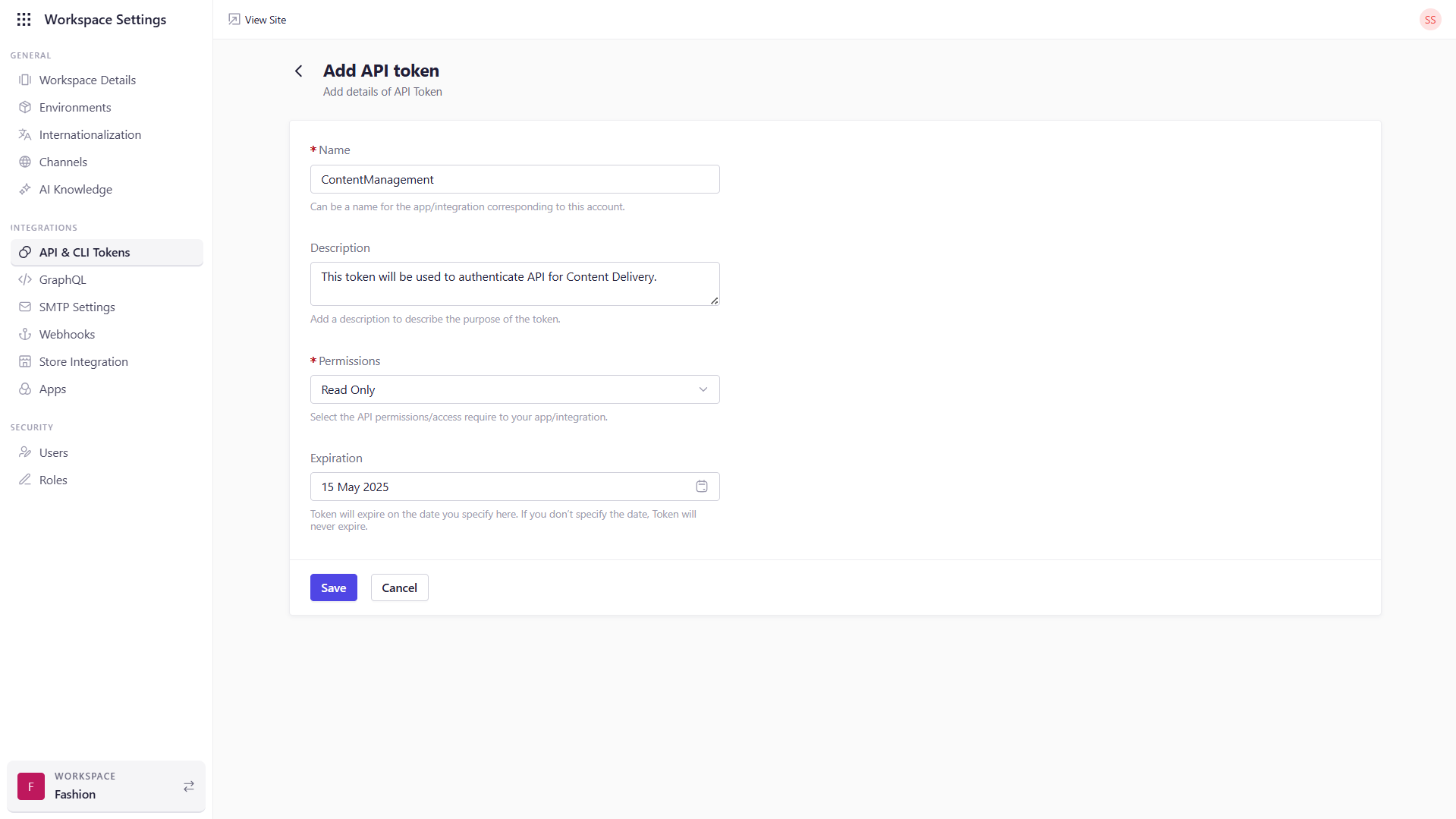
1. Click **Create Token**.
2. In the dialog, fill in:
* **Name (required):** A descriptive name for your app or integration.
* **Description (optional):** Brief note on what this token is used for.
* **Permissions (required):** Select *Read-Only* or *Full Access*.
* **Expiration (optional):** Choose a date, or leave blank for no expiry.
3. Click **Save**.
4. When prompted, **copy** or **download** the token—this is your **only** chance to record it.
5. Click **Done**.
## Viewing Existing Tokens
On the **API Tokens** screen, you’ll see a table of your organization’s tokens with these columns:
* **Token Name** : The unique label you assigned at creation.
* **Created By** : The user who generated the token.
* **Created At** : Timestamp of token creation.
* **Permissions**
* **Read-Only**: Only `GET` requests.
* **Full Access**: `GET`, `POST`, `PUT`, and `DELETE`.
* **Expiration** : The date (and optional time) when the token expires. (If blank, the token never expires.)
## Creating a New Token
1. Click **Create Token**.
2. In the dialog, fill in:
* **Name (required):** A descriptive name for your app or integration.
* **Description (optional):** Brief note on what this token is used for.
* **Permissions (required):** Select *Read-Only* or *Full Access*.
* **Expiration (optional):** Choose a date, or leave blank for no expiry.
3. Click **Save**.
4. When prompted, **copy** or **download** the token—this is your **only** chance to record it.
5. Click **Done**.
 The token value is shown **only once**, immediately after creation. Make sure to copy or download it right away!
## Using Your Token in Requests
Include your token in the `Authorization` header for every API call, using the Bearer scheme:
```
--header 'accesstoken: {YOUR_ACCESS_TOKEN}'
```
> Replace `{YOUR_ACCESS_TOKEN}` with the token string you copied.
## Fetching Required Headers & Parameters
After creating and downloading your API token, you can retrieve several important headers needed for authenticating your API requests:
### Fetching `x-tenant-id` and `x-workspace-id`
Once you click **Download** after creating a token, the following fields are included in the file:
* **Tenant ID** → Use this for the `x-tenant-id` header.
* **Workspace ID** → Use this for the `x-workspace-id` header.
These values are static and tied to your workspace and tenant. Use them in each request where required.
### Fetching `x-environment-id`
To retrieve the `x-environment-id`:
1. Log in to the Experro Admin Panel.
2. Navigate to **Workspace Settings → Channels**.
3. In the list of configured channels, locate the **ID** column.
4. Copy the desired Environment ID from that column.
Use this ID as the value for the `x-environment-id` header.
### Fetching `x-customer-group-id`
This value corresponds to your customer group ID in BigCommerce.
### Using `x-ecomm-provider`
This header identifies the eCommerce platform you're using. It can be one of the following values:
* `shopify`
* `bigcommerce`
* `magento`
The value is **not case-sensitive**.
## Troubleshooting
• Verify no extra spaces were copied.\
• Check if the token has expired.
• Ensure you selected *Full Access* for write operations.
• Tokens cannot be retrieved once created—delete and regenerate.
Need to know which base URL to hit? See [Base URLs & Environments](/api-reference/baseurl).
The token value is shown **only once**, immediately after creation. Make sure to copy or download it right away!
## Using Your Token in Requests
Include your token in the `Authorization` header for every API call, using the Bearer scheme:
```
--header 'accesstoken: {YOUR_ACCESS_TOKEN}'
```
> Replace `{YOUR_ACCESS_TOKEN}` with the token string you copied.
## Fetching Required Headers & Parameters
After creating and downloading your API token, you can retrieve several important headers needed for authenticating your API requests:
### Fetching `x-tenant-id` and `x-workspace-id`
Once you click **Download** after creating a token, the following fields are included in the file:
* **Tenant ID** → Use this for the `x-tenant-id` header.
* **Workspace ID** → Use this for the `x-workspace-id` header.
These values are static and tied to your workspace and tenant. Use them in each request where required.
### Fetching `x-environment-id`
To retrieve the `x-environment-id`:
1. Log in to the Experro Admin Panel.
2. Navigate to **Workspace Settings → Channels**.
3. In the list of configured channels, locate the **ID** column.
4. Copy the desired Environment ID from that column.
Use this ID as the value for the `x-environment-id` header.
### Fetching `x-customer-group-id`
This value corresponds to your customer group ID in BigCommerce.
### Using `x-ecomm-provider`
This header identifies the eCommerce platform you're using. It can be one of the following values:
* `shopify`
* `bigcommerce`
* `magento`
The value is **not case-sensitive**.
## Troubleshooting
• Verify no extra spaces were copied.\
• Check if the token has expired.
• Ensure you selected *Full Access* for write operations.
• Tokens cannot be retrieved once created—delete and regenerate.
Need to know which base URL to hit? See [Base URLs & Environments](/api-reference/baseurl).