> ## Documentation Index
> Fetch the complete documentation index at: https://help.experro.com/llms.txt
> Use this file to discover all available pages before exploring further.
# Billing
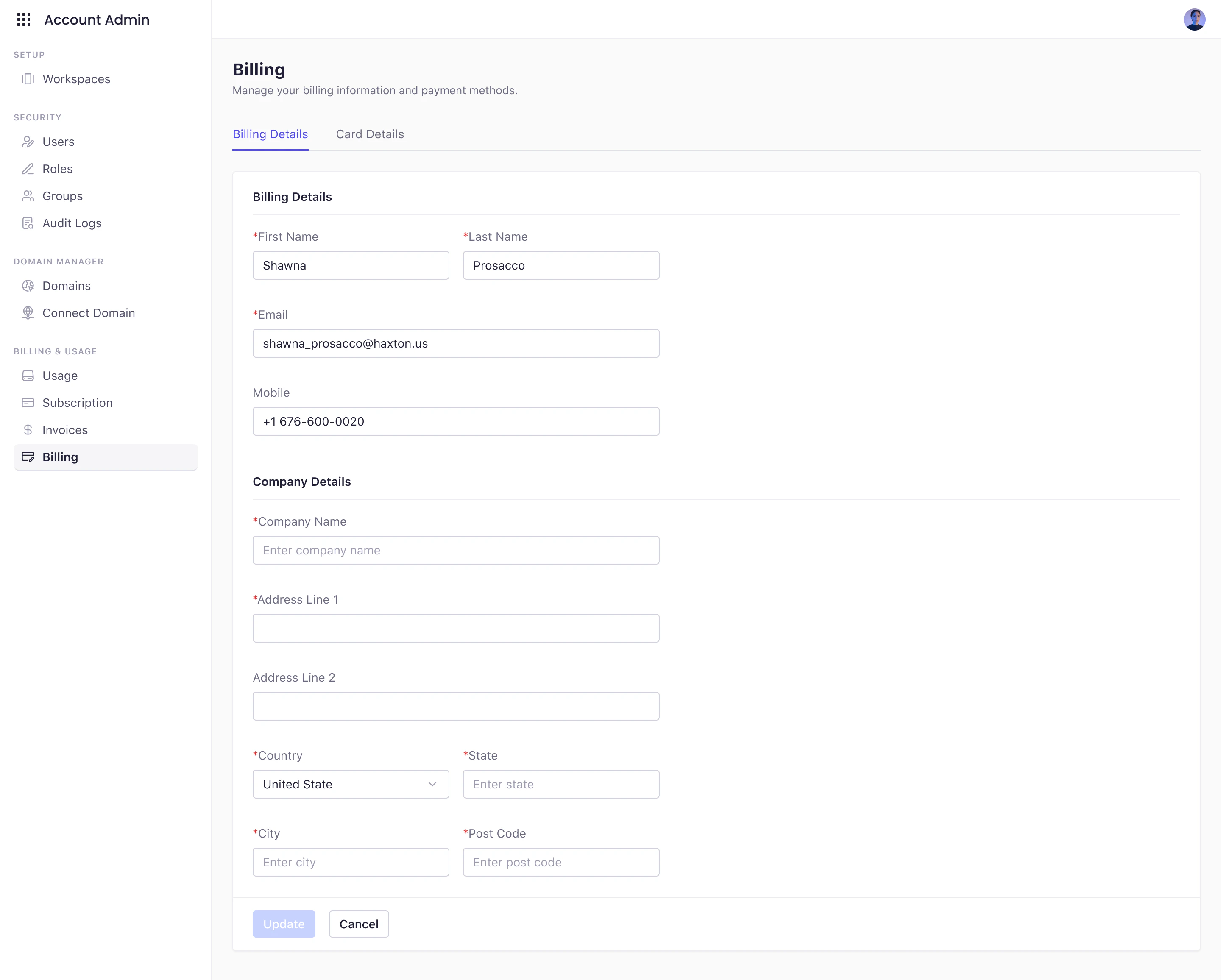
The **Billing** page under **Account Admin** is where you configure the payment and invoicing information used across all your Experro subscriptions. It consists of two tabs—**Billing Details** and **Card Details**—to collect your organization’s billing address and payment method.
 ## What You Can Do on This Page
* **Enter or Update Billing Information**
Provide the contact and address details that will appear on your invoices.
* **Manage Payment Method**
Securely add or update your credit/debit card for automated payments.
## Billing Details Tab
Enter the company and contact information that appears on each invoice:
| Field | Description |
| ---------------- | ---------------------------------------------------------------- |
| **First Name** | Billing contact’s first name. |
| **Last Name** | Billing contact’s last name. |
| **Email** | Email address to receive invoice PDFs and payment notifications. |
| **Mobile** | Phone number for billing inquiries or payment confirmations. |
| **Company Name** | Legal or trading name to display on invoices. |
| **Address** | Street address, PO Box, or suite information. |
| **Country** | Select the billing country. |
| **State** | State, province, or region. |
| **City** | City or locality. |
| **Post Code** | Postal or ZIP code. |
Click **Save** to persist any changes.These details will be used for all future invoices.
## Card Details Tab
Securely add or update your payment card details for automated billing.
All card information is encrypted in transit. Experro does **NOT** store raw card data on its servers.
After entering your card details, click **Save**. Your card will then be charged automatically according to your subscription’s billing cycle.
## What You Can Do on This Page
* **Enter or Update Billing Information**
Provide the contact and address details that will appear on your invoices.
* **Manage Payment Method**
Securely add or update your credit/debit card for automated payments.
## Billing Details Tab
Enter the company and contact information that appears on each invoice:
| Field | Description |
| ---------------- | ---------------------------------------------------------------- |
| **First Name** | Billing contact’s first name. |
| **Last Name** | Billing contact’s last name. |
| **Email** | Email address to receive invoice PDFs and payment notifications. |
| **Mobile** | Phone number for billing inquiries or payment confirmations. |
| **Company Name** | Legal or trading name to display on invoices. |
| **Address** | Street address, PO Box, or suite information. |
| **Country** | Select the billing country. |
| **State** | State, province, or region. |
| **City** | City or locality. |
| **Post Code** | Postal or ZIP code. |
Click **Save** to persist any changes.These details will be used for all future invoices.
## Card Details Tab
Securely add or update your payment card details for automated billing.
All card information is encrypted in transit. Experro does **NOT** store raw card data on its servers.
After entering your card details, click **Save**. Your card will then be charged automatically according to your subscription’s billing cycle.