> ## Documentation Index
> Fetch the complete documentation index at: https://help.experro.com/llms.txt
> Use this file to discover all available pages before exploring further.
# SMTP Settings
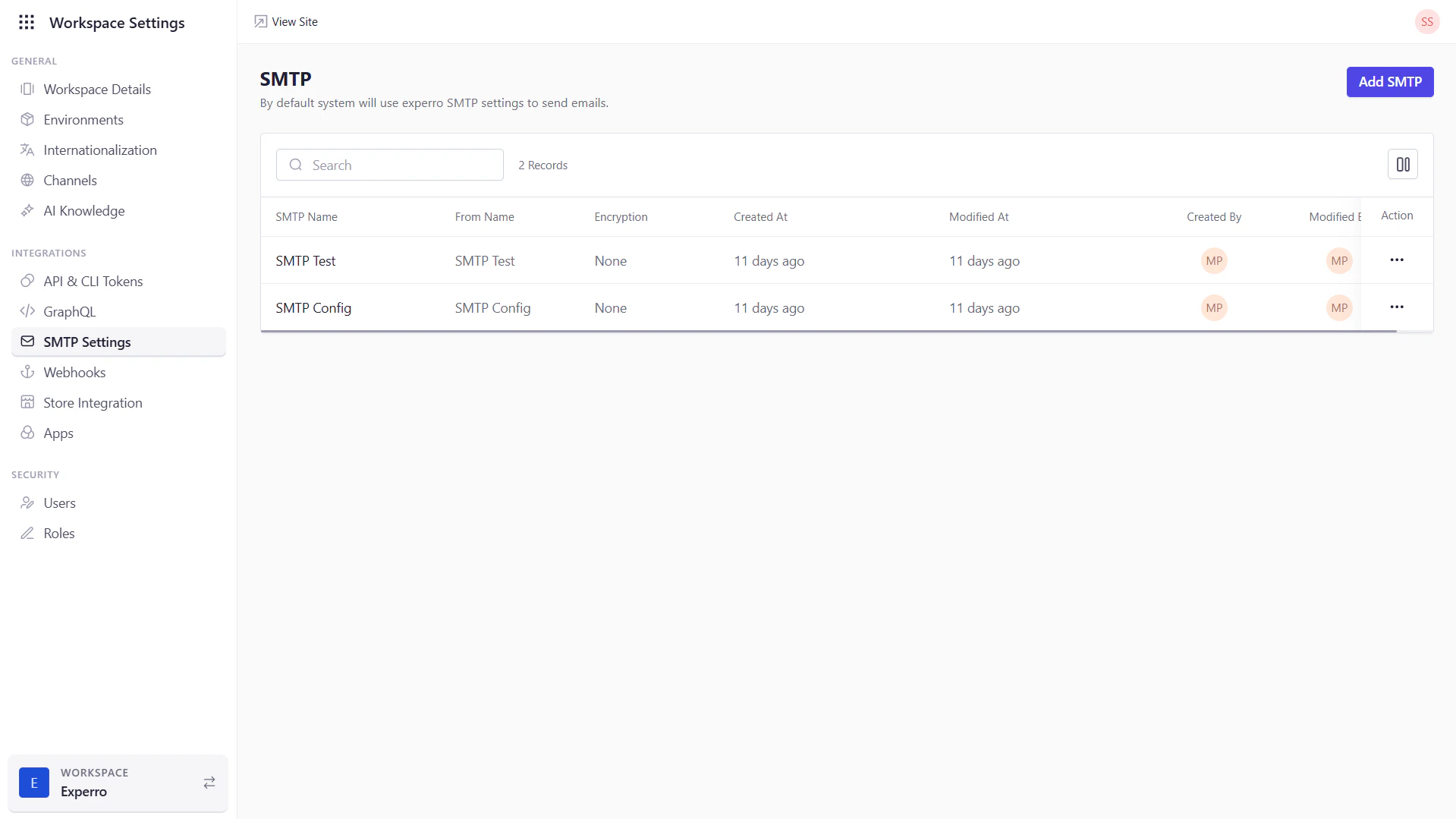
The **SMTP Settings** page lets you configure the mail server(s) Experro will use to send transactional and notification emails for your storefront. You can review existing SMTP setups, add new ones, and manage the exsiting SMTP servers.
 ## What You Can Do on This Page
1. **Review Existing Configurations**
– See all SMTP entries you’ve created, including metadata like creation and modification details.
2. **Add New SMTP Servers**
– Click **Add SMTP** to supply the host, credentials, and security settings for a new mail server.
3. **Edit or Delete**
– Use the **Action** column to modify an existing configuration or remove one that’s no longer needed.
4. **Support Multiple Servers**
– Maintain several SMTP profiles (e.g., one for marketing emails, another for system alerts) and choose among them as needed.
You can create multiple SMTP configurations and route different types of emails through distinct servers to optimize deliverability and separation of concerns.
#### Adding a New SMTP Configuration
1. Click **Add SMTP**.
2. Fill in **SMTP Name**, **From Name**, and **From Email**.
3. Enter **SMTP Host** and **SMTP Port**.
4. Select **Encryption** (None, SSL, or TLS).
5. Toggle **Authentication** **On** if required, then supply **SMTP Username** and **SMTP Password**.
6. Click **Save** to persist the new configuration.
Your new SMTP profile will appear in the list, ready to be selected for sending emails from Experro.
## What You Can Do on This Page
1. **Review Existing Configurations**
– See all SMTP entries you’ve created, including metadata like creation and modification details.
2. **Add New SMTP Servers**
– Click **Add SMTP** to supply the host, credentials, and security settings for a new mail server.
3. **Edit or Delete**
– Use the **Action** column to modify an existing configuration or remove one that’s no longer needed.
4. **Support Multiple Servers**
– Maintain several SMTP profiles (e.g., one for marketing emails, another for system alerts) and choose among them as needed.
You can create multiple SMTP configurations and route different types of emails through distinct servers to optimize deliverability and separation of concerns.
#### Adding a New SMTP Configuration
1. Click **Add SMTP**.
2. Fill in **SMTP Name**, **From Name**, and **From Email**.
3. Enter **SMTP Host** and **SMTP Port**.
4. Select **Encryption** (None, SSL, or TLS).
5. Toggle **Authentication** **On** if required, then supply **SMTP Username** and **SMTP Password**.
6. Click **Save** to persist the new configuration.
Your new SMTP profile will appear in the list, ready to be selected for sending emails from Experro.