> ## Documentation Index
> Fetch the complete documentation index at: https://help.experro.com/llms.txt
> Use this file to discover all available pages before exploring further.
# Preview, Publish, and Schedule an Entry
## Previewing Your Content
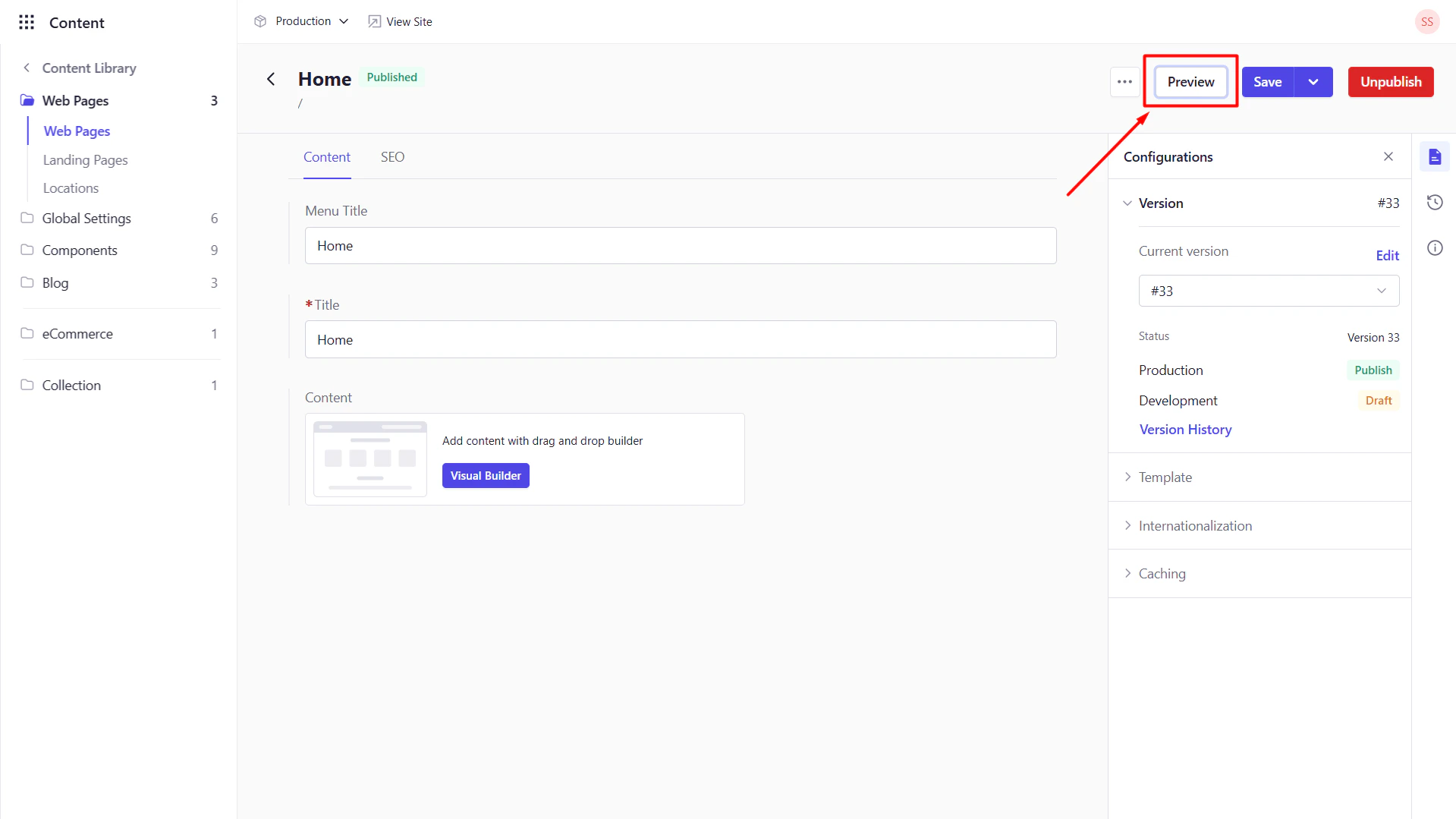
If the Model is enabled as a webpage, click **Preview** (top‑right) to open a live preview in a new tab. Use this to verify layouts, images, and text before publishing to production.
 ## Saving, Publishing & Scheduling
### Save Draft
Click **Save** to create a new draft version, invisible to public APIs and sites.
### Publish Now
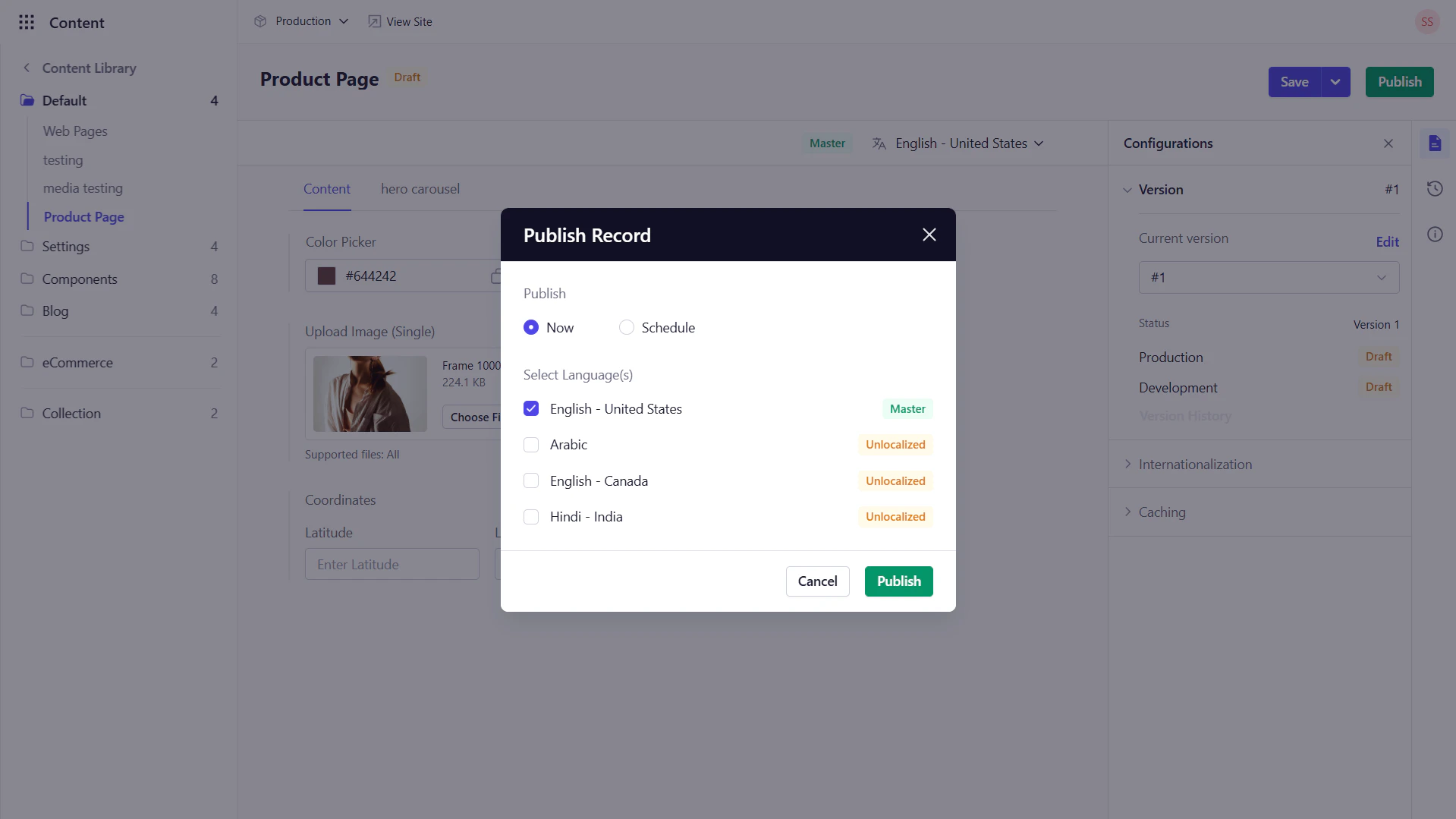
Click **Publish**, choose **Now**, select the **Language** where you want to publish the content, and click on **Publish**.
## Saving, Publishing & Scheduling
### Save Draft
Click **Save** to create a new draft version, invisible to public APIs and sites.
### Publish Now
Click **Publish**, choose **Now**, select the **Language** where you want to publish the content, and click on **Publish**.
 ### Schedule Publication
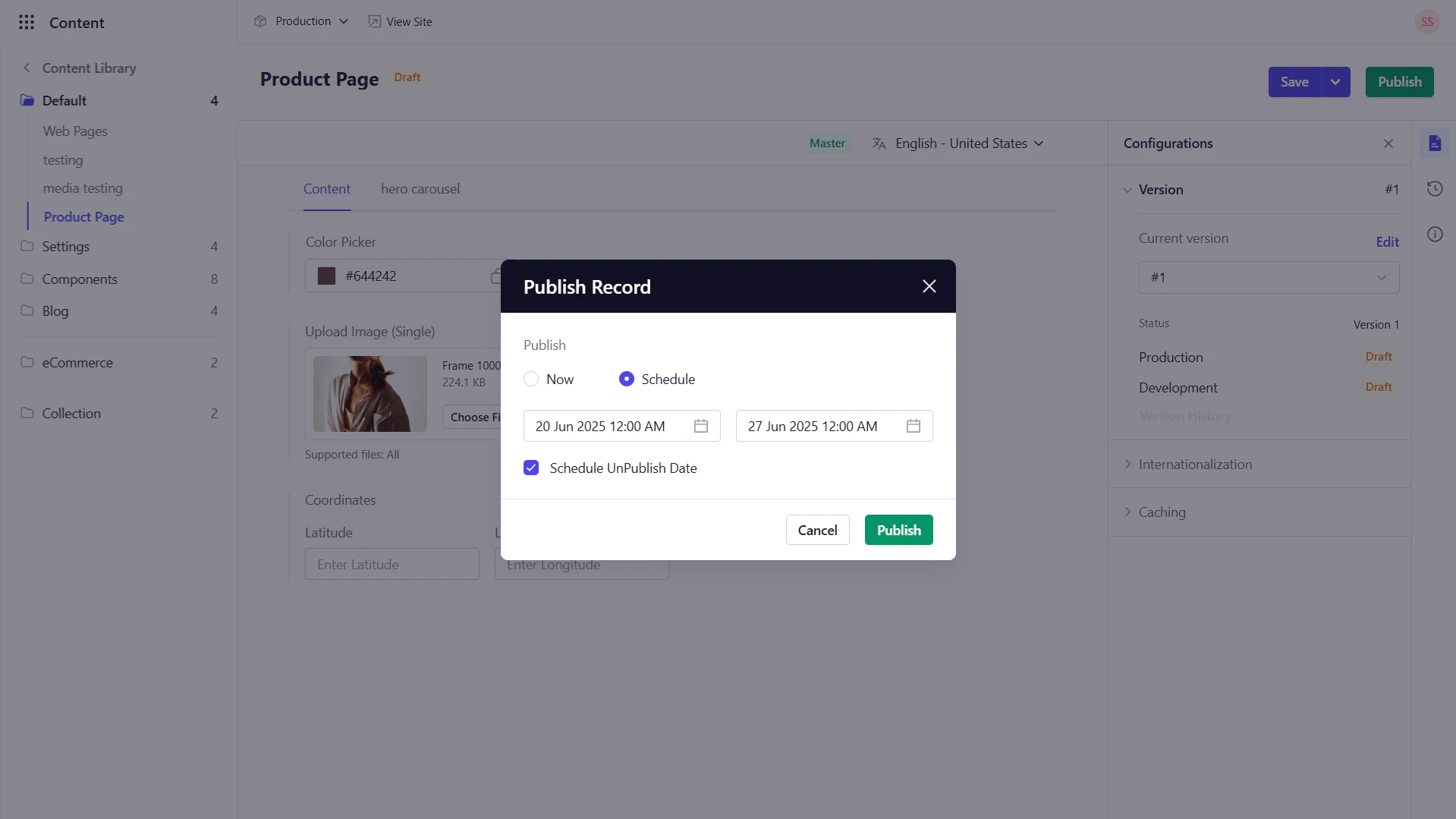
In the **Publish Record** pop-up, choose **Schedule**, pick a start date/time, then confirm.
In case you want to schedule a Unpublish date for the content, you can do so by clicking on the **Unpublish** check-box and following the same steps.
### Schedule Publication
In the **Publish Record** pop-up, choose **Schedule**, pick a start date/time, then confirm.
In case you want to schedule a Unpublish date for the content, you can do so by clicking on the **Unpublish** check-box and following the same steps.
 - The version you select at publish time is what goes live even if you create new drafts afterward.
- The content goes live in the environment in which you are currently working.