> ## Documentation Index
> Fetch the complete documentation index at: https://help.experro.com/llms.txt
> Use this file to discover all available pages before exploring further.
# Versioning
Experro automatically snapshots each entry whenever you **Publish**, and also when you **Save**—but only *after* the entry has been published at least once.
This means that before an entry is published for the first time, saving it does not create a new version. However, once an entry has been published, every subsequent **Save** or **Publish** action creates a new version, allowing you to maintain a full version history.
## How Versioning Works
* **Sequential Numbering**
Versions increment automatically: #1 → #2 → #3, and so on.
* **Custom Labels**
Add meaningful names (e.g., “v3 – Updated CTA Text”) to identify key milestones at a glance.
Versioning safeguards your content i.e., if a change introduces an error or you need to revert to an earlier draft, you can restore any prior version instantly.
## Viewing & Comparing Version History
1. In **Content Library**, open the menu next to your Model’s listing and select **Version History**.
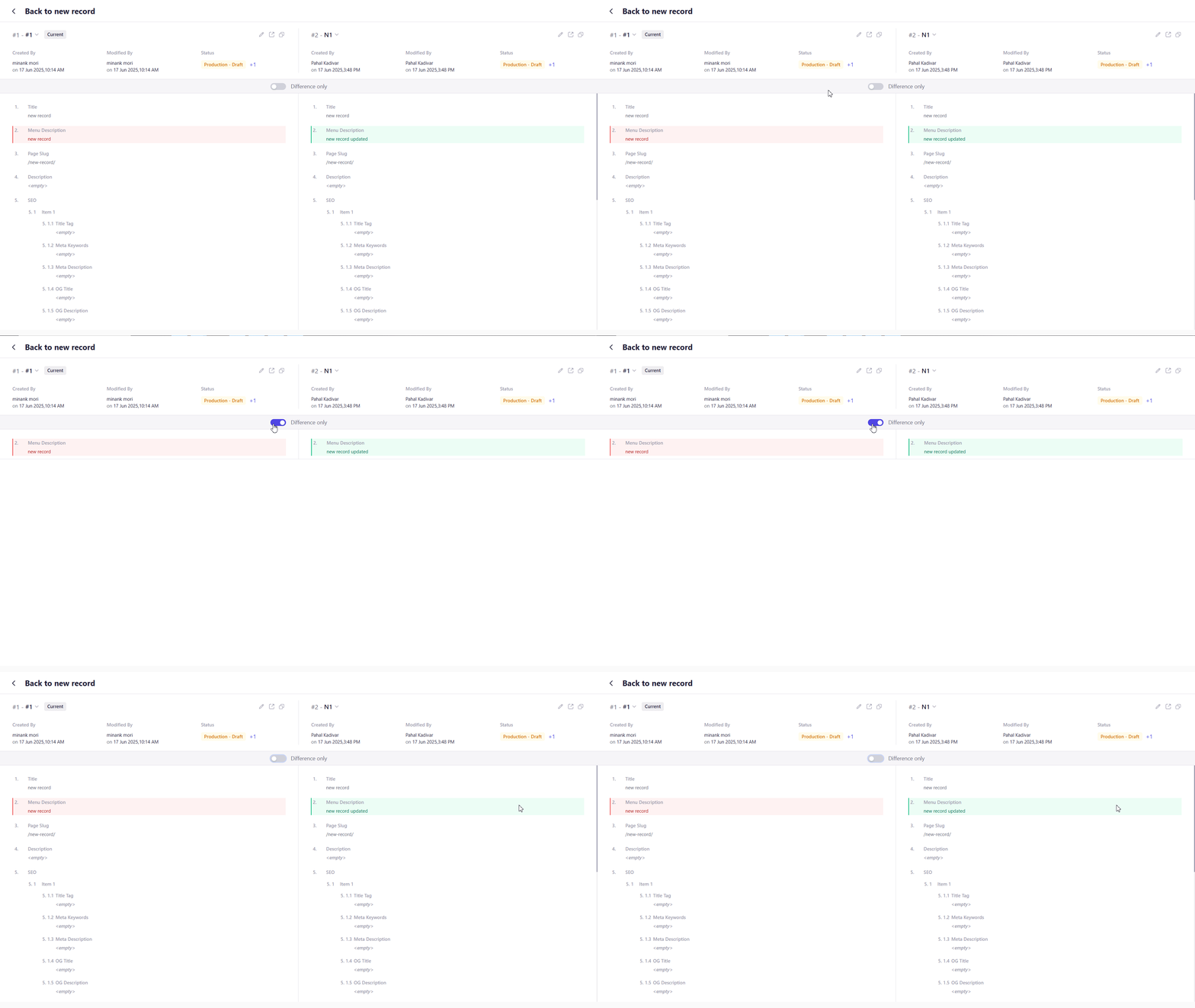
2. In the history view, select two versions to compare side by side.
3. Differences are highlighted:
* **Red** for content removed or changed in the newer version.
* **Green** for content added or restored from the older version.
4. Use the **“Show Differences Only”** toggle to focus exclusively on changed fields.
 ## Renaming a Version
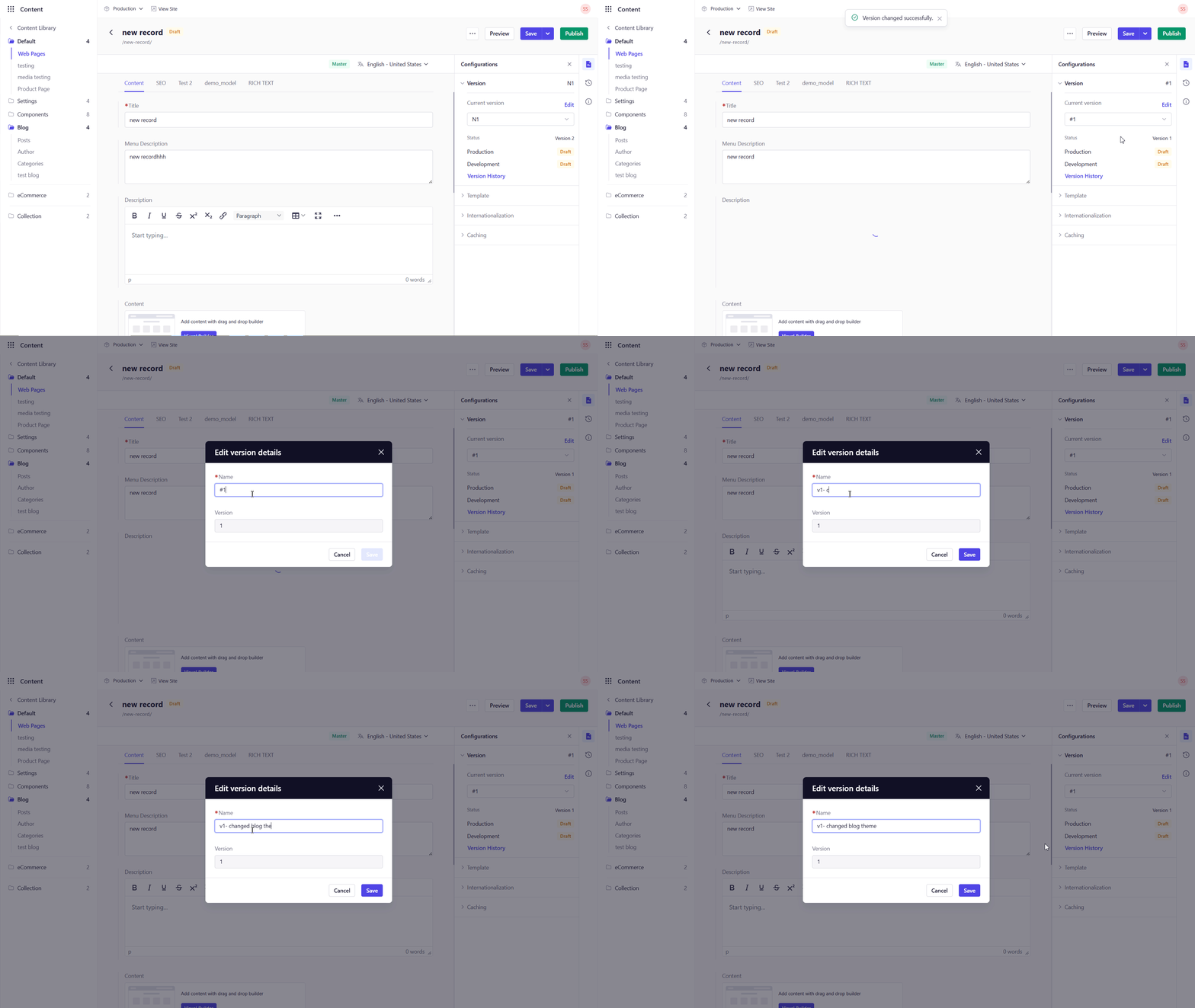
1. Open the entry in **Content Library**.
2. Click the **Versions** widget on the right-side of the screen.
3. Select the version that you want to rename.
4. Click **Edit**.
5. Change the **Name** and click **Save**.
Include context in your version names (e.g., “Add FAQs Section”) so teammates understand the change right away
## Renaming a Version
1. Open the entry in **Content Library**.
2. Click the **Versions** widget on the right-side of the screen.
3. Select the version that you want to rename.
4. Click **Edit**.
5. Change the **Name** and click **Save**.
Include context in your version names (e.g., “Add FAQs Section”) so teammates understand the change right away
 ## Deleting Versions
* To remove an individual version (without deleting the entire entry):
1. Hover over the version you want to delete from the Versions widget and select the delete option against the version.
* There is no limit to the number of versions you can maintain, but pruning unnecessary drafts can keep your history concise.
## Deleting Versions
* To remove an individual version (without deleting the entire entry):
1. Hover over the version you want to delete from the Versions widget and select the delete option against the version.
* There is no limit to the number of versions you can maintain, but pruning unnecessary drafts can keep your history concise.