> ## Documentation Index
> Fetch the complete documentation index at: https://help.experro.com/llms.txt
> Use this file to discover all available pages before exploring further.
# Choice & Relation Fields
Choice & Relations fields enable structured selections, boolean flags, and inter‑model links within your content schemas. This section covers:
* **Boolean**
* **Select**
* **Multi‑Select**
* **Relation**
* **Link Records**
## 1. Boolean
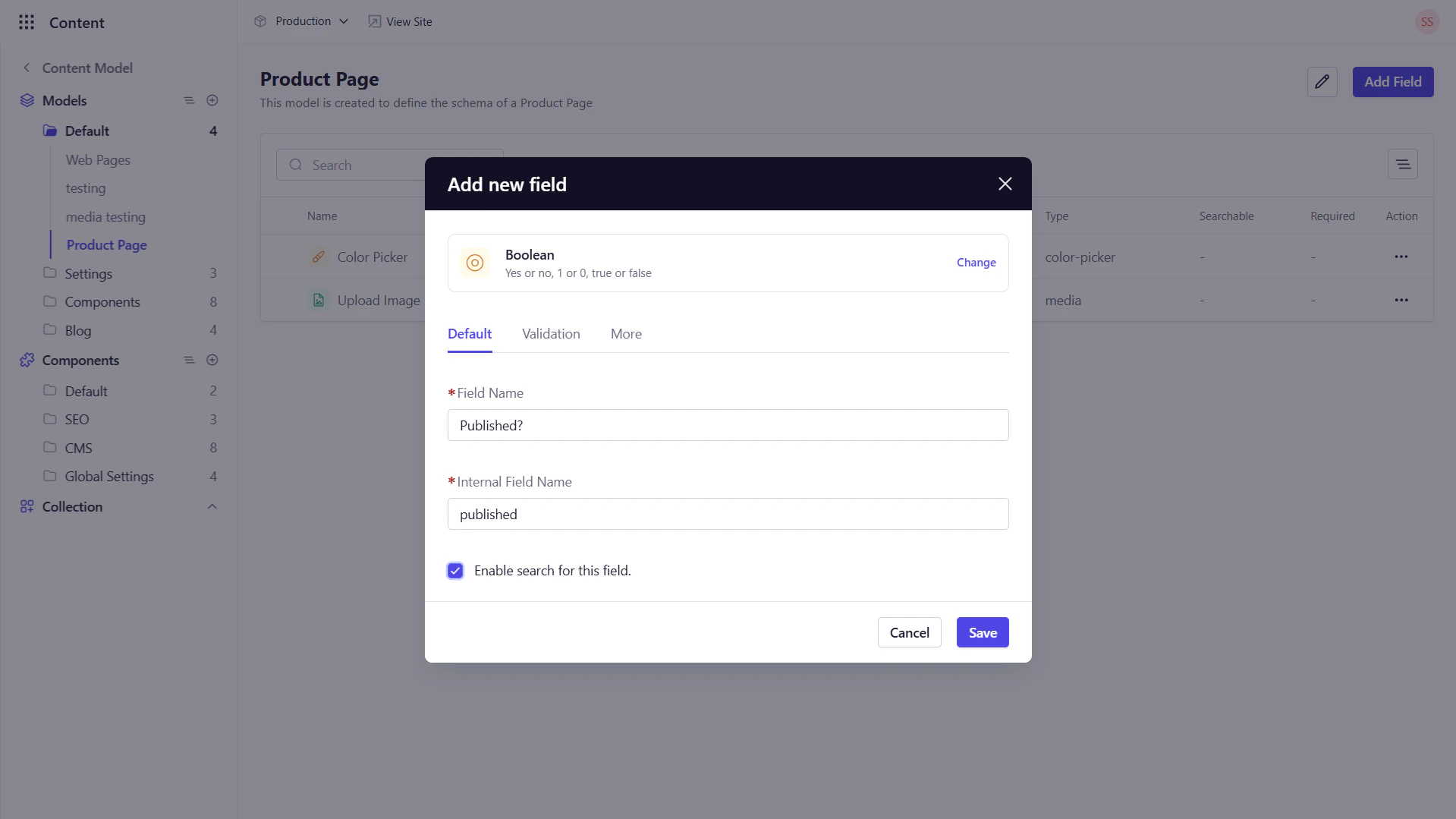
A **Boolean** field captures a true/false value via a simple checkbox ideal for flags like “Featured?”, “Published?”, or “Accept Terms.”
### Key Configuration Options
* **Default Tab**
* *Field Name* : Enter the display name for the field.
* *Internal Field Name* : This field is auto-populated based on the Field Name.
* *Enable Search for this field* : Enable this option to allow search on the data stored in this field, i.e., if you tick this option, then the field data will appear in the search.
* **Validation Tab**
* *Default Value* : Select the default value for the field.
* *Required* : Ensure the checkbox is explicitly set.
* *Read Only* : Prevent editors from modifying the field value.
3. **More**
* *Help Text* : Provide guidance on what the checkbox signifies.
 ## 2. Select
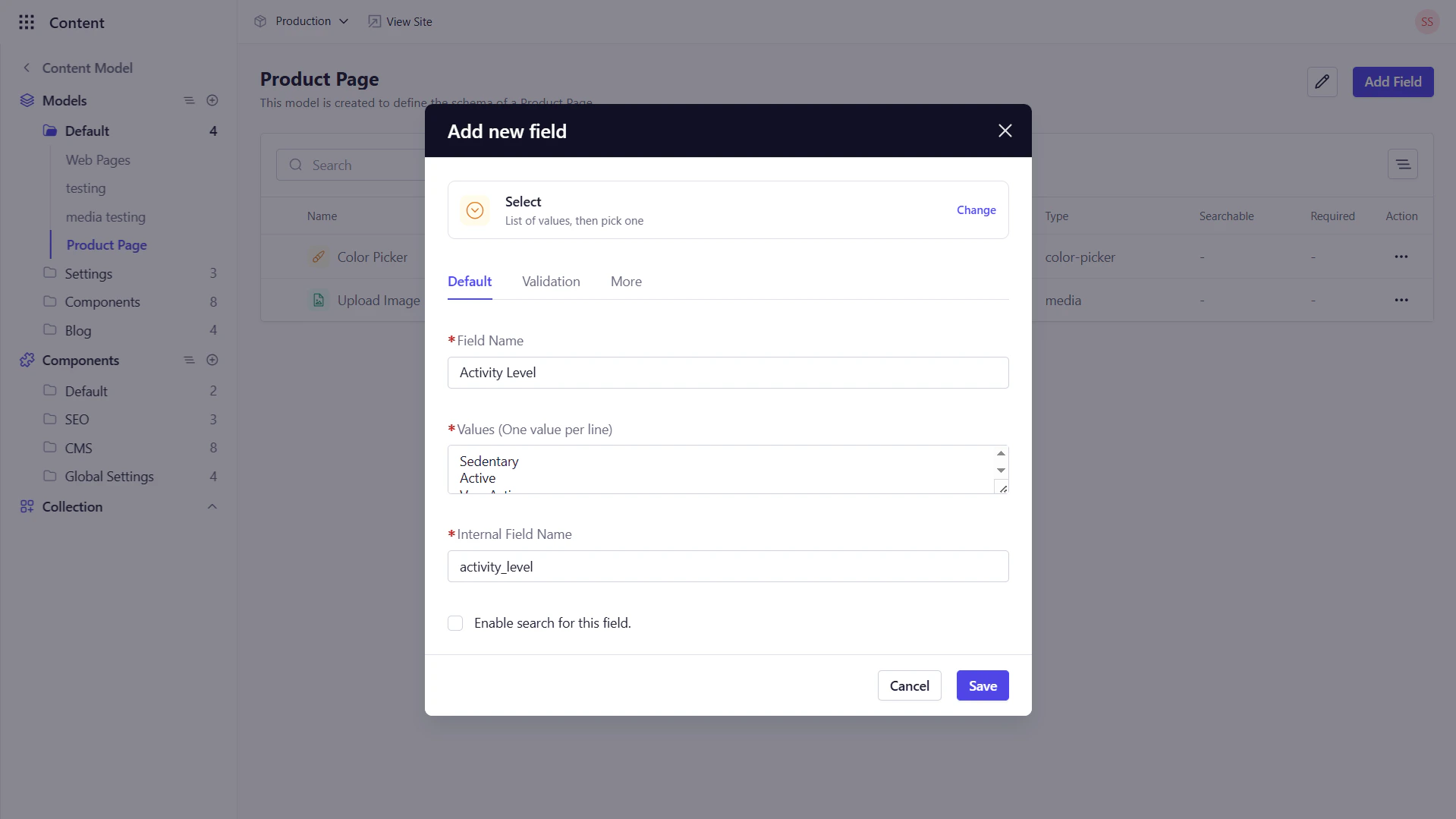
A **Select** field presents a single‑choice dropdown, letting editors choose one option from a predefined list (e.g., product sizes, regions, status codes).
### Key Configuration Options
1. **Default Tab**
* *Field Name* : Enter the display name for the field.
* *Internal Field Name* : This field is auto-populated based on the Field Name.
* *Enable Search for this field* : Enable this option to allow search on the data stored in this field, i.e., if you tick this option, then the field data will appear in the search.
* *Values* : Enter the list of options (one per line).
2. **Validation Tab**
* *Default Value*: Pre-select an option from the values entered in the Default Tab
* *Required Field*: Ensure the field is explicitly selected.
* *Read Only* : Prevent editors from modifying the field value.
3. **More Tab**
* *Help Text*: Describe each option’s purpose.
* *Placeholder*: Show placeholder text when no option is chosen.
## 2. Select
A **Select** field presents a single‑choice dropdown, letting editors choose one option from a predefined list (e.g., product sizes, regions, status codes).
### Key Configuration Options
1. **Default Tab**
* *Field Name* : Enter the display name for the field.
* *Internal Field Name* : This field is auto-populated based on the Field Name.
* *Enable Search for this field* : Enable this option to allow search on the data stored in this field, i.e., if you tick this option, then the field data will appear in the search.
* *Values* : Enter the list of options (one per line).
2. **Validation Tab**
* *Default Value*: Pre-select an option from the values entered in the Default Tab
* *Required Field*: Ensure the field is explicitly selected.
* *Read Only* : Prevent editors from modifying the field value.
3. **More Tab**
* *Help Text*: Describe each option’s purpose.
* *Placeholder*: Show placeholder text when no option is chosen.
 ## 3. Multi‑Select
The **Multi‑Select** field offers a dropdown allowing one or more selections from a fixed list (e.g., tags, categories, available features).
### Key Configuration Options
1. **Default Tab**
* *Field Name* : Enter the display name for the field.
* *Internal Field Name* : This field is auto-populated based on the Field Name.
* *Enable Search for this field* : Enable this option to allow search on the data stored in this field, i.e., if you tick this option, then the field data will appear in the search.
* *Values* : Enter the list of options (one per line).
2. **Validation Tab**
* *Default Value*: Pre-select an option from the values entered in the Default Tab
* *Required Field*: Ensure the field is explicitly selected.
* *Read Only* : Prevent editors from modifying the field value.
3. **More Tab**
* *Help Text*: Explain the selection criteria (e.g., “Choose up to 3 tags”).
* *Placeholder*: Show placeholder text when no option is chosen.
## 3. Multi‑Select
The **Multi‑Select** field offers a dropdown allowing one or more selections from a fixed list (e.g., tags, categories, available features).
### Key Configuration Options
1. **Default Tab**
* *Field Name* : Enter the display name for the field.
* *Internal Field Name* : This field is auto-populated based on the Field Name.
* *Enable Search for this field* : Enable this option to allow search on the data stored in this field, i.e., if you tick this option, then the field data will appear in the search.
* *Values* : Enter the list of options (one per line).
2. **Validation Tab**
* *Default Value*: Pre-select an option from the values entered in the Default Tab
* *Required Field*: Ensure the field is explicitly selected.
* *Read Only* : Prevent editors from modifying the field value.
3. **More Tab**
* *Help Text*: Explain the selection criteria (e.g., “Choose up to 3 tags”).
* *Placeholder*: Show placeholder text when no option is chosen.
 ## 4. Relation
A **Relation** field links entries from one **Collection Type** to another, defining how content models interconnect (e.g., Author → Blog Post, Product → Category).
### Adding a Relation
1. In your Model’s **Fields** tab, click **+ Add Field** → **Relation**.
2. Enter the following details:
* *Field Name* : Enter the display name for the field.
* *Internal Field Name* : This field is auto-populated based on the Field Name.
3. Choose the **Relation Type**:
* **One-to-One** (A ↔ B)
* **One-to-Many** (A → many B)
* **Many-to-One** (many A → B)
* **Many-to-Many** (many A ↔ many B)
4. Select the **Target Model** you’re relating to.
5. Click **Save**.
### Relation Types
* **One-to-One**: Single entry on each side (e.g., Product ↔ Model).
* **One-to-Many**: One entry relates to multiple entries on the other side (e.g., Customer → Orders).
* **Many-to-One**: Multiple entries relate back to a single entry (e.g., Products → Brand).
* **Many-to-Many**: Bi‑directional multiple relations (e.g., Orders ↔ Products).
## 5. Link Records
The **Link Records** field creates in‑entry references to any published entry (that has “Act as Webpage” enabled), useful for “Related Articles,” “Featured Products,” or custom cross‑links.
### Key Configuration Options
1. **Default Tab**
* *Field Name* : Enter the display name for the field.
* *Internal Field Name* : This field is auto-populated based on the Field Name.
* *Select Model* : Select one or more **Target Models** whose entries can be linked.
2. **Validation Tab**
* **Required**: Enforce at least one link.
* **Read Only**: Prevent editors from modifying the field value.
* **Multiple Records**: Allow linking multiple entries (vs. just one).
3. **More Tab**
* **Help Text**: Clarify what should be linked (e.g., “Add up to 5 related posts”).
**When to Choose Which**
## 4. Relation
A **Relation** field links entries from one **Collection Type** to another, defining how content models interconnect (e.g., Author → Blog Post, Product → Category).
### Adding a Relation
1. In your Model’s **Fields** tab, click **+ Add Field** → **Relation**.
2. Enter the following details:
* *Field Name* : Enter the display name for the field.
* *Internal Field Name* : This field is auto-populated based on the Field Name.
3. Choose the **Relation Type**:
* **One-to-One** (A ↔ B)
* **One-to-Many** (A → many B)
* **Many-to-One** (many A → B)
* **Many-to-Many** (many A ↔ many B)
4. Select the **Target Model** you’re relating to.
5. Click **Save**.
### Relation Types
* **One-to-One**: Single entry on each side (e.g., Product ↔ Model).
* **One-to-Many**: One entry relates to multiple entries on the other side (e.g., Customer → Orders).
* **Many-to-One**: Multiple entries relate back to a single entry (e.g., Products → Brand).
* **Many-to-Many**: Bi‑directional multiple relations (e.g., Orders ↔ Products).
## 5. Link Records
The **Link Records** field creates in‑entry references to any published entry (that has “Act as Webpage” enabled), useful for “Related Articles,” “Featured Products,” or custom cross‑links.
### Key Configuration Options
1. **Default Tab**
* *Field Name* : Enter the display name for the field.
* *Internal Field Name* : This field is auto-populated based on the Field Name.
* *Select Model* : Select one or more **Target Models** whose entries can be linked.
2. **Validation Tab**
* **Required**: Enforce at least one link.
* **Read Only**: Prevent editors from modifying the field value.
* **Multiple Records**: Allow linking multiple entries (vs. just one).
3. **More Tab**
* **Help Text**: Clarify what should be linked (e.g., “Add up to 5 related posts”).
**When to Choose Which**
Use **Relation** when your business logic requires joining data—think “Which Author wrote this Post?” or “Which Orders belong to this Customer?”
Use **Link Records** when you want editors to hand‑pick pages for menus, sidebars, “You May Also Like” sections, or any case where page interlinking matters more than data modeling.
## What’s Next
Head over to **Number & Date Fields** to configure numeric inputs, date pickers, and geolocation data.