> ## Documentation Index
> Fetch the complete documentation index at: https://help.experro.com/llms.txt
> Use this file to discover all available pages before exploring further.
# Number & Date Fields
Number & Date fields capture numeric, temporal, and geospatial data within your content models. This section covers:
1. **Number**
2. **Date & Time**
3. **Location**
## 1. Number
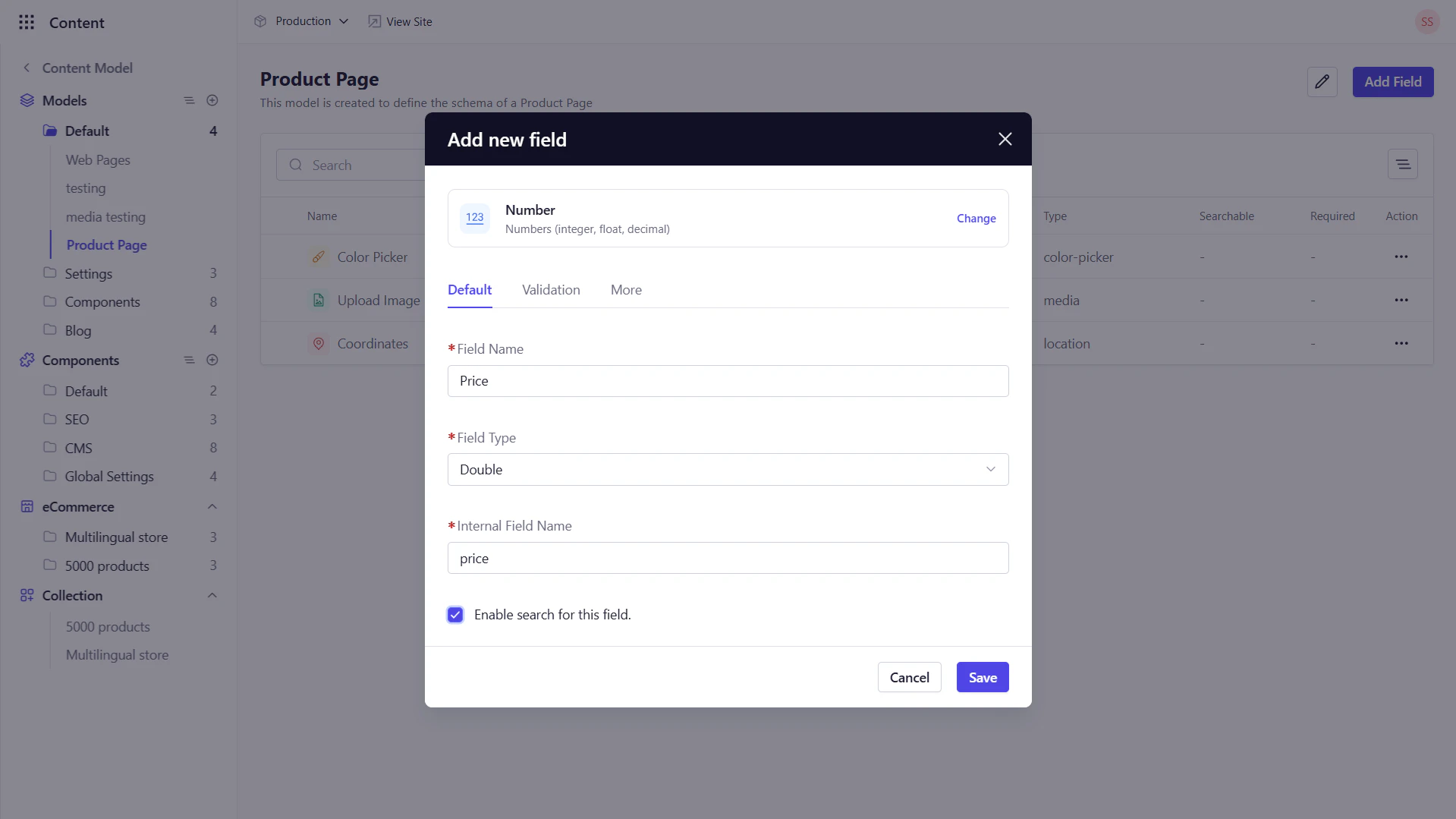
Use the **Number** field to capture any numeric input—integers or decimals—such as prices, quantities, zip codes, or rankings.
### Key Configuration Options
* **Default Tab**
* *Field Name* : Enter the display name for the field.
* *Internal Field Name* : This field is auto-populated based on the Field Name.
* *Field Type* : Choose between **Integer**, **Float**, **Double**, or **Long** to match your precision needs.
* **Validation Tab**
* *Required Field* : Enforce that editors must enter a value.
* *Read Only* : Prevent editors from modifying the field value.
* *Min/Max Length* : Define the minimum and maximum value that can be entered in the field.
* **More Tab**
* *Default Value* : Pre‑populate the field (e.g., `0`).
* *Help Text* : Guide editors on expected input (e.g., “Enter product weight in kg”).
* *Placeholder* : Show example numbers (e.g., `42`).
 ## 2. Date & Time
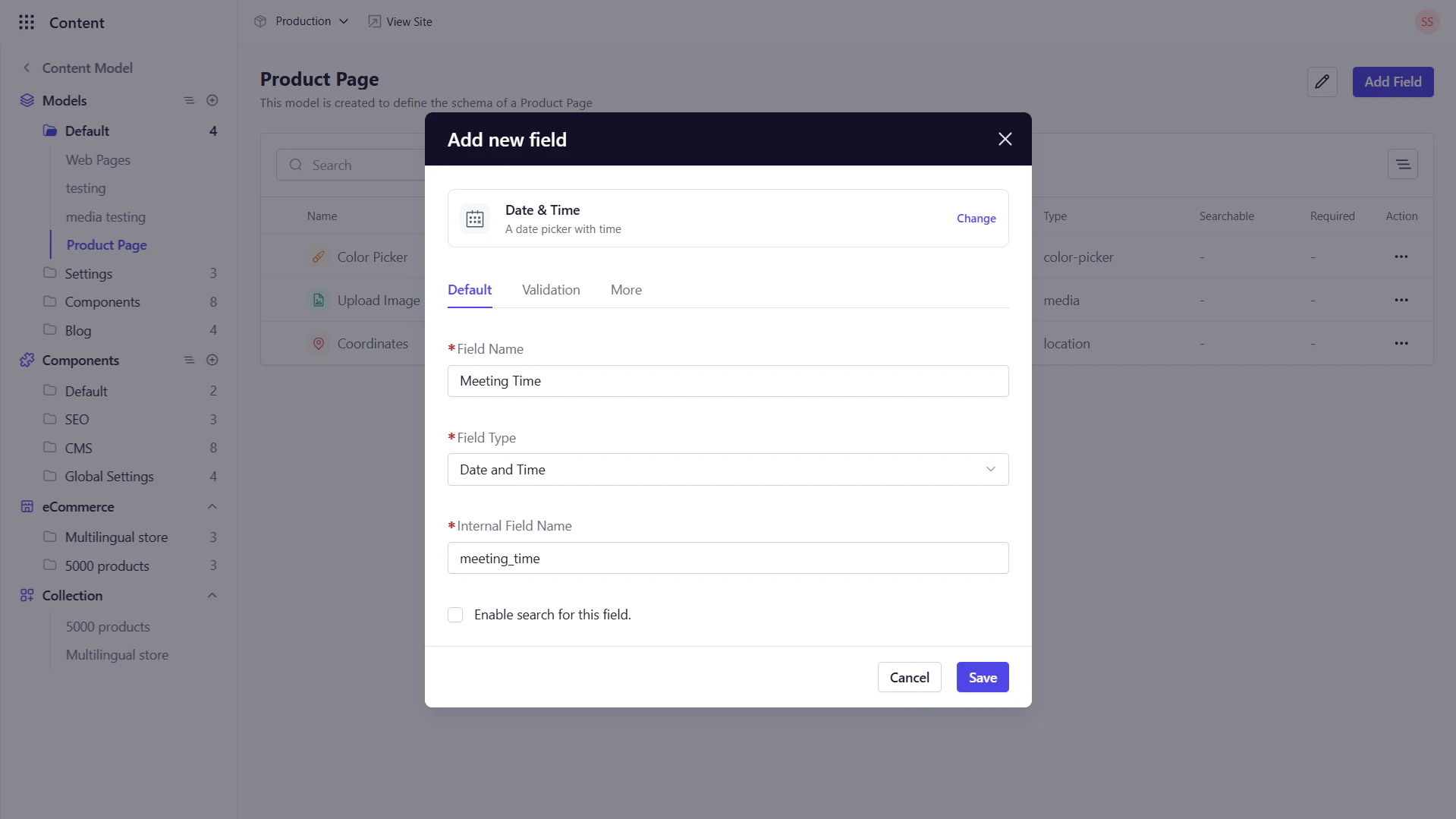
The **Date & Time** field provides a calendar/time picker to capture dates, times, or both making them ideal for publish dates, event schedules, or timestamps.
### Key Configuration Options
* **Default Tab**
* *Field Name* : Enter the display name for the field.
* *Internal Field Name* : This field is auto-populated based on the Field Name.
* *Field Type* : Select **Date**, **Time**, or **Date Time** mode.
2. **Validations**
* **Required**: Ensure a timestamp is set.
* **Read Only**: Prevent manual edits by selecting this option.
3. **More**
* *Help Text*: Provide context (e.g., “Select the event start date and time”).
Use **Date Time** for precise scheduling; choose separate **Date** or **Time** modes when only one dimension matters.
## 2. Date & Time
The **Date & Time** field provides a calendar/time picker to capture dates, times, or both making them ideal for publish dates, event schedules, or timestamps.
### Key Configuration Options
* **Default Tab**
* *Field Name* : Enter the display name for the field.
* *Internal Field Name* : This field is auto-populated based on the Field Name.
* *Field Type* : Select **Date**, **Time**, or **Date Time** mode.
2. **Validations**
* **Required**: Ensure a timestamp is set.
* **Read Only**: Prevent manual edits by selecting this option.
3. **More**
* *Help Text*: Provide context (e.g., “Select the event start date and time”).
Use **Date Time** for precise scheduling; choose separate **Date** or **Time** modes when only one dimension matters.
 ## 3. Location
The **Location** field captures geographic coordinates, latitude and longitude making them perfect for mapping, store locators, or geo‑targeted content.
### Key Configuration Options
* **Default Tab**
* *Field Name* : Enter the display name for the field.
* *Internal Field Name* : This field is auto-populated based on the Field Name.
* **Validation Tab**
* *Required*: Force selection of a location.
* *Read Only*: Prevent manual edits by selecting this option.
* **More Tab**
* *Help Text*: Clarify usage (e.g., “Enter the Coordinates of your store’s address”).
## What’s Next
After setting up numeric, date, and location inputs, continue to **Advanced & Layout Fields** to learn how to implement scripting, style overrides, drag‑and‑drop page builders, and flexible content components.
## 3. Location
The **Location** field captures geographic coordinates, latitude and longitude making them perfect for mapping, store locators, or geo‑targeted content.
### Key Configuration Options
* **Default Tab**
* *Field Name* : Enter the display name for the field.
* *Internal Field Name* : This field is auto-populated based on the Field Name.
* **Validation Tab**
* *Required*: Force selection of a location.
* *Read Only*: Prevent manual edits by selecting this option.
* **More Tab**
* *Help Text*: Clarify usage (e.g., “Enter the Coordinates of your store’s address”).
## What’s Next
After setting up numeric, date, and location inputs, continue to **Advanced & Layout Fields** to learn how to implement scripting, style overrides, drag‑and‑drop page builders, and flexible content components.