> ## Documentation Index
> Fetch the complete documentation index at: https://help.experro.com/llms.txt
> Use this file to discover all available pages before exploring further.
# Textual fields
Textual fields capture string-based data in your content models from simple one-line titles to richly formatted articles. Use these field types to collect and validate any text-centric content.
## 1. Text
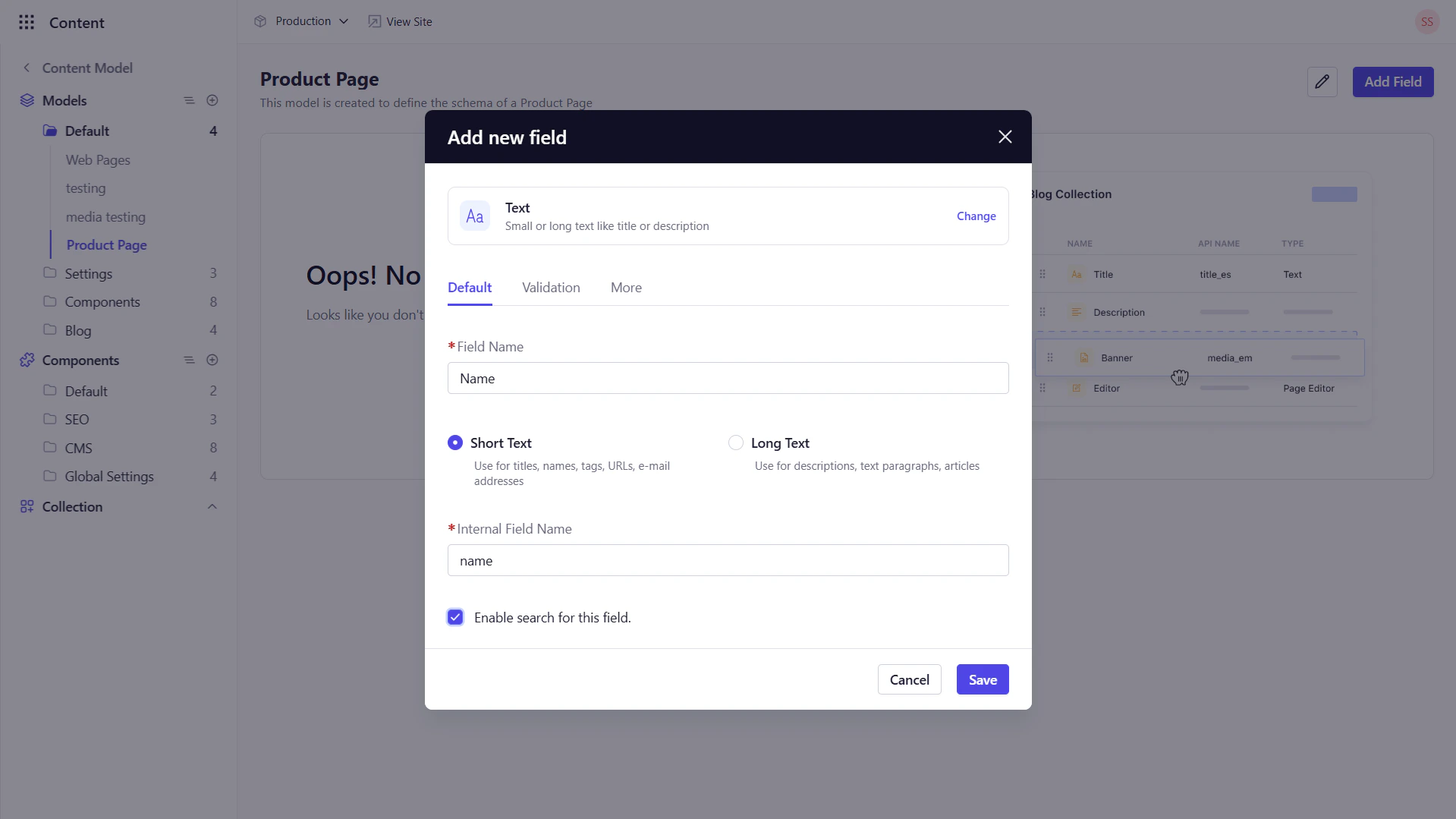
A **Text** field stores plain or multi-line text—ideal for titles, short descriptions, comments, or any unformatted strings.
### Key Configuration Options
* **Default Tab**:
* *Field Name* : Enter the display name for the field.
* *Short* : Select this button if the field is used for a single-line input.
* *Long* : Select this button if the field is used for a multi-line text area.
* *Internal Field Name*: This field is auto-populated based on the Field Name.
* *Enable Search for this field*: Enable this option to allow search on the data stored in this field, i.e., if you tick this option, then the field data will appear in the search.
* **Validation Tab**:
* *RegExp Pattern* : Enter a regular expression if you want the field to validate the input based on a specific pattern.
* *Required Field* : Enforce that editors must enter a value.
* *Read Only* : Prevent editors from modifying the field value.
* *Min/Max Length* : Define character limits.
* **More Tab**:
* *Default Value* : Pre-populate entries.
* *Help Text* : Show contextual guidance via a tooltip.
* *Placeholder* : Display example text in the empty field.
 ## 2. Rich Text
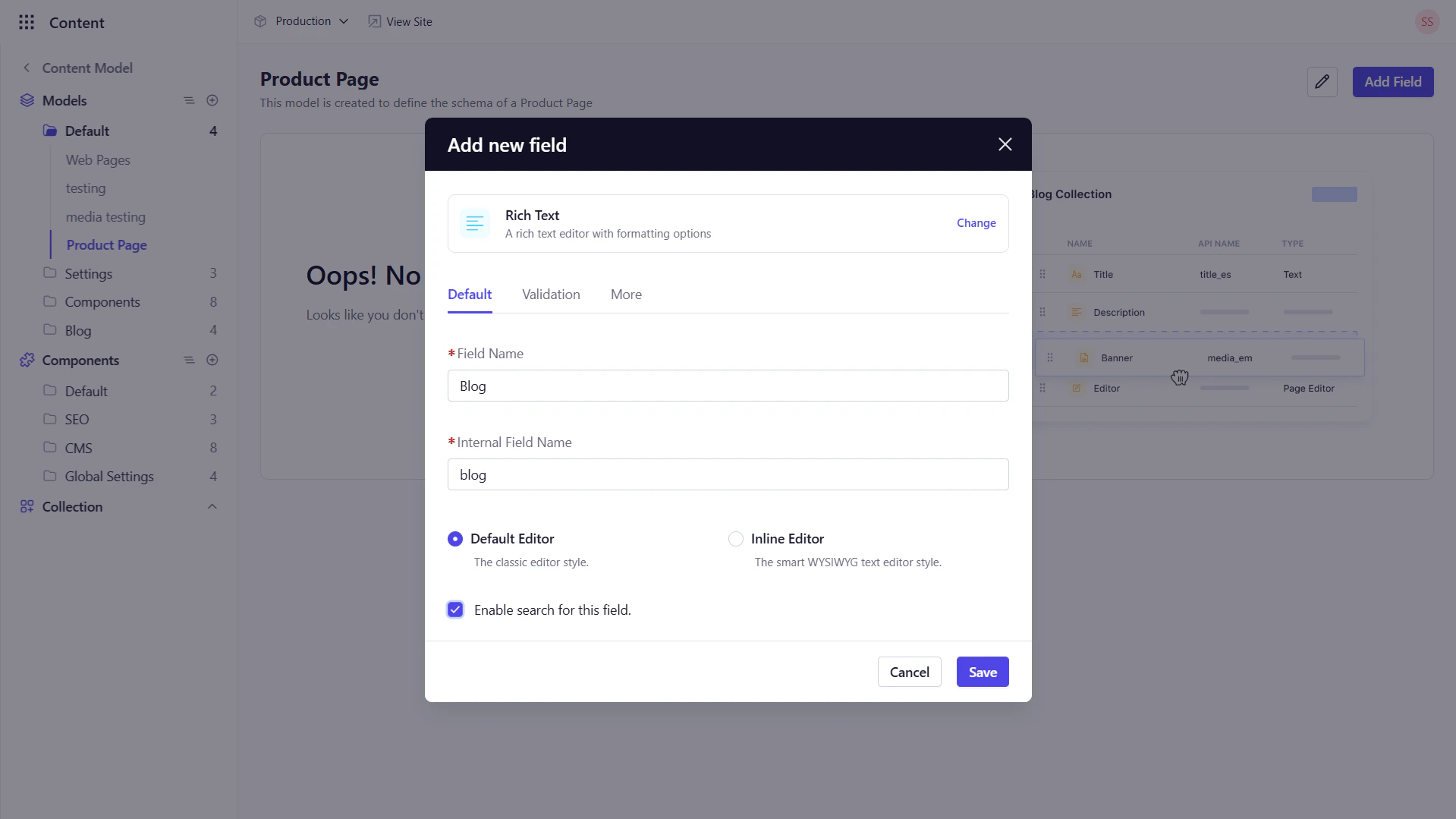
A **Rich Text** field provides either a classic editor style or a WYSIWYG editor with formatting controls perfect for blog bodies, long articles, or any content needing styled text.
### Formatting Toolbar
In the WYSIWYG editor, Editors can apply:
* **Text Styles**: Bold, Italic, Underline, Strikethrough
* **Headings**: H1–H4, Paragraph, Code
* **Lists**: Ordered (with multiple list styles) & Unordered
* **Inline Styles**: Text color, background highlight, inline classes/styles
* **Blocks**: Blockquotes, horizontal rules, tables, code view
* **Embeds**: URLs, media, tables
* **Undo/Redo**, **Select All**, and **Alignment** tools
### Key Configuration Options
* **Default Tab**:
* *Field Name* : Enter the display name for the field.
* *Internal Field Name*: This field is auto-populated based on the Field Name.
* *Default Editor/Inline Editor*: Select the editor that should be used for this field.
* *Enable Search for this field*: Enable this option to allow search on the data stored in this field, i.e., if you tick this option, then the field data will appear in the search.
* **Validation Tab**:
* *Required Field* : Enforce that editors must enter a value.
* *Read Only* : Prevent editors from modifying the field value.
* **More Tab**:
* *Default Value* : Pre-populate entries.
* *Help Text* : Show contextual guidance via a tooltip.
* *Min/Max Height*: Define height limits for the editor.
## 2. Rich Text
A **Rich Text** field provides either a classic editor style or a WYSIWYG editor with formatting controls perfect for blog bodies, long articles, or any content needing styled text.
### Formatting Toolbar
In the WYSIWYG editor, Editors can apply:
* **Text Styles**: Bold, Italic, Underline, Strikethrough
* **Headings**: H1–H4, Paragraph, Code
* **Lists**: Ordered (with multiple list styles) & Unordered
* **Inline Styles**: Text color, background highlight, inline classes/styles
* **Blocks**: Blockquotes, horizontal rules, tables, code view
* **Embeds**: URLs, media, tables
* **Undo/Redo**, **Select All**, and **Alignment** tools
### Key Configuration Options
* **Default Tab**:
* *Field Name* : Enter the display name for the field.
* *Internal Field Name*: This field is auto-populated based on the Field Name.
* *Default Editor/Inline Editor*: Select the editor that should be used for this field.
* *Enable Search for this field*: Enable this option to allow search on the data stored in this field, i.e., if you tick this option, then the field data will appear in the search.
* **Validation Tab**:
* *Required Field* : Enforce that editors must enter a value.
* *Read Only* : Prevent editors from modifying the field value.
* **More Tab**:
* *Default Value* : Pre-populate entries.
* *Help Text* : Show contextual guidance via a tooltip.
* *Min/Max Height*: Define height limits for the editor.
 ## 3. Email
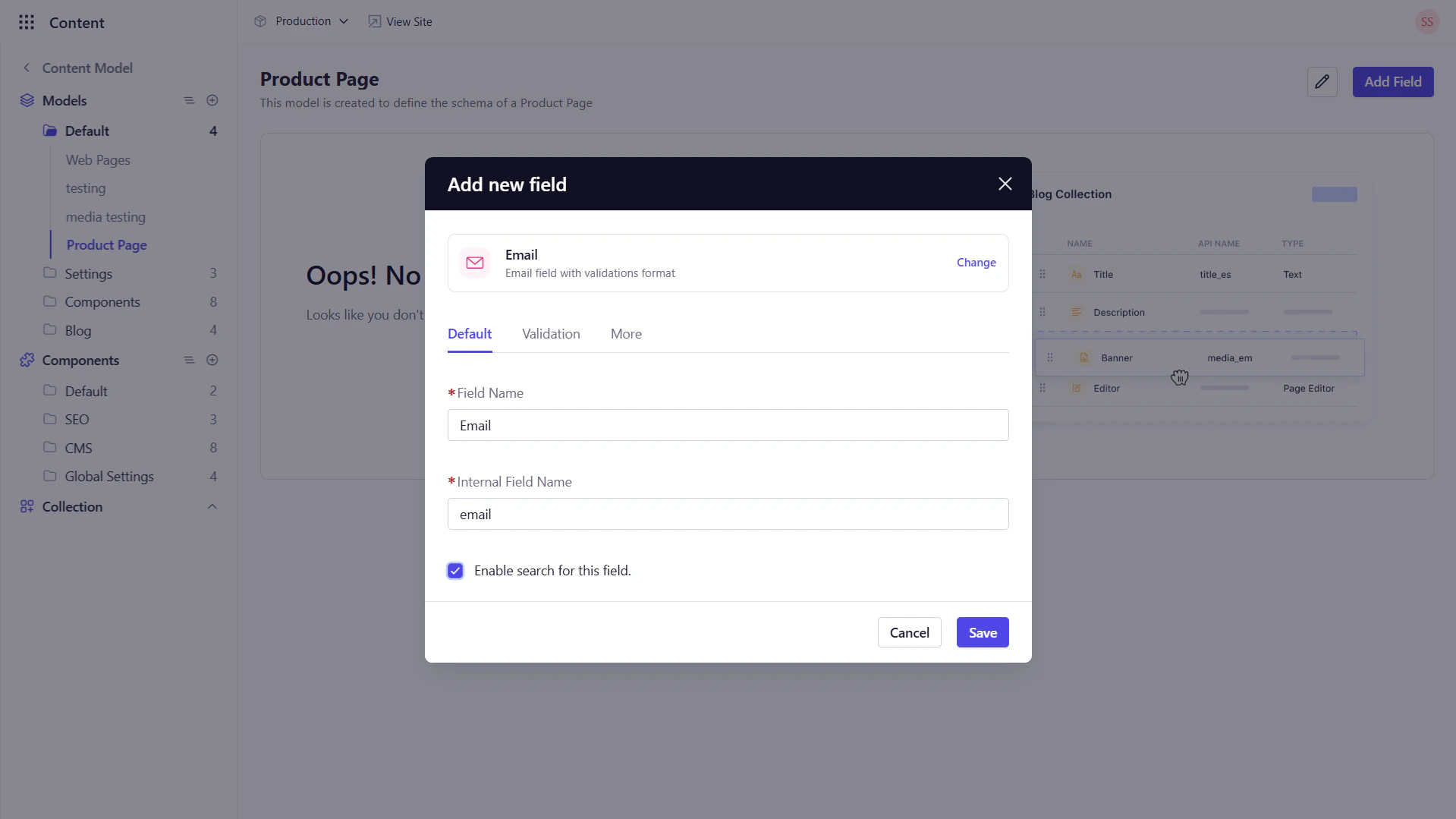
The **Email** field ensures editors enter a valid email address. It extends the basic Text field with email-specific validation.
### Key Configuration Options
* **Default Tab**:
* *Field Name* : Enter the display name for the field.
* *Internal Field Name*: This field is auto-populated based on the Field Name.
* *Enable Search for this field*: Enable this option to allow search on the data stored in this field, i.e., if you tick this option, then the field data will appear in the search.
* **Validation Tab**:
* *Required Field* : Enforce that editors must enter a value.
* *Read Only* : Prevent editors from modifying the field value.
* *Min/Max Length* : Define character limits.
* **More Tab**:
* *Default Value* : Pre-populate entries.
* *Help Text* : Show contextual guidance via a tooltip.
* *Placeholder* : Display example text in the empty field.
## 3. Email
The **Email** field ensures editors enter a valid email address. It extends the basic Text field with email-specific validation.
### Key Configuration Options
* **Default Tab**:
* *Field Name* : Enter the display name for the field.
* *Internal Field Name*: This field is auto-populated based on the Field Name.
* *Enable Search for this field*: Enable this option to allow search on the data stored in this field, i.e., if you tick this option, then the field data will appear in the search.
* **Validation Tab**:
* *Required Field* : Enforce that editors must enter a value.
* *Read Only* : Prevent editors from modifying the field value.
* *Min/Max Length* : Define character limits.
* **More Tab**:
* *Default Value* : Pre-populate entries.
* *Help Text* : Show contextual guidance via a tooltip.
* *Placeholder* : Display example text in the empty field.
 ## 4. Password
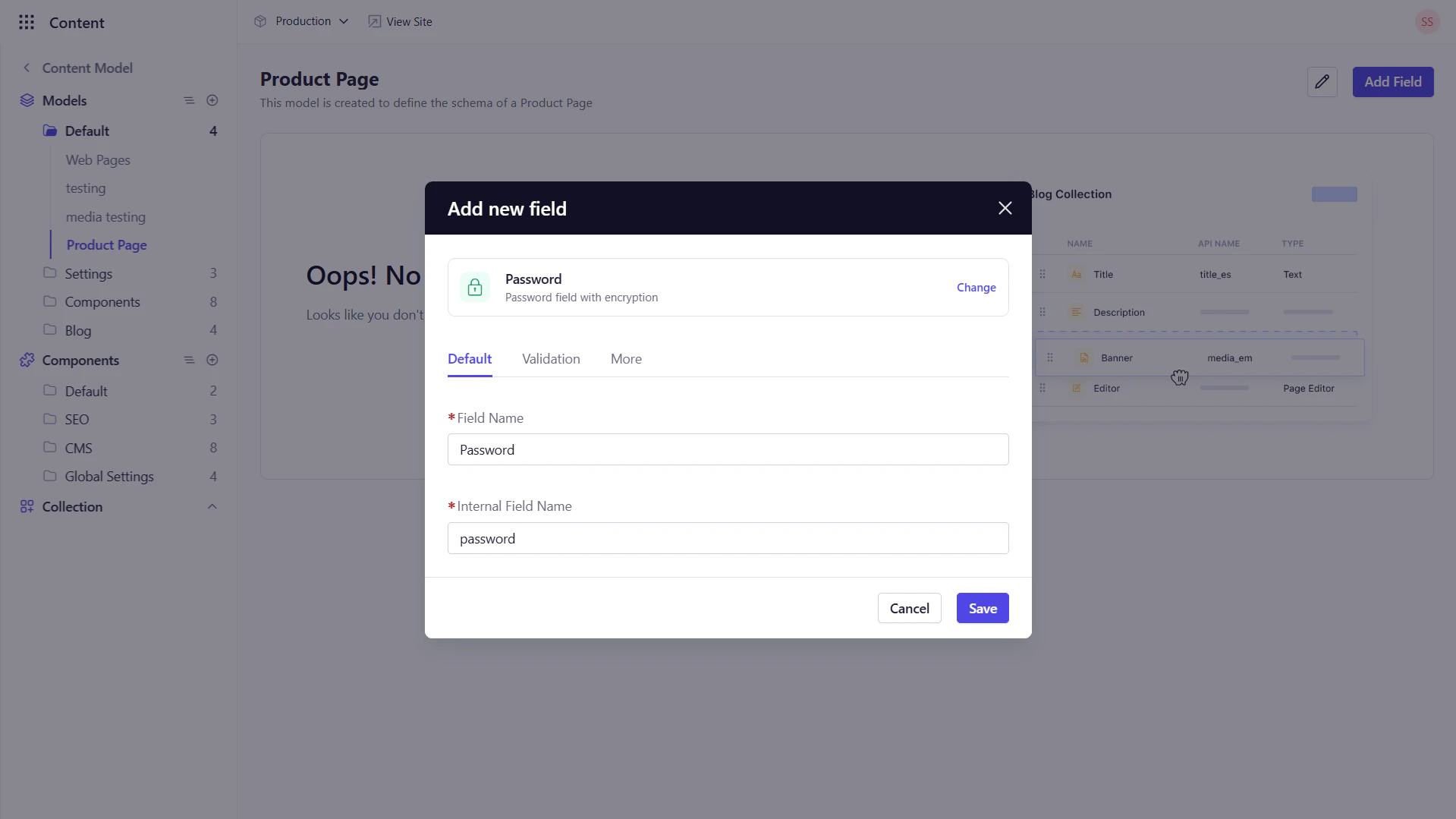
A **Password** field masks input for sensitive data. Editors can toggle visibility via the “eye” icon.
### Key Configuration Options
* **Default Tab**:
* *Field Name* : Enter the display name for the field.
* *Internal Field Name*: This field is auto-populated based on the Field Name.
* **Validation Tab**:
* *Required Field* : Enforce that editors must enter a value.
* *Read Only* : Prevent editors from modifying the field value.
* *Min/Max Length* : Define character limits.
* **More Tab**:
* *Default Value* : Pre-populate entries.
* *Help Text* : Show contextual guidance via a tooltip.
* *Placeholder* : Display example text in the empty field.
## 4. Password
A **Password** field masks input for sensitive data. Editors can toggle visibility via the “eye” icon.
### Key Configuration Options
* **Default Tab**:
* *Field Name* : Enter the display name for the field.
* *Internal Field Name*: This field is auto-populated based on the Field Name.
* **Validation Tab**:
* *Required Field* : Enforce that editors must enter a value.
* *Read Only* : Prevent editors from modifying the field value.
* *Min/Max Length* : Define character limits.
* **More Tab**:
* *Default Value* : Pre-populate entries.
* *Help Text* : Show contextual guidance via a tooltip.
* *Placeholder* : Display example text in the empty field.
 ## 5. JSON
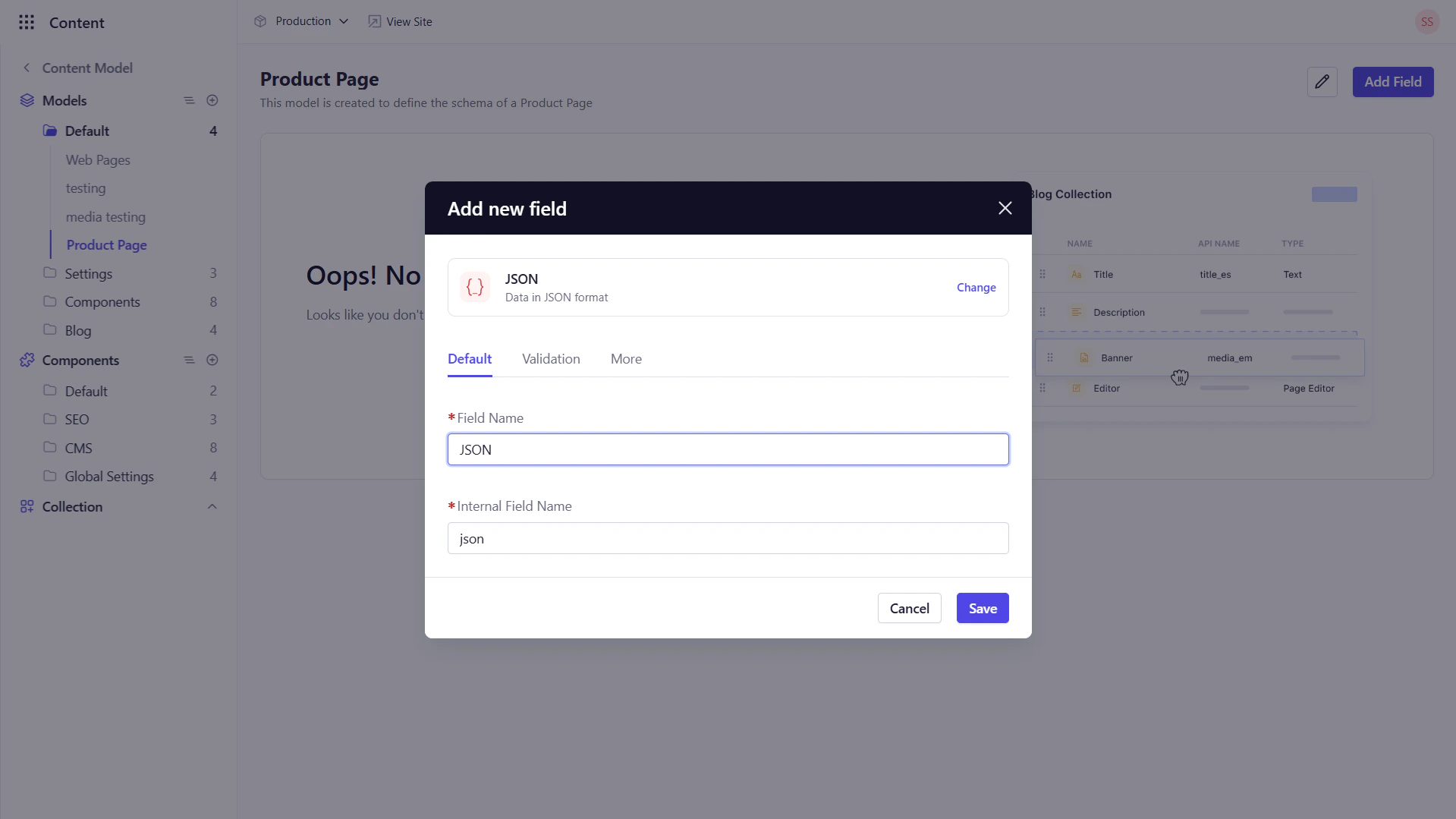
The **JSON** field allows editors to store raw JSON objects or arrays via a code editor interface.
### Key Configuration Options
* **Default Tab**:
* *Field Name* : Enter the display name for the field.
* *Internal Field Name*: This field is auto-populated based on the Field Name.
* **Validation Tab**:
* *Required Field* : Enforce that editors must enter a value.
* *Read Only* : Prevent editors from modifying the field value.
* **More Tab**:
* *Help Text* : Show contextual guidance via a tooltip.
* *Min/Max Height*: Define height limits for the editor.
## 5. JSON
The **JSON** field allows editors to store raw JSON objects or arrays via a code editor interface.
### Key Configuration Options
* **Default Tab**:
* *Field Name* : Enter the display name for the field.
* *Internal Field Name*: This field is auto-populated based on the Field Name.
* **Validation Tab**:
* *Required Field* : Enforce that editors must enter a value.
* *Read Only* : Prevent editors from modifying the field value.
* **More Tab**:
* *Help Text* : Show contextual guidance via a tooltip.
* *Min/Max Height*: Define height limits for the editor.
 ## What’s Next
After defining your textual fields, proceed to **Media & Assets Fields** to learn how to manage images, videos, and color pickers. Then you can explore **Choice & Relations**, **Number & Date**, and **Advanced & Layout** field types to complete your model schema.
## What’s Next
After defining your textual fields, proceed to **Media & Assets Fields** to learn how to manage images, videos, and color pickers. Then you can explore **Choice & Relations**, **Number & Date**, and **Advanced & Layout** field types to complete your model schema.