> ## Documentation Index
> Fetch the complete documentation index at: https://help.experro.com/llms.txt
> Use this file to discover all available pages before exploring further.
# Managing Assets
## Editing Asset Details
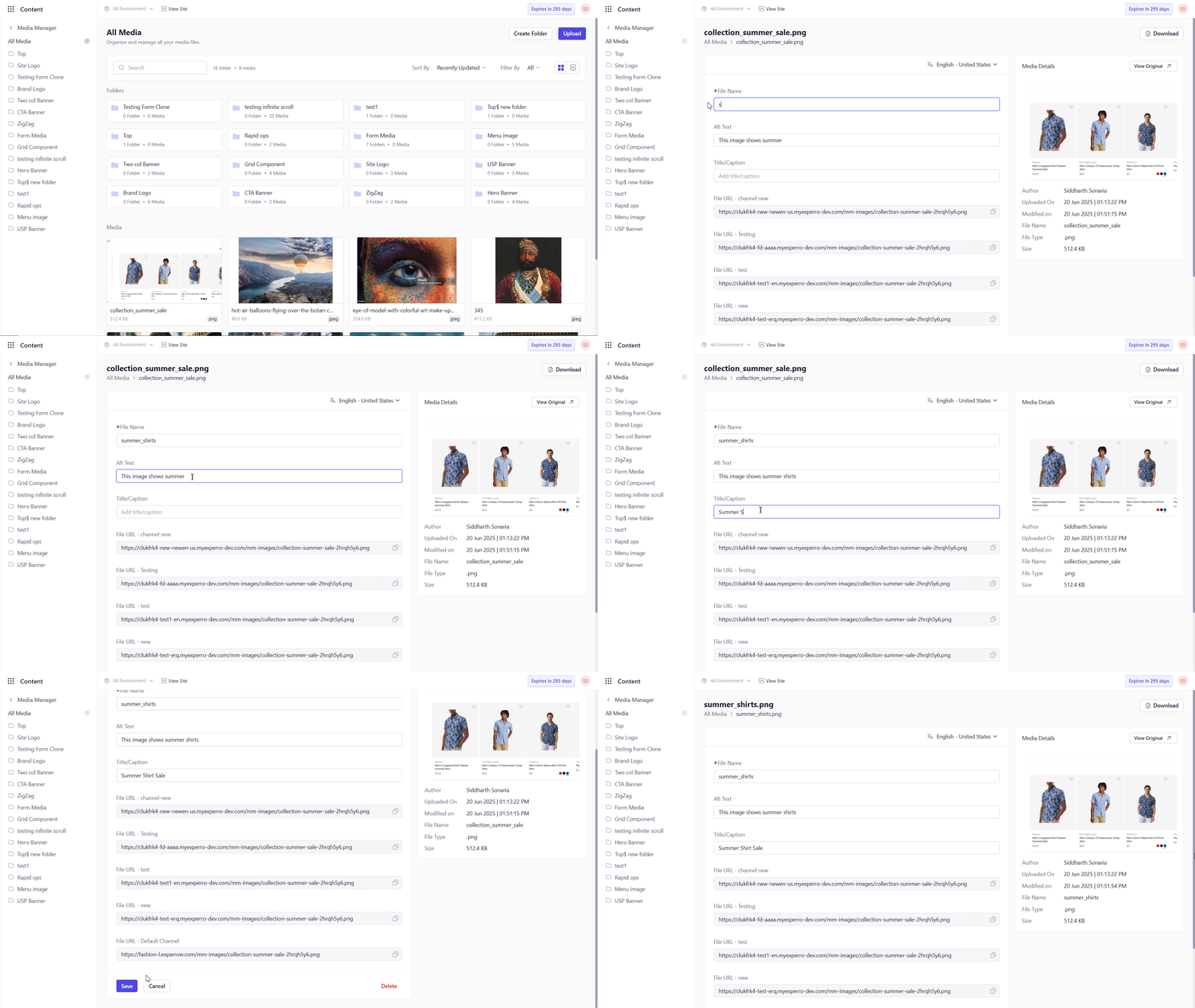
1. In **Media Manager**, click an asset’s name or thumbnail.
2. On the detail page, update:
* **File Name**
* **Alt Text**
* **Title/Caption**
3. Click **Save**. Changes are propagated to every entry using that asset (URL remains unchanged).
 ## Deleting Assets
1. You can delete an asset from either the asset list in **All Media** or detail view of a particular asset.
2. From the asset list, click on the three dots next to the asset and select the **Delete** option.
3. From the detail view of an asset, click on the **Delete** button.
4. Confirm the delete action, and the asset will be deleted permanently.
Deletion is permanent and may break content entries that reference the asset.
## Deleting Assets
1. You can delete an asset from either the asset list in **All Media** or detail view of a particular asset.
2. From the asset list, click on the three dots next to the asset and select the **Delete** option.
3. From the detail view of an asset, click on the **Delete** button.
4. Confirm the delete action, and the asset will be deleted permanently.
Deletion is permanent and may break content entries that reference the asset.