> ## Documentation Index
> Fetch the complete documentation index at: https://help.experro.com/llms.txt
> Use this file to discover all available pages before exploring further.
# Organizing with Folders
Folders help you keep your Media Manager tidy and make it easy to locate specific assets. You can create nested structures to reflect your project’s taxonomy.
## Creating a Folder
In the left sidebar, select **Media Manager**.
Click **Create Folder** in the top‑right corner.
Enter a unique folder name (max 30 characters; avoid `\ * : < > ? / |`).
Click **Create** to add the folder to your current path.
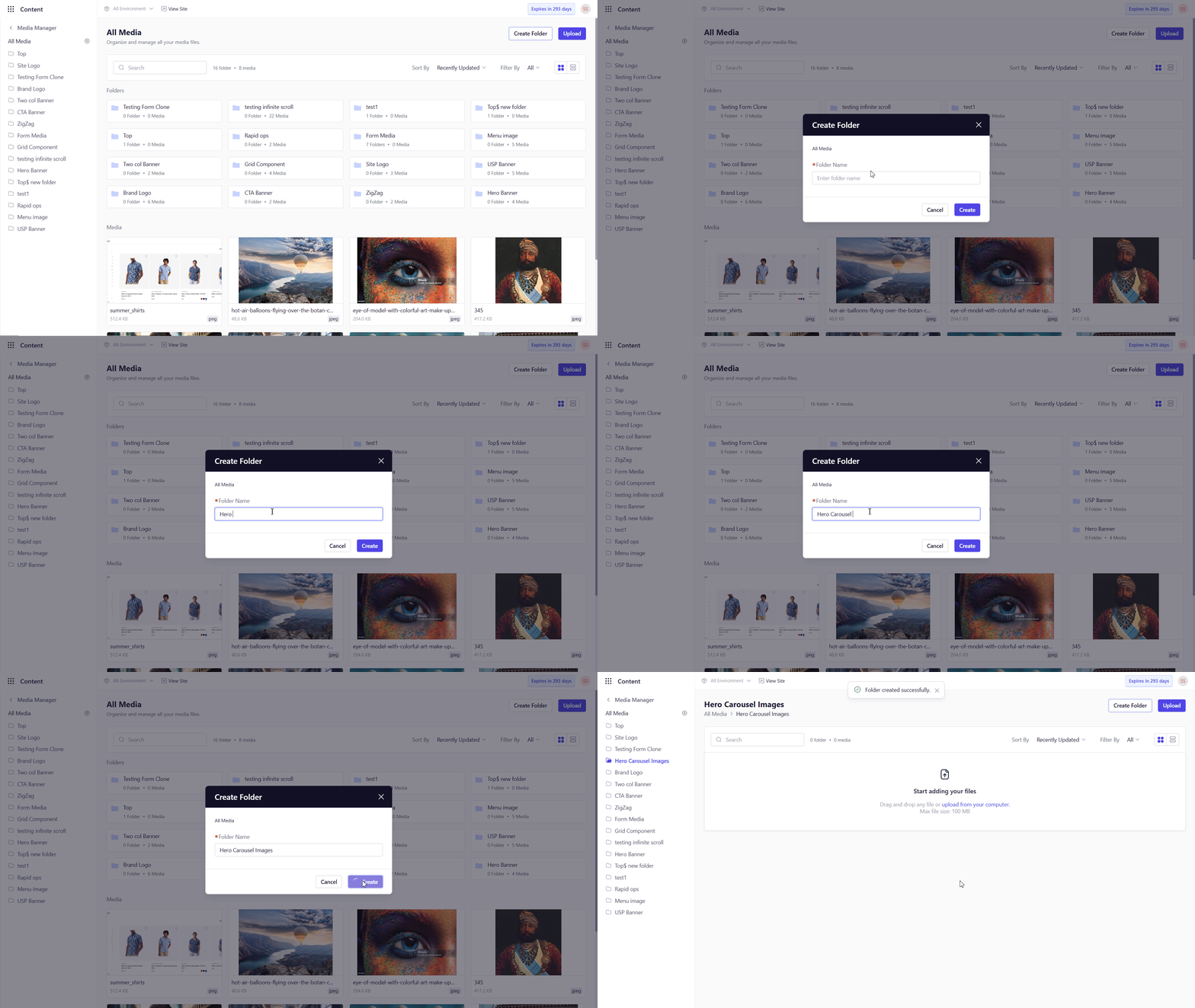 Use clear, descriptive names (e.g., “Blog Hero Images,” “Product Presentations”) to streamline asset discovery.
## Nested Folders
You can organize folders up to **5 levels deep**—ideal for large projects needing multiple subcategories (e.g., Year → Quarter → Campaign).
## Renaming a Folder
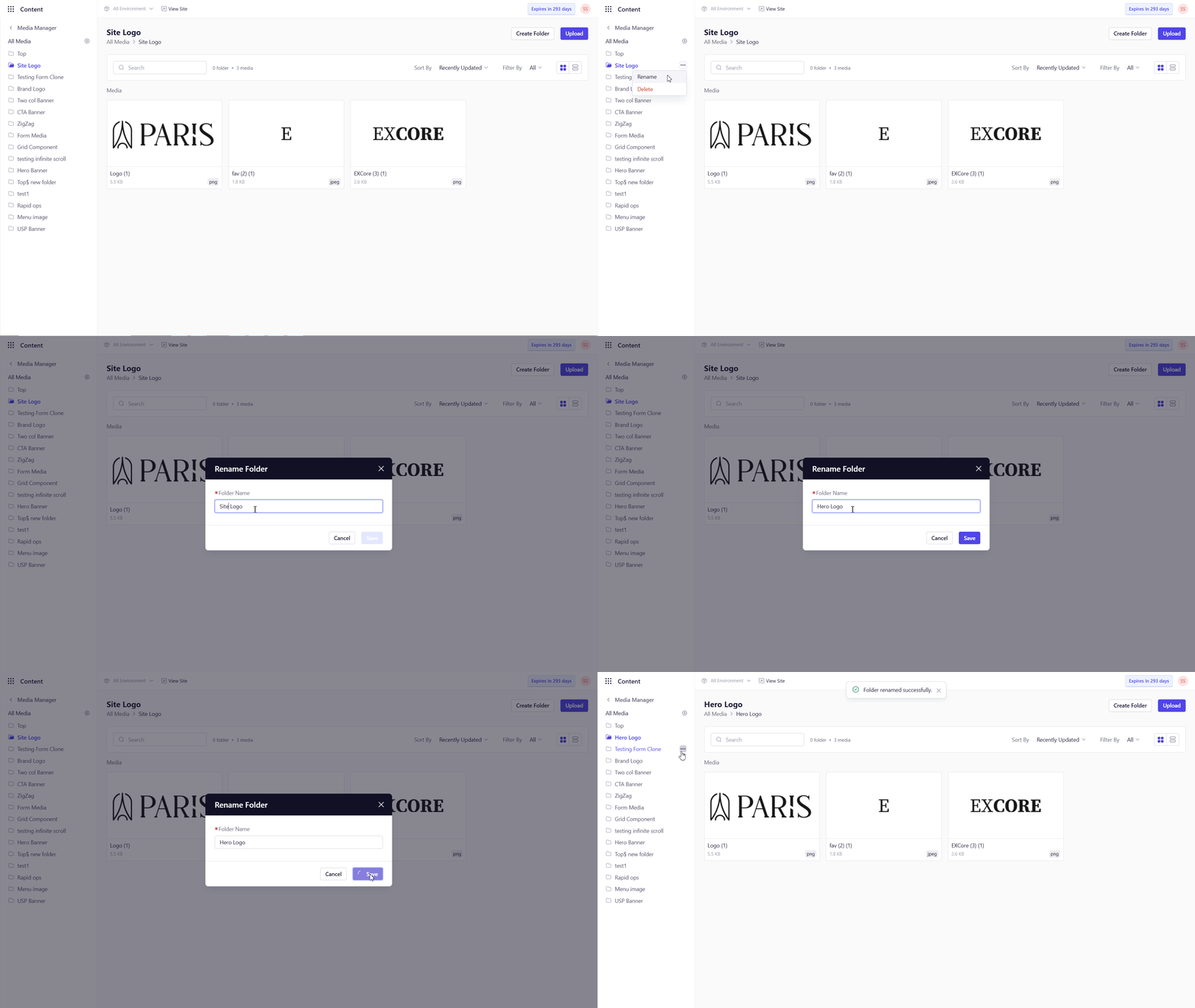
In the sidebar, hover over the folder you wish to rename.
Click the **…** menu next to the folder name and select **Rename**.
Update the folder name (observe the same character restrictions) and click **Save**.
Use clear, descriptive names (e.g., “Blog Hero Images,” “Product Presentations”) to streamline asset discovery.
## Nested Folders
You can organize folders up to **5 levels deep**—ideal for large projects needing multiple subcategories (e.g., Year → Quarter → Campaign).
## Renaming a Folder
In the sidebar, hover over the folder you wish to rename.
Click the **…** menu next to the folder name and select **Rename**.
Update the folder name (observe the same character restrictions) and click **Save**.
 ## Deleting a Folder
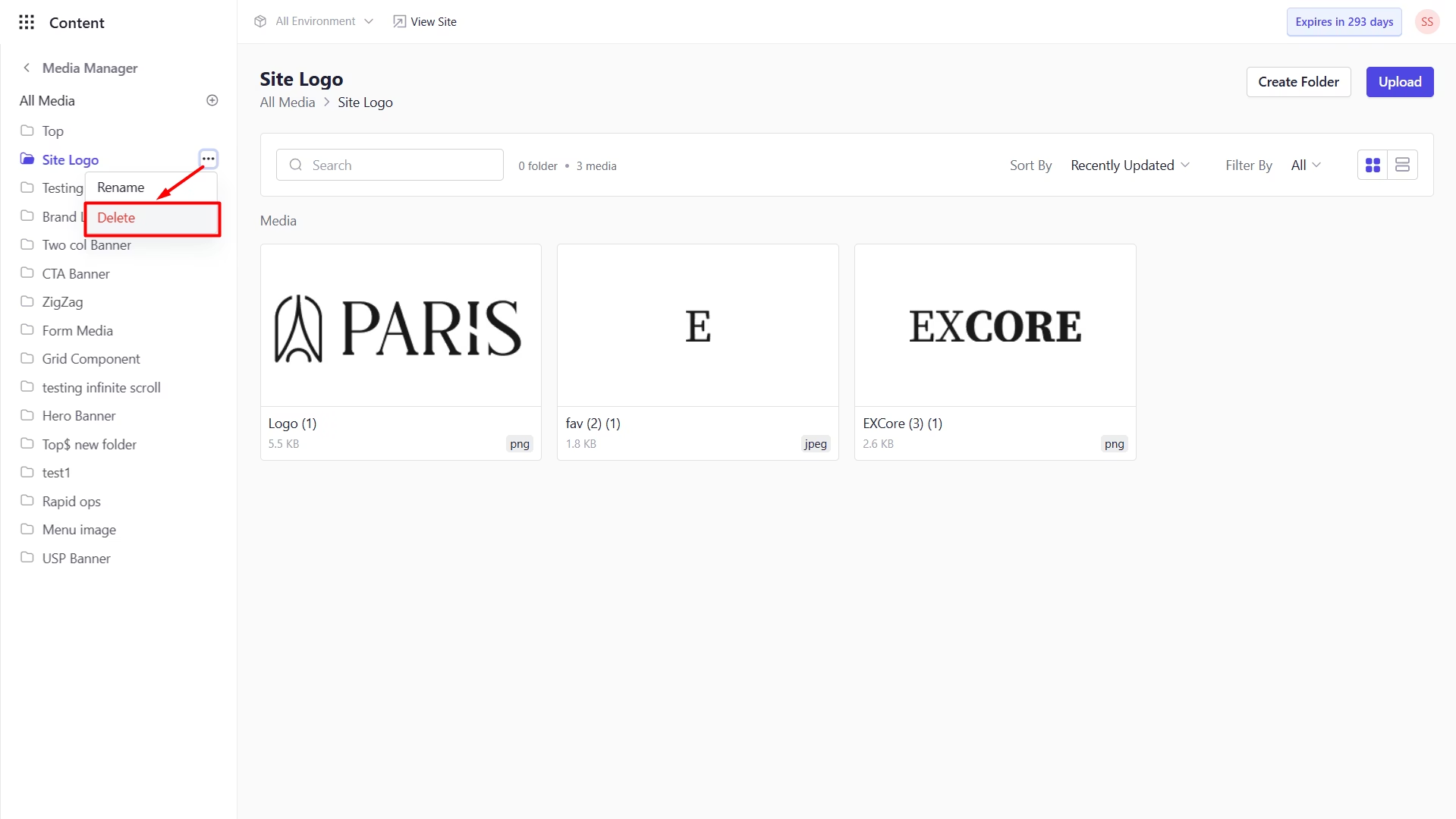
Hover over the target folder in the sidebar.
Click the menu → **Delete**.
## Deleting a Folder
Hover over the target folder in the sidebar.
Click the menu → **Delete**.
 In the confirmation dialog, click **Delete**.
Deleting a non-empty folder is blocked to prevent accidental loss of assets. Remove or relocate files first before deletion.
With your folder structure in place, you can quickly navigate to the right location for uploads, bulk operations, or file retrieval keeping your Media Manager organized and efficient.
In the confirmation dialog, click **Delete**.
Deleting a non-empty folder is blocked to prevent accidental loss of assets. Remove or relocate files first before deletion.
With your folder structure in place, you can quickly navigate to the right location for uploads, bulk operations, or file retrieval keeping your Media Manager organized and efficient.