> ## Documentation Index
> Fetch the complete documentation index at: https://help.experro.com/llms.txt
> Use this file to discover all available pages before exploring further.
# Manage Facet Values
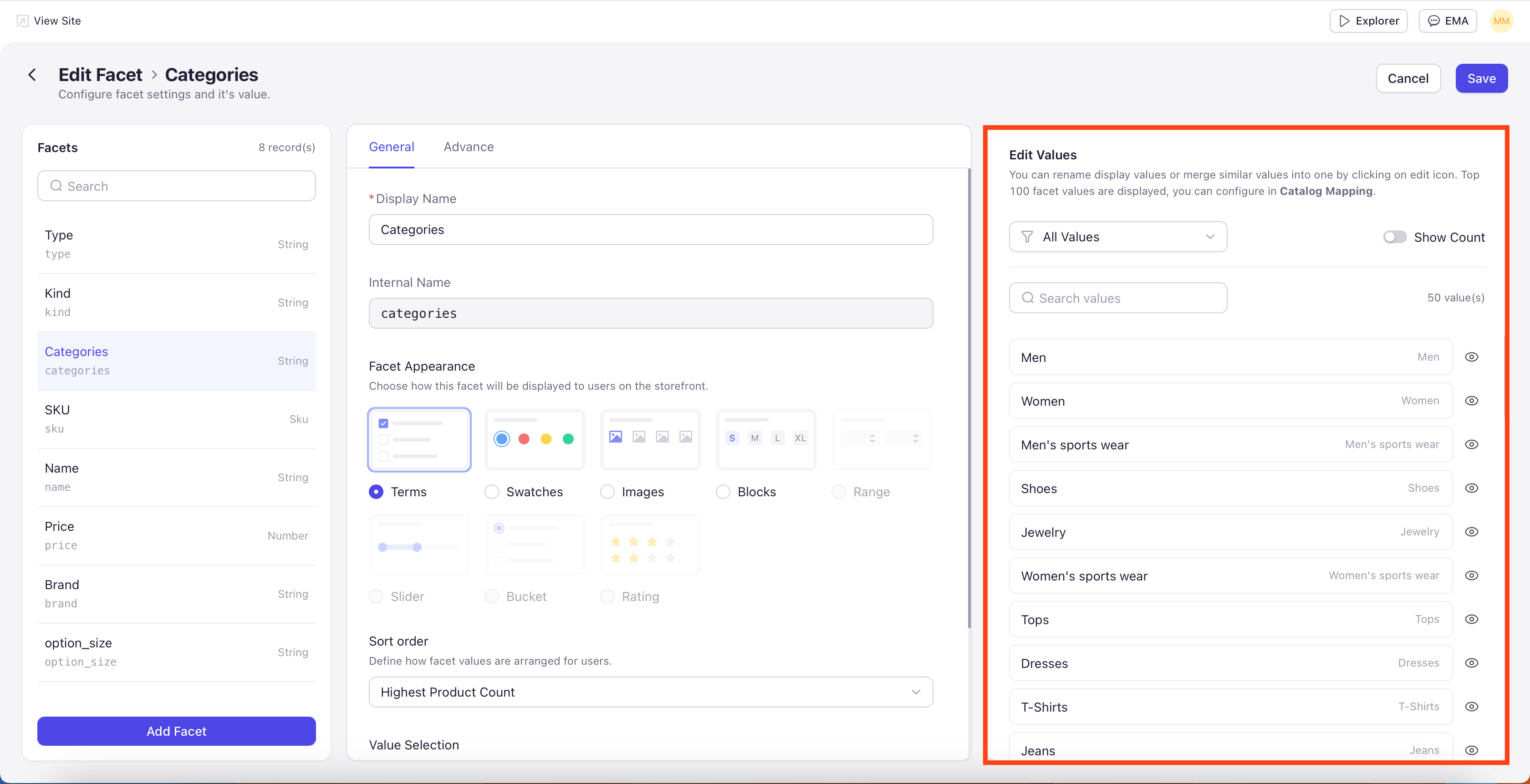
Facet values are the individual options shoppers click to filter results — Nike, Macy’s, and Levi’s under the Brand facet, for example. The Edit Values panel on the right of the Edit Facet screen lets you rename values, merge similar values, hide values from the storefront, and control whether product counts appear. To open the panel, open any facet inside a rule (see [Configure Facet Appearance](/experro_discovery/facets/configure_facet_appearance).).
By default the top 100 facet values are loaded. To configure values beyond the top 100, use Catalog Mapping.
 ## Panel Controls
* **All Values filter** — Filter by attribute or visibility state.
* **Show Count toggle** — Mirrors the Show Count setting on the Advance tab.
* **Search values** — Find a specific value in a long list.
Each value row shows the display name (what shoppers see), the internal name (raw catalog value), an edit icon (pencil) for rename or merge, and a show/hide icon (eye).
## Showing and Hiding Values
Click the eye icon to hide a value from the storefront. Hidden values stay in the catalog and remain available to merchandising rules — they just don't appear as filter options. Click again to restore. Common uses: suppress legacy values, hide internal or test values, remove very low-count values that aren't useful as filters.
## Renaming a Facet Value
Click the pencil icon and change the Display Name. The underlying catalog data is untouched. Useful when catalog values are developer-friendly but not shopper-friendly — for example, renaming "mat\_cotton\_100" to "100% Cotton".
## Merging Facet Values
Merging combines multiple values into a single shopper-facing value. Products tagged with any of the source values appear when the merged value is selected.
**Example:** a Color facet with Sky Blue, Navy Blue, Baby Blue, and Royal Blue can be merged into a single Blue value. Shoppers see one Blue filter, and selecting it returns products tagged with any of the four originals.
### How to Merge Values
Click the pencil icon next to the value you want as the merged target.
Select the additional values to merge into it.
Save your changes.
**Scope-Sensitive:** Renames and merges apply at the scope of the rule. A Global rule's merge applies everywhere unless overridden by a more specific rule.
## Rating Value Labels
When the facet uses the Rating appearance, each rating row in the Edit Values panel has its own editable label. Use this to rename star rows for clarity, for example labeling the five-star row "Top Rated". For the Rating appearance configuration itself, see [Configure Facet Appearance](/experro_discovery/facets/configure_facet_appearance).
**Preview Limit:** The Edit Values preview shows up to 5 stars only. The storefront displays ratings according to the Rating Range configured on the General tab.
## Range-Based Facets
**No Individual Values Listed:** When a facet uses the Range or Slider appearance, the Edit Values panel does not list individual values. Instead, it shows a preview of the range inputs. For Bucket, you create and label the buckets in this panel.
## Panel Controls
* **All Values filter** — Filter by attribute or visibility state.
* **Show Count toggle** — Mirrors the Show Count setting on the Advance tab.
* **Search values** — Find a specific value in a long list.
Each value row shows the display name (what shoppers see), the internal name (raw catalog value), an edit icon (pencil) for rename or merge, and a show/hide icon (eye).
## Showing and Hiding Values
Click the eye icon to hide a value from the storefront. Hidden values stay in the catalog and remain available to merchandising rules — they just don't appear as filter options. Click again to restore. Common uses: suppress legacy values, hide internal or test values, remove very low-count values that aren't useful as filters.
## Renaming a Facet Value
Click the pencil icon and change the Display Name. The underlying catalog data is untouched. Useful when catalog values are developer-friendly but not shopper-friendly — for example, renaming "mat\_cotton\_100" to "100% Cotton".
## Merging Facet Values
Merging combines multiple values into a single shopper-facing value. Products tagged with any of the source values appear when the merged value is selected.
**Example:** a Color facet with Sky Blue, Navy Blue, Baby Blue, and Royal Blue can be merged into a single Blue value. Shoppers see one Blue filter, and selecting it returns products tagged with any of the four originals.
### How to Merge Values
Click the pencil icon next to the value you want as the merged target.
Select the additional values to merge into it.
Save your changes.
**Scope-Sensitive:** Renames and merges apply at the scope of the rule. A Global rule's merge applies everywhere unless overridden by a more specific rule.
## Rating Value Labels
When the facet uses the Rating appearance, each rating row in the Edit Values panel has its own editable label. Use this to rename star rows for clarity, for example labeling the five-star row "Top Rated". For the Rating appearance configuration itself, see [Configure Facet Appearance](/experro_discovery/facets/configure_facet_appearance).
**Preview Limit:** The Edit Values preview shows up to 5 stars only. The storefront displays ratings according to the Rating Range configured on the General tab.
## Range-Based Facets
**No Individual Values Listed:** When a facet uses the Range or Slider appearance, the Edit Values panel does not list individual values. Instead, it shows a preview of the range inputs. For Bucket, you create and label the buckets in this panel.