> ## Documentation Index
> Fetch the complete documentation index at: https://help.experro.com/llms.txt
> Use this file to discover all available pages before exploring further.
# Phrases
### Overview
In Experro, a phrase is a specific combination of words that is processed as a single search entity. By defining phrases, the search engine treats inputs like "tooth brush" as one cohesive term—returning unified results (e.g., "toothbrush") rather than splitting the phrase into individual words. This improves search accuracy and ensures that users receive results that truly match their intent.
### Use-Cases
* **Improving Search Relevance:**\
Defining phrases helps ensure that queries such as "tooth brush" yield results for "toothbrush," avoiding fragmentation of search results.
* **Handling Common Expressions:**\
Recognize industry-specific or common compound expressions—such as "running shoes" or "smart watch"—so that they are consistently processed as a single search term.
* **Accurate Product Name Matching:**\
For products with compound names (e.g., "coffee maker") or multi-word brand names (e.g., "Apple Watch"), phrases ensure that searches return the correct, intended results.
### Configuration Guide
#### Viewing and Searching Phrases
1. **Navigate to Phrases section:**
* Use the navigation panel on the left side of the screen.
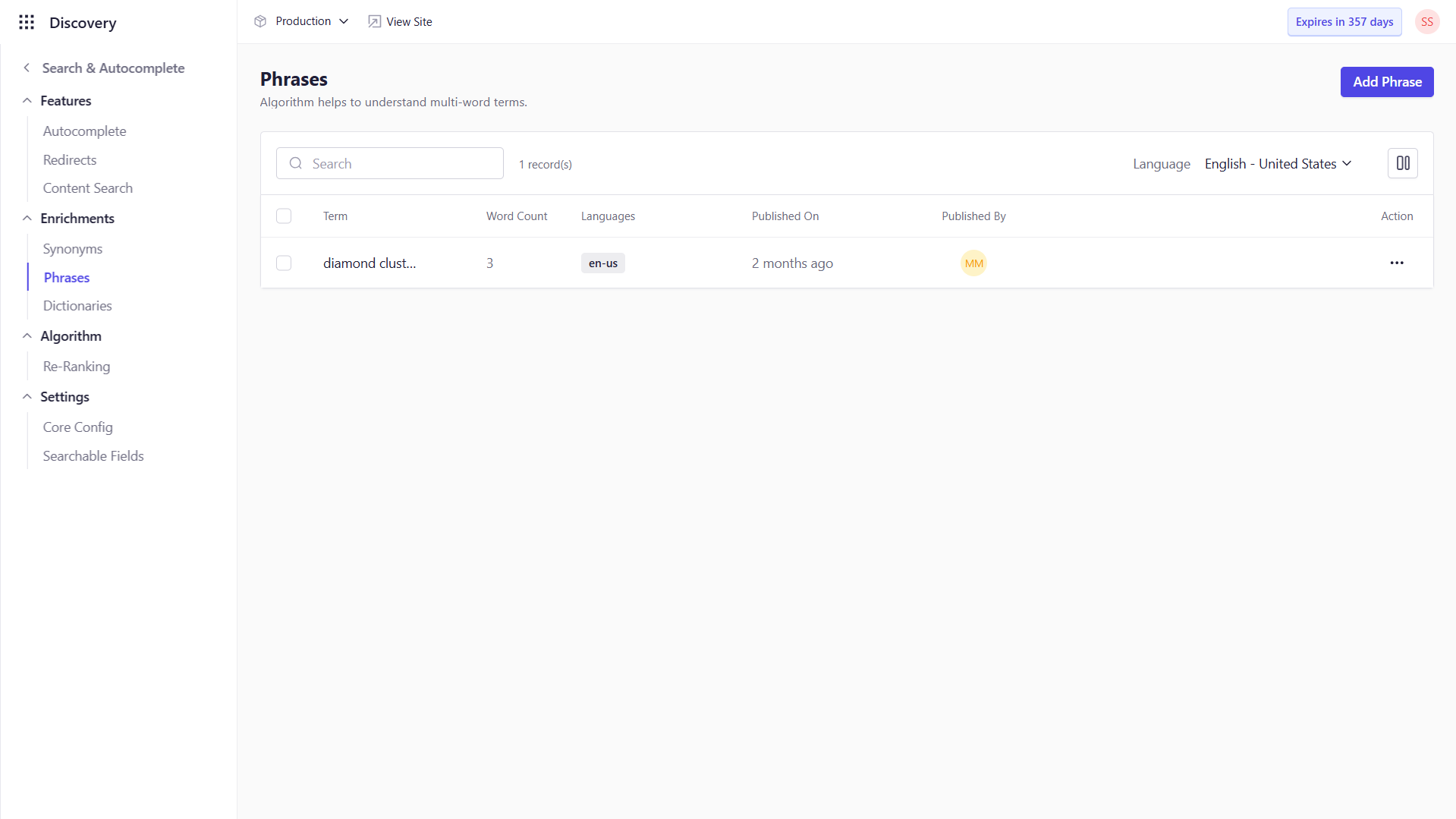
* Go to **Discovery → Search & Autocomplete**, and then select the **Phrases** tab to view the list of existing phrases.
2. **Search for a Phrase:**
* Enter the desired phrase in the search bar at the top of the Phrases screen and press Enter to locate it.
 #### Adding Phrases
1. **Click on "Add Phrase":**
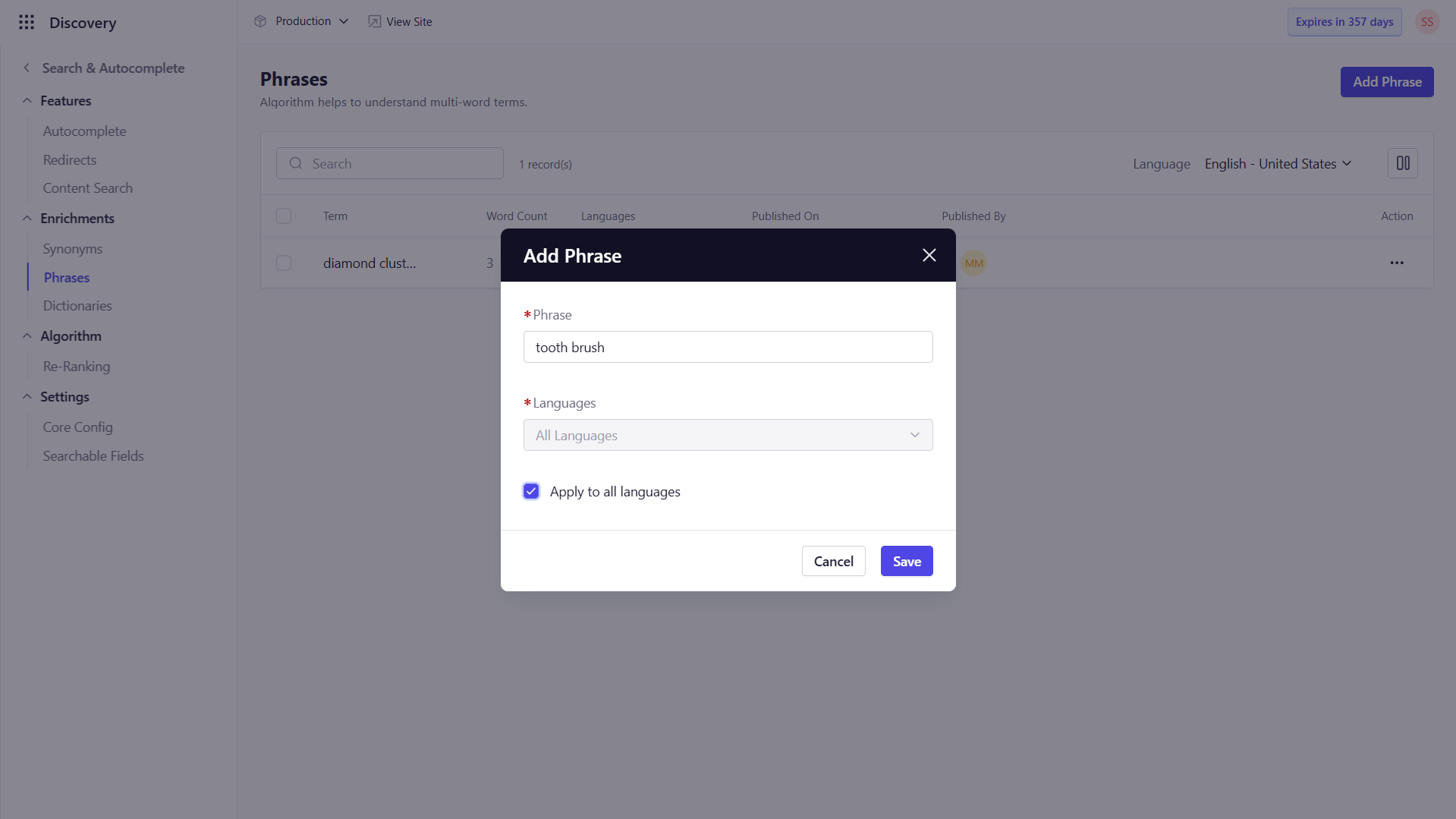
* On the Phrases screen, click the **Add Phrase** button to open the pop-up form.
2. **Fill in the Fields:**
| Field | Description |
| ------------- | ------------------------------------------------------------------------------------------------------------------------------------- |
| **Phrase** | Enter the phrase that you want to be treated as a single search entity (e.g., “tooth brush” to ensure it’s searched as “toothbrush”). |
| **Languages** | Select the language applicable to the phrase. Use the **Apply to all languages** checkbox if you want it to apply universally. |
3. **Save the Phrase:**
* Click **Save** to add the phrase to your list.
#### Adding Phrases
1. **Click on "Add Phrase":**
* On the Phrases screen, click the **Add Phrase** button to open the pop-up form.
2. **Fill in the Fields:**
| Field | Description |
| ------------- | ------------------------------------------------------------------------------------------------------------------------------------- |
| **Phrase** | Enter the phrase that you want to be treated as a single search entity (e.g., “tooth brush” to ensure it’s searched as “toothbrush”). |
| **Languages** | Select the language applicable to the phrase. Use the **Apply to all languages** checkbox if you want it to apply universally. |
3. **Save the Phrase:**
* Click **Save** to add the phrase to your list.
 #### Editing Phrases
1. **Locate the Phrase to Edit:**
* Use the search bar to find the phrase you wish to modify.
2. **Edit the Phrase:**
* Click on the phrase to open the edit form or use the
#### Editing Phrases
1. **Locate the Phrase to Edit:**
* Use the search bar to find the phrase you wish to modify.
2. **Edit the Phrase:**
* Click on the phrase to open the edit form or use the  under the **Actions** field and select **Edit**.
* Update the necessary fields such as **Phrase** or **Lanugage**.
3. **Save Changes:**
* Click **Save** to apply the updates.
#### Deleting Phrases
1. **Locate the Phrase to Delete:**
* Use the search bar to find the phrase you want to remove.
2. **Delete the Phrase:**
* Navigate to the phrase, click under the **Actions** tab, and select **Delete**.
* Confirm the deletion in the popup prompt to remove the phrase from the list.
### Best Practices
* **Consistency:**\
Regularly review and update phrases to ensure they remain aligned with current user search behavior and terminology.
* **Relevance:**\
Only add phrases that reflect common expressions or compound terms frequently used by your audience, to maintain search accuracy.
* **Language Considerations:**\
Ensure that phrases are added for all relevant languages, especially if your platform caters to a multilingual audience.
By managing phrases effectively, you can significantly enhance the accuracy of search results, ensuring users get precise and relevant outcomes. This not only leads to a better shopping experience but also drives higher customer satisfaction and engagement.
under the **Actions** field and select **Edit**.
* Update the necessary fields such as **Phrase** or **Lanugage**.
3. **Save Changes:**
* Click **Save** to apply the updates.
#### Deleting Phrases
1. **Locate the Phrase to Delete:**
* Use the search bar to find the phrase you want to remove.
2. **Delete the Phrase:**
* Navigate to the phrase, click under the **Actions** tab, and select **Delete**.
* Confirm the deletion in the popup prompt to remove the phrase from the list.
### Best Practices
* **Consistency:**\
Regularly review and update phrases to ensure they remain aligned with current user search behavior and terminology.
* **Relevance:**\
Only add phrases that reflect common expressions or compound terms frequently used by your audience, to maintain search accuracy.
* **Language Considerations:**\
Ensure that phrases are added for all relevant languages, especially if your platform caters to a multilingual audience.
By managing phrases effectively, you can significantly enhance the accuracy of search results, ensuring users get precise and relevant outcomes. This not only leads to a better shopping experience but also drives higher customer satisfaction and engagement.