> ## Documentation Index
> Fetch the complete documentation index at: https://help.experro.com/llms.txt
> Use this file to discover all available pages before exploring further.
# Search Preview
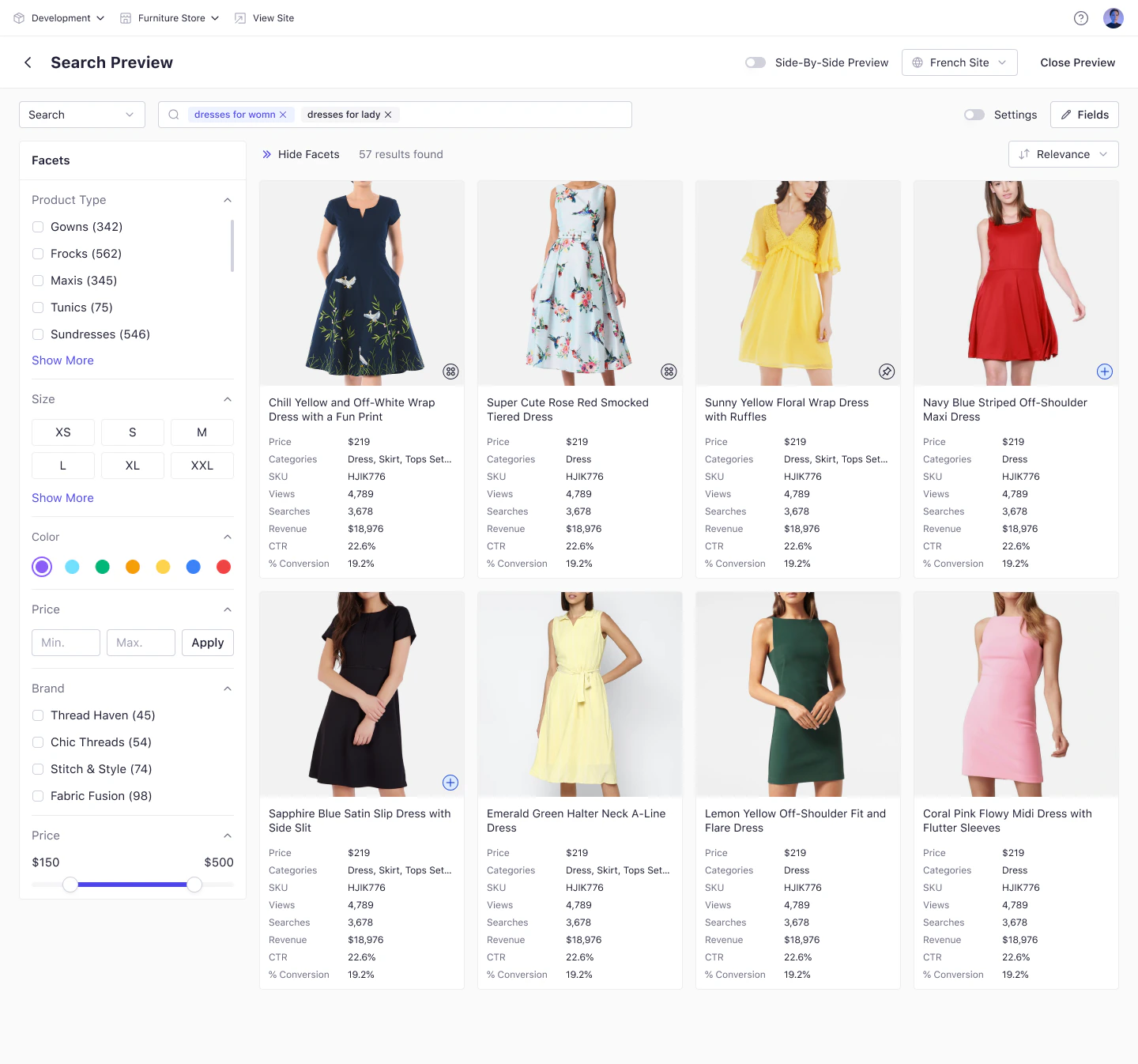
Unlock a real‑time simulation of your storefront’s search journey. The Search Preview Settings feature delivers a live, front‑end style interface mimicking the shopper view across global, category, or collection contexts so merchants and marketers can fine‑tune merchandising rules, personalize search logic, monitor analytics, and control discoverability **before** pushing changes live.
 ## Prerequisites
* You must have **Administrator** access, or explicit permissions for the Discovery modules.
* Any search algorithms or merchandising rules you plan to preview should already be configured and active in your workspace.
## Opening the Search Preview
There are three entry points to launch Search Preview:
### Global Search Preview
1. Navigate to **Discovery** in the main menu.
2. Click the **Search Preview** button in the top navigation bar.
3. A new window overlays your screen, displaying an empty search interface.
## Prerequisites
* You must have **Administrator** access, or explicit permissions for the Discovery modules.
* Any search algorithms or merchandising rules you plan to preview should already be configured and active in your workspace.
## Opening the Search Preview
There are three entry points to launch Search Preview:
### Global Search Preview
1. Navigate to **Discovery** in the main menu.
2. Click the **Search Preview** button in the top navigation bar.
3. A new window overlays your screen, displaying an empty search interface.
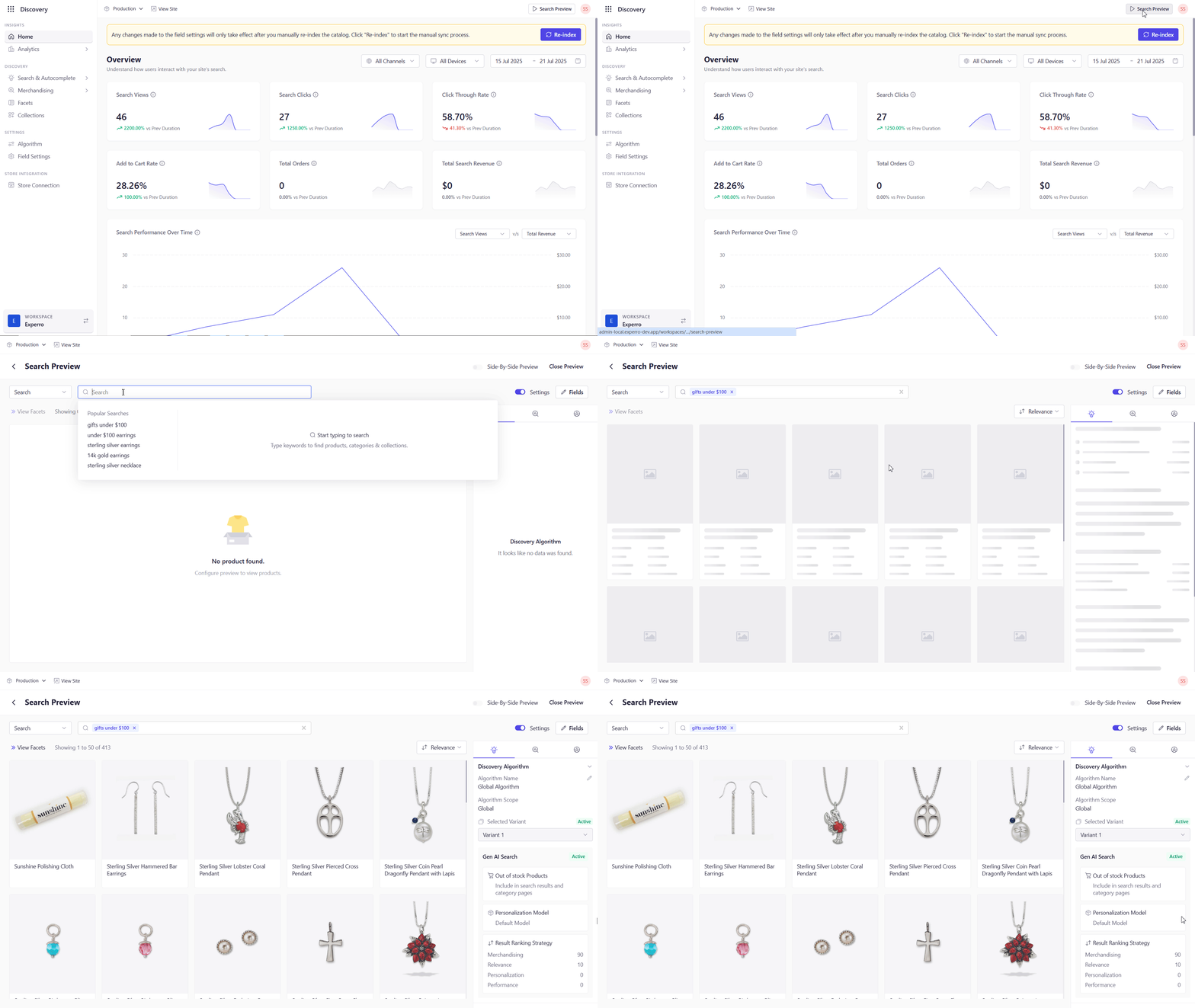 No products load until you enter a search term or select a filter.
### Algorithm‑Specific Preview
1. Open any search **Algorithm** in the Discovery module.
2. Click **Preview** in the top‑right corner of the Algorithm settings page.
3. The preview window auto‑populates results based on the current algorithm configuration and your search term.
No products load until you enter a search term or select a filter.
### Algorithm‑Specific Preview
1. Open any search **Algorithm** in the Discovery module.
2. Click **Preview** in the top‑right corner of the Algorithm settings page.
3. The preview window auto‑populates results based on the current algorithm configuration and your search term.
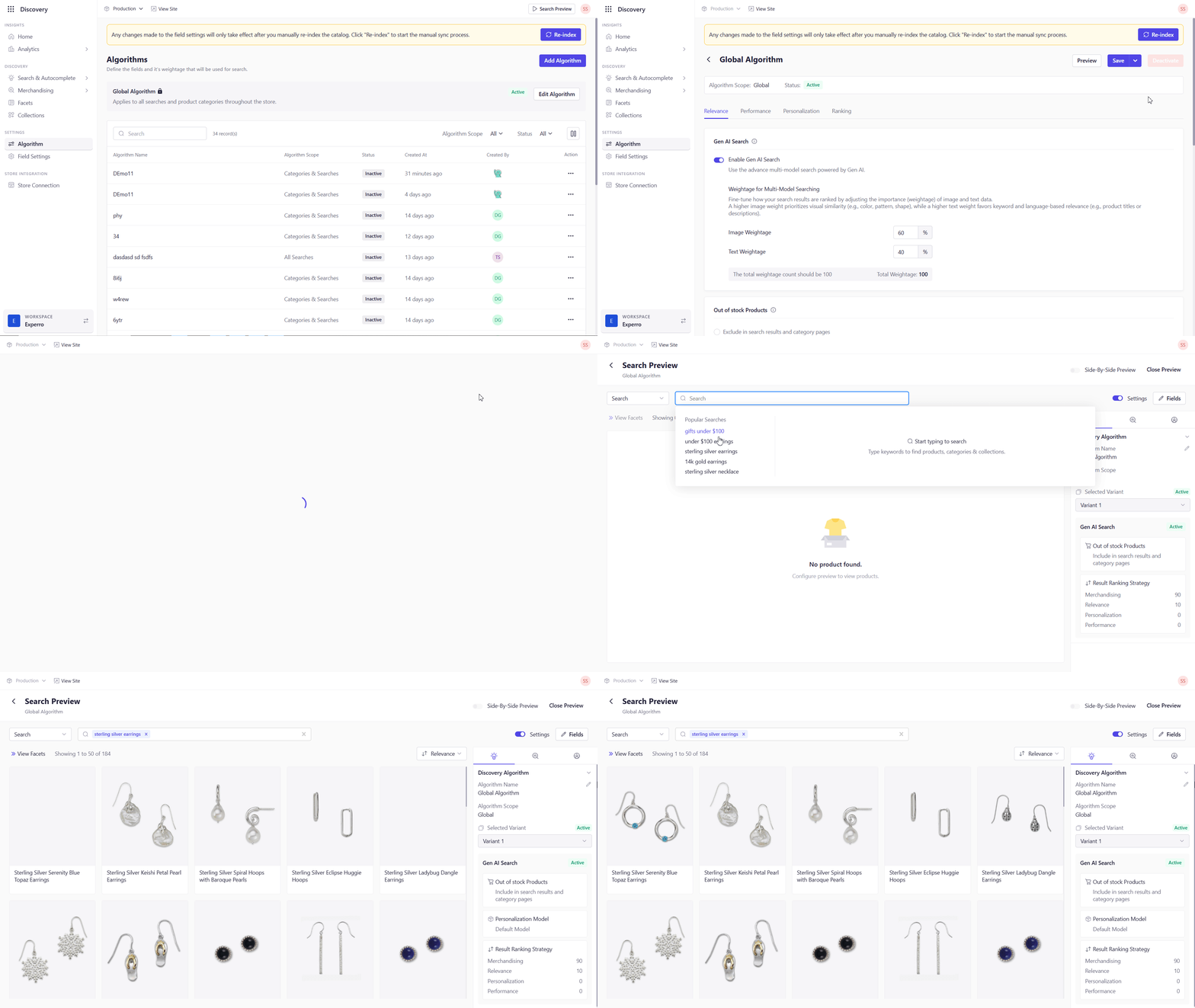 Use this to instantly see how ranking models, Gen AI variants, or personalization settings affect results.
### Merchandising Preview
1. Navigate to any rule in your **Merchandising Rules** list.
2. Click the **Preview** action for that rule.
3. The search preview window then reflects the **combined impact of all the merchandising rules** on your results (boosts, buries, pins, slots, etc.).
**For example**: You’ll see how promotions, exclusions, and pinning rules all interact in the live preview.
## Selecting a Search Scope
Within the preview window, use the **Scope** dropdown (to the left of the search bar) to choose one of three modes:
1. **Search**: Perform a global keyword search across your entire catalog.
2. **Category**: Restrict results to product categories.
3. **Collection**: Limit results to a Experro‑defined collection.
Use this to instantly see how ranking models, Gen AI variants, or personalization settings affect results.
### Merchandising Preview
1. Navigate to any rule in your **Merchandising Rules** list.
2. Click the **Preview** action for that rule.
3. The search preview window then reflects the **combined impact of all the merchandising rules** on your results (boosts, buries, pins, slots, etc.).
**For example**: You’ll see how promotions, exclusions, and pinning rules all interact in the live preview.
## Selecting a Search Scope
Within the preview window, use the **Scope** dropdown (to the left of the search bar) to choose one of three modes:
1. **Search**: Perform a global keyword search across your entire catalog.
2. **Category**: Restrict results to product categories.
3. **Collection**: Limit results to a Experro‑defined collection.
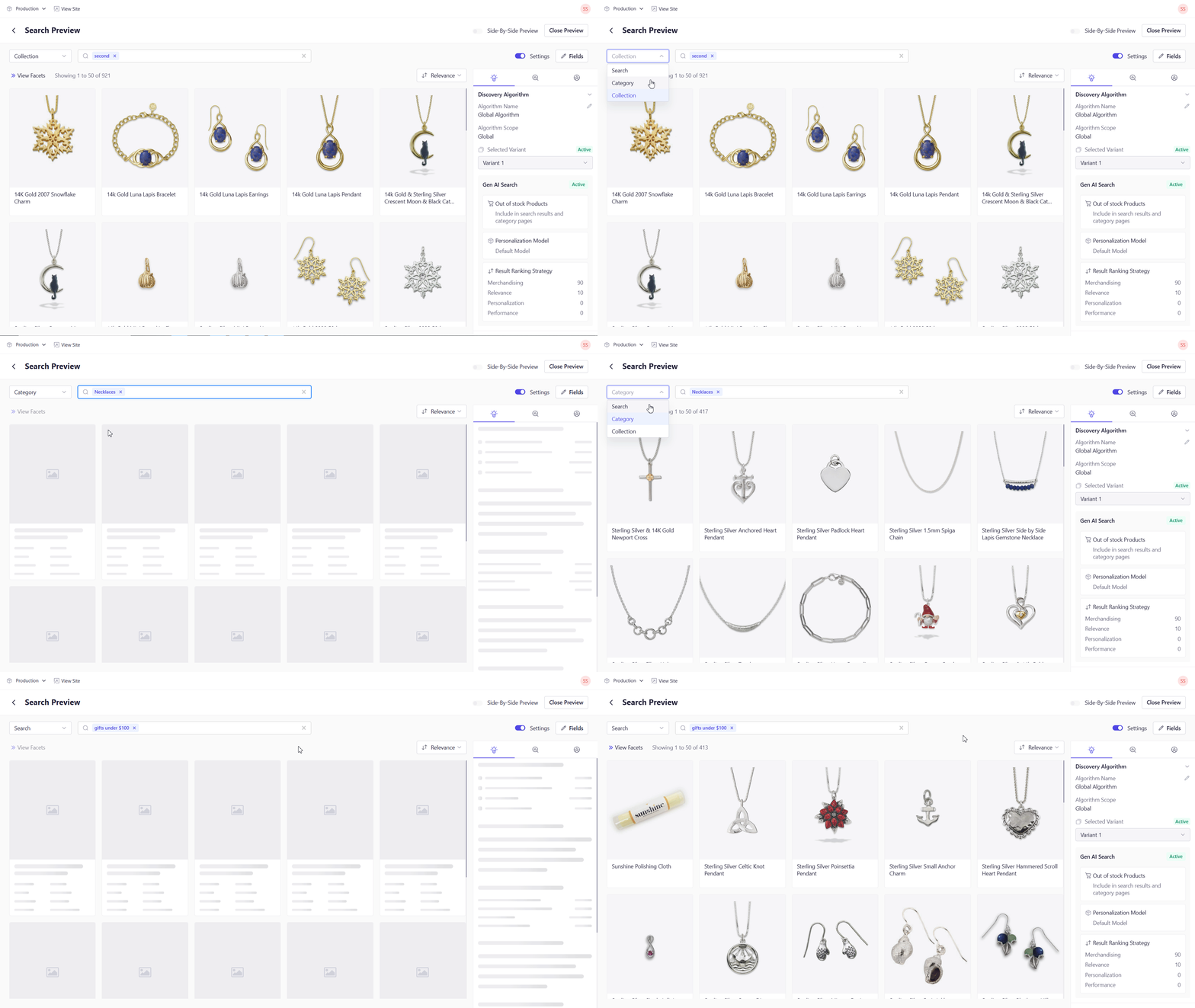 The product grid updates automatically based on your selected scope.
## Using the Search Bar and Suggestions
### Focus‑Triggered Suggestions
* **Popular Searches**: Appears when you click into the search bar without typing, showing commonly used search terms.
### Typing‑Based Suggestions
As you enter text, a dynamic dropdown offers:
* **Recent Searches** for your user session.
* **Did you mean…?** corrections for misspellings.
* **Category Suggestions** matching your terms.
* **Content Suggestions** (e.g., relevant blog posts or guides).
* **View all (X) products** link when the result set is large.
Click any suggestion to populate the search input and refresh the results grid.
## Reviewing Search Results
### Product Grid Layout
* Displays product cards in a responsive grid.
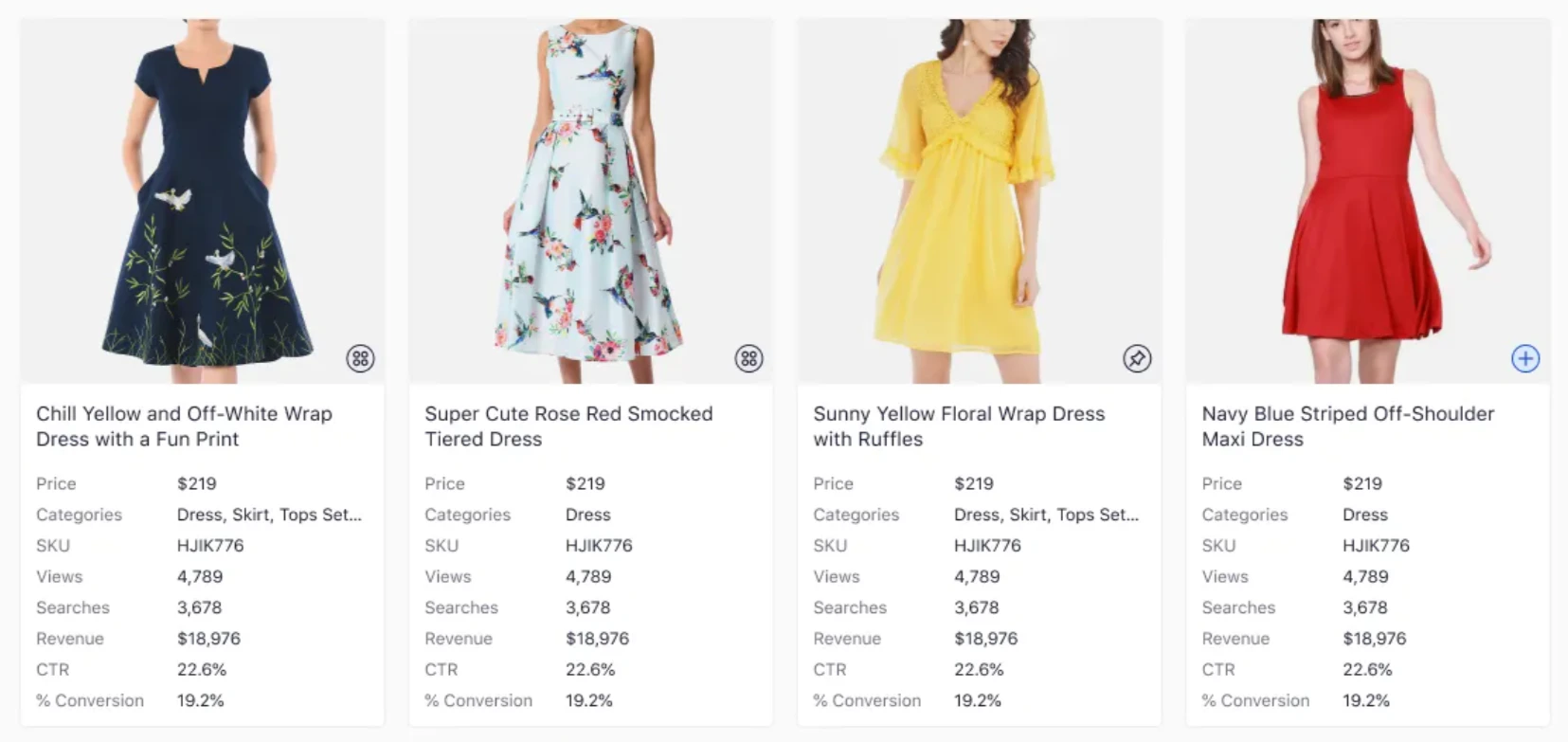
* Each card includes:
* **Image** and **Title** (fixed)
* Key metrics: Price, SKU, Views, Searches, Revenue
* Performance data: CTR, Conversion %
* Merchandising icons (Pin, Boost, Exclude, etc.)
The product grid updates automatically based on your selected scope.
## Using the Search Bar and Suggestions
### Focus‑Triggered Suggestions
* **Popular Searches**: Appears when you click into the search bar without typing, showing commonly used search terms.
### Typing‑Based Suggestions
As you enter text, a dynamic dropdown offers:
* **Recent Searches** for your user session.
* **Did you mean…?** corrections for misspellings.
* **Category Suggestions** matching your terms.
* **Content Suggestions** (e.g., relevant blog posts or guides).
* **View all (X) products** link when the result set is large.
Click any suggestion to populate the search input and refresh the results grid.
## Reviewing Search Results
### Product Grid Layout
* Displays product cards in a responsive grid.
* Each card includes:
* **Image** and **Title** (fixed)
* Key metrics: Price, SKU, Views, Searches, Revenue
* Performance data: CTR, Conversion %
* Merchandising icons (Pin, Boost, Exclude, etc.)
 ### Facet Filters
* Toggle the **View Facets** button to open or collapse the filter sidebar.
### Sorting Options
1. Click the **Sort** dropdown in the top‑right of the results panel.
2. Choose from: Relevance (default), Price (Low→High/High→Low), A→Z, Z→A, Newest.
3. Results reorder instantly based on your selection.
## Customizing Displayed Fields
To tailor which data points appear on product cards:
1. Click **Fields** → **Edit Product Fields**.
2. In the popup, drag required fields from the Available list into the Selected list (max 10).
3. Reorder fields by dragging them up or down.
4. Click **Save** to update the product cards or **Cancel** to revert.
**Locked Fields:** Image and Title cannot be removed to maintain clarity.
## Comparing Algorithm Variants
Activate **Side‑by‑Side Preview** to evaluate two algorithm variants simultaneously:
### Facet Filters
* Toggle the **View Facets** button to open or collapse the filter sidebar.
### Sorting Options
1. Click the **Sort** dropdown in the top‑right of the results panel.
2. Choose from: Relevance (default), Price (Low→High/High→Low), A→Z, Z→A, Newest.
3. Results reorder instantly based on your selection.
## Customizing Displayed Fields
To tailor which data points appear on product cards:
1. Click **Fields** → **Edit Product Fields**.
2. In the popup, drag required fields from the Available list into the Selected list (max 10).
3. Reorder fields by dragging them up or down.
4. Click **Save** to update the product cards or **Cancel** to revert.
**Locked Fields:** Image and Title cannot be removed to maintain clarity.
## Comparing Algorithm Variants
Activate **Side‑by‑Side Preview** to evaluate two algorithm variants simultaneously:
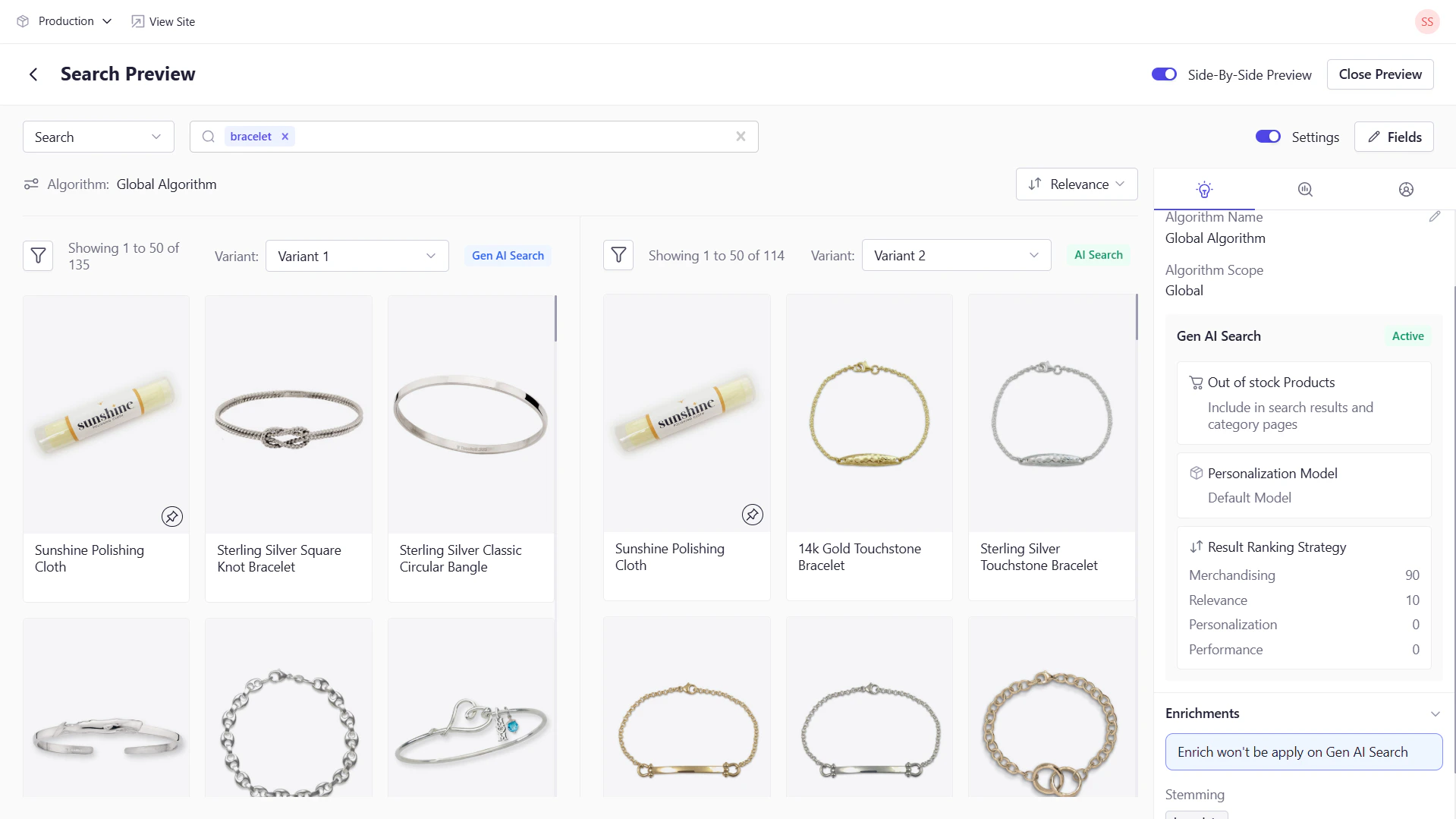 1. Toggle **Side‑by‑Side** in the preview toolbar.
2. Two panes appear, each reflecting a different variant’s results.
3. Use this comparison to decide on optimal ranking or personalization strategies.
**Requirement:** At least two variants must exist for this view to enable.
## Exploring the Settings Sidebar
Click the **Settings** icon (top‑right) to open the sidebar, then switch between tabs:
1. Toggle **Side‑by‑Side** in the preview toolbar.
2. Two panes appear, each reflecting a different variant’s results.
3. Use this comparison to decide on optimal ranking or personalization strategies.
**Requirement:** At least two variants must exist for this view to enable.
## Exploring the Settings Sidebar
Click the **Settings** icon (top‑right) to open the sidebar, then switch between tabs:
 ### Discovery Settings
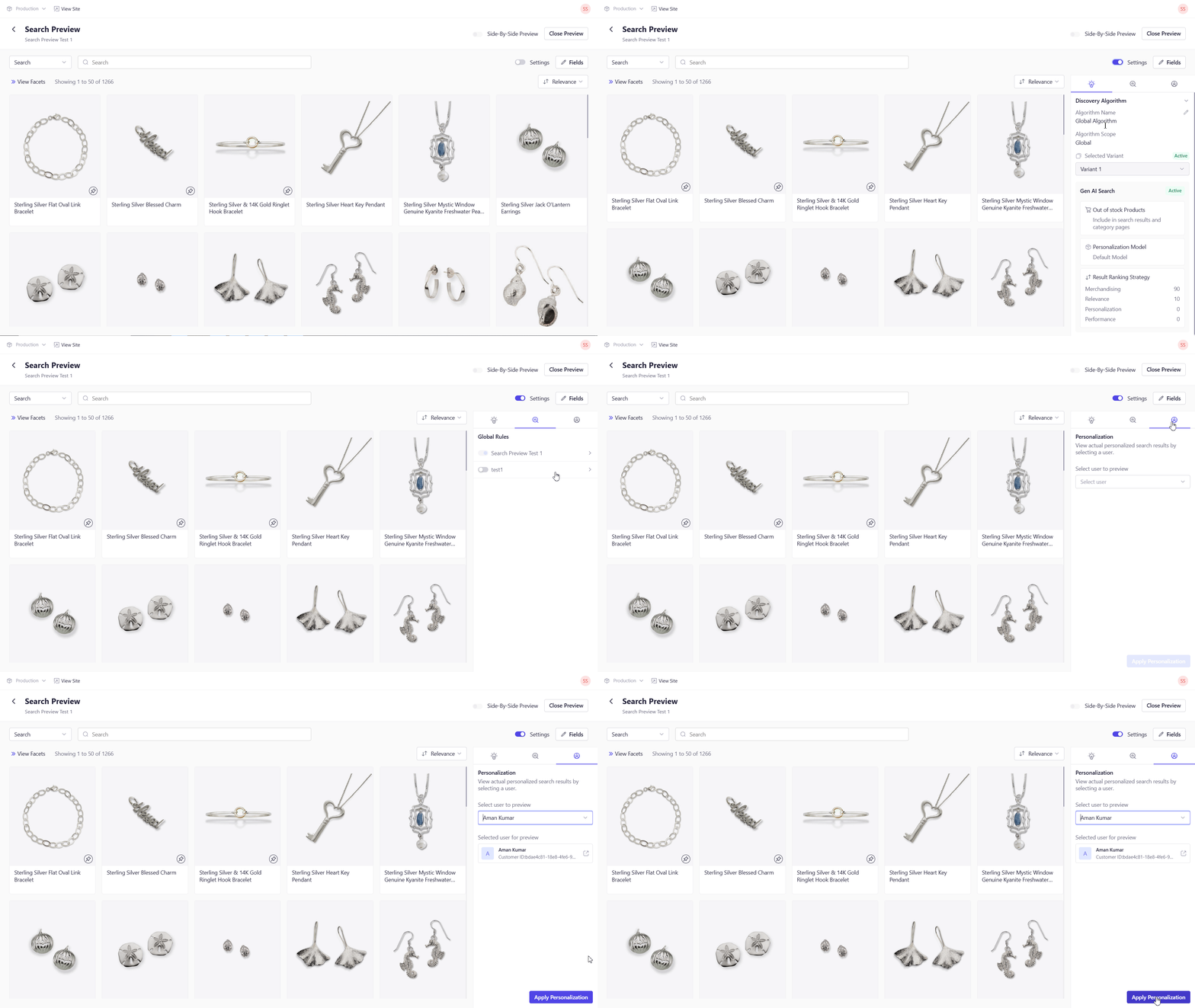
* **Algorithm Overview**: View the algorithm’s name, scope, and currently selected variant. You can also switch between the variants here.
* **Configuration Snapshot**: See Gen AI Search configuration, enrichment settings (synonyms, stopwords, etc.), and the active results ranking strategy.
* **Deep Dive**: Click the edit icon next to the algorithm name to jump directly to the Algorithm page and update settings.
### Merchandising Rules
* **Rule Summary**: Review all active merchandising rules—global, search‑term, category, and collection applied to your current preview.
* **Toggle & Edit**: Enable or disable any rule on the fly.
* **Quick Access**: Click an individual rule’s name and click on the edit icon to navigate to its full configuration screen.
### Personalization Settings
* **When Disabled**: You’ll see a prompt with a button to open the Algorithm settings. From there, enable personalization under the Discovery Algorithm configuration.
* **When Enabled**: A searchable dropdown appears, letting you select a user to apply their Ideal Customer Profile (ICP) to the preview.
* **Sync with Algorithm**: The personalization options and ICP details reflect whatever algorithm variant is active in the above Discovery settings.
### Discovery Settings
* **Algorithm Overview**: View the algorithm’s name, scope, and currently selected variant. You can also switch between the variants here.
* **Configuration Snapshot**: See Gen AI Search configuration, enrichment settings (synonyms, stopwords, etc.), and the active results ranking strategy.
* **Deep Dive**: Click the edit icon next to the algorithm name to jump directly to the Algorithm page and update settings.
### Merchandising Rules
* **Rule Summary**: Review all active merchandising rules—global, search‑term, category, and collection applied to your current preview.
* **Toggle & Edit**: Enable or disable any rule on the fly.
* **Quick Access**: Click an individual rule’s name and click on the edit icon to navigate to its full configuration screen.
### Personalization Settings
* **When Disabled**: You’ll see a prompt with a button to open the Algorithm settings. From there, enable personalization under the Discovery Algorithm configuration.
* **When Enabled**: A searchable dropdown appears, letting you select a user to apply their Ideal Customer Profile (ICP) to the preview.
* **Sync with Algorithm**: The personalization options and ICP details reflect whatever algorithm variant is active in the above Discovery settings.