> ## Documentation Index
> Fetch the complete documentation index at: https://help.experro.com/llms.txt
> Use this file to discover all available pages before exploring further.
# Synonyms
Synonyms in Experro are alternative words or phrases that are treated as equivalent during search queries. By mapping different terms that share the same meaning, synonyms enhance search relevance and ensure that users find the products they are looking for—even if they use varied terminology. This mechanism reduces the chances of returning no or irrelevant results for complex search queries.
Example: For a website selling electronics, adding “mobile” as a synonym for “cell phone” ensures that a search for either term returns the same set of products.
## Use-Cases
* **Improved Search Relevancy:**\
When a customer searches for “sofa,” synonyms like “couch” ensure that all relevant products are displayed, even if different terms are used in the product catalog.
* **Maintain Consistency:**\
By bridging the gap between varied terminologies (e.g., “TV” and “television”), synonyms deliver consistent results, reducing user frustration.
* **Language Localization:**\
Supporting multiple languages ensures that synonyms are relevant for diverse audiences. For instance, “mobile” might be used as a synonym for “cell phone” in certain regions, ensuring a unified search experience.
## Configuration Guide
### Viewing and Searching Synonyms
1. **Access the Synonyms Section:**
* Use the navigation panel on the left side of the screen.
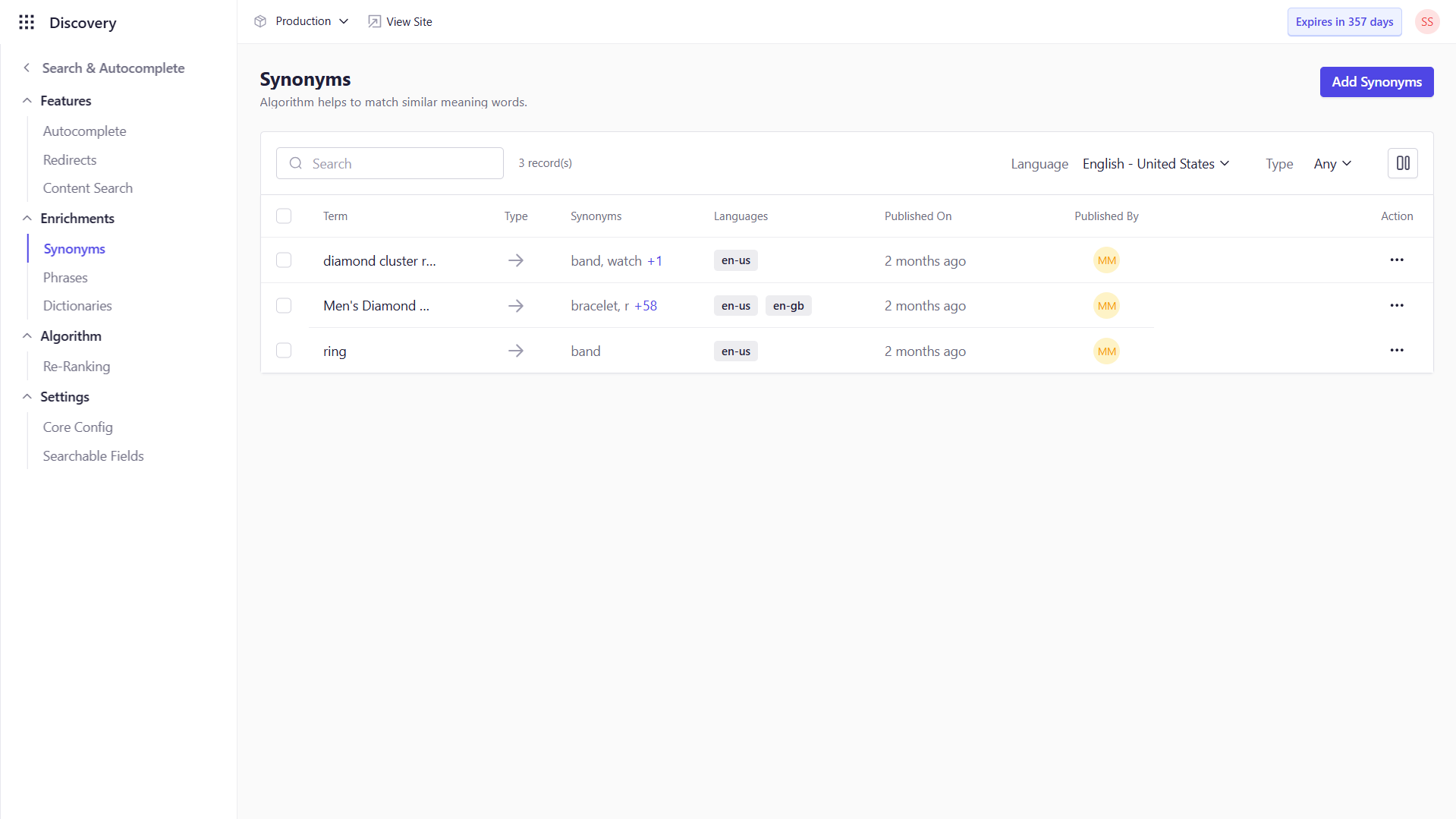
* Navigate to **Discovery → Search & Autocomplete**, then select the **Synonyms** tab.
* The screen will display a list of existing synonym rules.
* Use the search bar at the top to locate a specific synonym by entering the term or synonym you are looking for.
 ### Adding Synonyms
1. **Click on "Add Synonyms":**
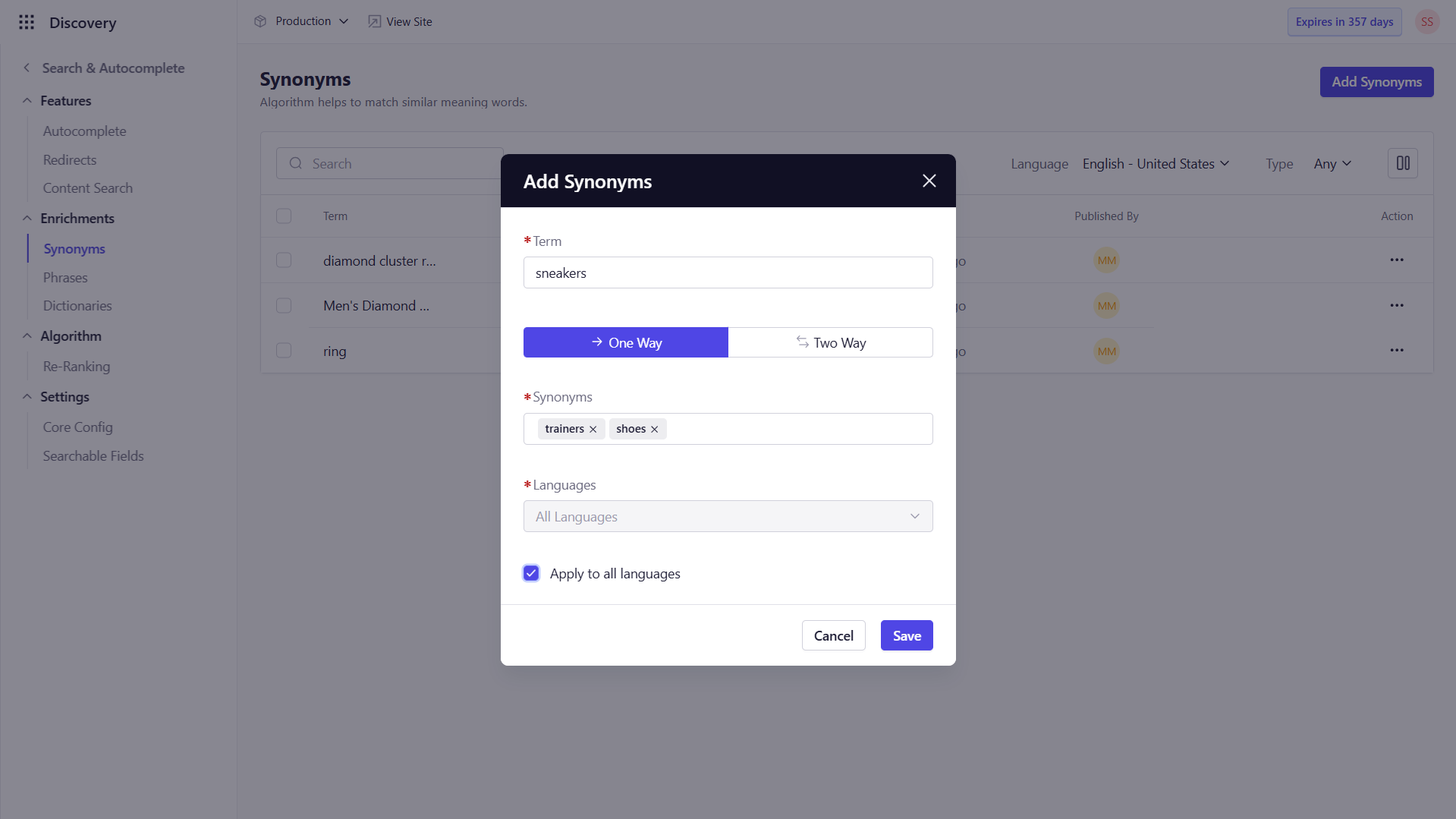
* On the Synonyms screen, click the **Add Synonyms** button to open the pop-up form.
2. **Fill in the Fields:**
| **Field Name** | **Description** |
| --------------------- | -------------------------------------------------------------------------------------------------------------------------------------------------------------------------------------------------------------------------------------------- |
| **Term** | Enter the primary term for which you want to add synonyms. |
| **One Way / Two Way** | **One Way** maps only from the primary term to its synonym (e.g., “trainers” → “sneakers” but not the reverse) while **Two Way** creates a reciprocal mapping so that either term (e.g., “sneakers” or “trainers”) returns results for both. |
| **Synonyms** | Enter the synonym(s) for the term. Type each synonym and press the tab key to confirm it. You can add multiple synonyms in this manner. |
| **Languages** | Select the language for which the synonym applies. Use the checkbox **Apply to all languages** if applicable. |
3. **Save the Synonym:**
* Once you have entered all required information, click **Save** to add the synonym to your list.
### Adding Synonyms
1. **Click on "Add Synonyms":**
* On the Synonyms screen, click the **Add Synonyms** button to open the pop-up form.
2. **Fill in the Fields:**
| **Field Name** | **Description** |
| --------------------- | -------------------------------------------------------------------------------------------------------------------------------------------------------------------------------------------------------------------------------------------- |
| **Term** | Enter the primary term for which you want to add synonyms. |
| **One Way / Two Way** | **One Way** maps only from the primary term to its synonym (e.g., “trainers” → “sneakers” but not the reverse) while **Two Way** creates a reciprocal mapping so that either term (e.g., “sneakers” or “trainers”) returns results for both. |
| **Synonyms** | Enter the synonym(s) for the term. Type each synonym and press the tab key to confirm it. You can add multiple synonyms in this manner. |
| **Languages** | Select the language for which the synonym applies. Use the checkbox **Apply to all languages** if applicable. |
3. **Save the Synonym:**
* Once you have entered all required information, click **Save** to add the synonym to your list.
 ### Editing Synonyms
1. **Find the Synonym to Edit:**
* Use the search bar to locate the synonym you wish to modify.
2. **Edit the Synonym:**
* Click on the synonym to open the edit form, or navigate to the the term and click
### Editing Synonyms
1. **Find the Synonym to Edit:**
* Use the search bar to locate the synonym you wish to modify.
2. **Edit the Synonym:**
* Click on the synonym to open the edit form, or navigate to the the term and click  under the **Action** field , then select **Edit**.
* Update the necessary fields (e.g., **Term, One Way/Two Way setting, Synonyms, Languages**).
3. **Save Changes:**
* Click **Save** to apply the updates.
### Deleting Synonyms
1. **Select the Synonym to Delete:**
* Use the search bar to locate the synonym you want to remove.
2. **Delete the Synonym:**
* Hover over the synonym, click under the **Action** field, and select **Delete** from the dropdown menu.
* Confirm deletion in the popup prompt.
By following these steps, you can effectively manage synonyms in Experro, enhancing and streamlining search relevance.
## Best Practices for Managing Synonyms
To maximize the effectiveness of synonyms and maintain high search relevance across your storefront, follow these best practices:
### Use Domain-Relevant Synonyms
Add synonyms that align with your product catalog and customer vocabulary. For example, in fashion: “sneakers” ↔ “trainers”; in furniture: “sofa” ↔ “couch.” Avoid overloading your search engine with irrelevant or rarely used alternates.
### Choose the Right Mapping Type
Use **Two-Way Synonyms** when both terms are commonly interchangeable (e.g., “TV” and “television”), and **One-Way Synonyms** when you want to drive traffic from a broader term to a specific variant (e.g., “trainers” → “Nike Air Max”).
### Localize for Multilingual Audiences
Create synonyms specific to languages or regions. Use the **Select Channel** to apply synonyms only where they are contextually accurate, ensuring better experiences for international shoppers.
### Avoid Overlapping or Redundant Synonyms
Avoid configuring synonyms that already exist within your catalog data or tagging system. Too many synonym entries can reduce precision and may confuse the engine, returning irrelevant results.
### Leverage Search Insights
Use **Search analytics** to find popular queries that return no results. These are often opportunities to add missing or unexpected synonyms based on real customer language.
### Don’t Use Synonyms as a Crutch
Avoid relying on synonyms to fix broader data issues (e.g., inconsistent product naming or missing metadata). Synonyms should enhance search—not cover for catalog hygiene problems.
### Review Regularly
Synonyms aren’t “set it and forget it.” Periodically review them alongside your evolving product range, customer behavior, and seasonal trends to keep mappings fresh and relevant.
By implementing these best practices, you’ll ensure that Experro Synonyms help bridge the gap between how users search and how products are described—leading to better discovery and higher conversion rates.
under the **Action** field , then select **Edit**.
* Update the necessary fields (e.g., **Term, One Way/Two Way setting, Synonyms, Languages**).
3. **Save Changes:**
* Click **Save** to apply the updates.
### Deleting Synonyms
1. **Select the Synonym to Delete:**
* Use the search bar to locate the synonym you want to remove.
2. **Delete the Synonym:**
* Hover over the synonym, click under the **Action** field, and select **Delete** from the dropdown menu.
* Confirm deletion in the popup prompt.
By following these steps, you can effectively manage synonyms in Experro, enhancing and streamlining search relevance.
## Best Practices for Managing Synonyms
To maximize the effectiveness of synonyms and maintain high search relevance across your storefront, follow these best practices:
### Use Domain-Relevant Synonyms
Add synonyms that align with your product catalog and customer vocabulary. For example, in fashion: “sneakers” ↔ “trainers”; in furniture: “sofa” ↔ “couch.” Avoid overloading your search engine with irrelevant or rarely used alternates.
### Choose the Right Mapping Type
Use **Two-Way Synonyms** when both terms are commonly interchangeable (e.g., “TV” and “television”), and **One-Way Synonyms** when you want to drive traffic from a broader term to a specific variant (e.g., “trainers” → “Nike Air Max”).
### Localize for Multilingual Audiences
Create synonyms specific to languages or regions. Use the **Select Channel** to apply synonyms only where they are contextually accurate, ensuring better experiences for international shoppers.
### Avoid Overlapping or Redundant Synonyms
Avoid configuring synonyms that already exist within your catalog data or tagging system. Too many synonym entries can reduce precision and may confuse the engine, returning irrelevant results.
### Leverage Search Insights
Use **Search analytics** to find popular queries that return no results. These are often opportunities to add missing or unexpected synonyms based on real customer language.
### Don’t Use Synonyms as a Crutch
Avoid relying on synonyms to fix broader data issues (e.g., inconsistent product naming or missing metadata). Synonyms should enhance search—not cover for catalog hygiene problems.
### Review Regularly
Synonyms aren’t “set it and forget it.” Periodically review them alongside your evolving product range, customer behavior, and seasonal trends to keep mappings fresh and relevant.
By implementing these best practices, you’ll ensure that Experro Synonyms help bridge the gap between how users search and how products are described—leading to better discovery and higher conversion rates.