> ## Documentation Index
> Fetch the complete documentation index at: https://help.experro.com/llms.txt
> Use this file to discover all available pages before exploring further.
# Connect your store
This guide is divided into two major segments:
* **Adding the Experro Extension to Magento**
* **Configuring the Magento–Experro Integration**
## 1. Adding the Experro Extension to Magento
### Overview
In this section, you will add the Experro extension to your Magento installation. Follow these steps carefully to ensure that the module is correctly installed and visible in the Magento Admin panel.
### Prerequisites
* Ensure that you have already downloaded the Experro Connector ZIP file to your server.
* Contact the Experro Support Team if you do not have the required file.
### Installation Steps
Extract the ZIP folder into the Magento root directory at the following path:
```bash theme={null}
MagentoRoot/app/code
```
Confirm that the extracted folder structure appears as:
```bash theme={null}
MagentoRoot/app/code/Experro/Connect
```
Open your terminal in the Magento root directory and execute the following commands one by one:
```
php bin/magento setup:upgrade
php bin/magento setup:di:compile
php bin/magento setup:static-content:deploy -f
php bin/magento indexer:reindex # Only if required
php bin/magento cache:clean
php bin/magento cache:flush
chmod 777 -R var pub generated
```
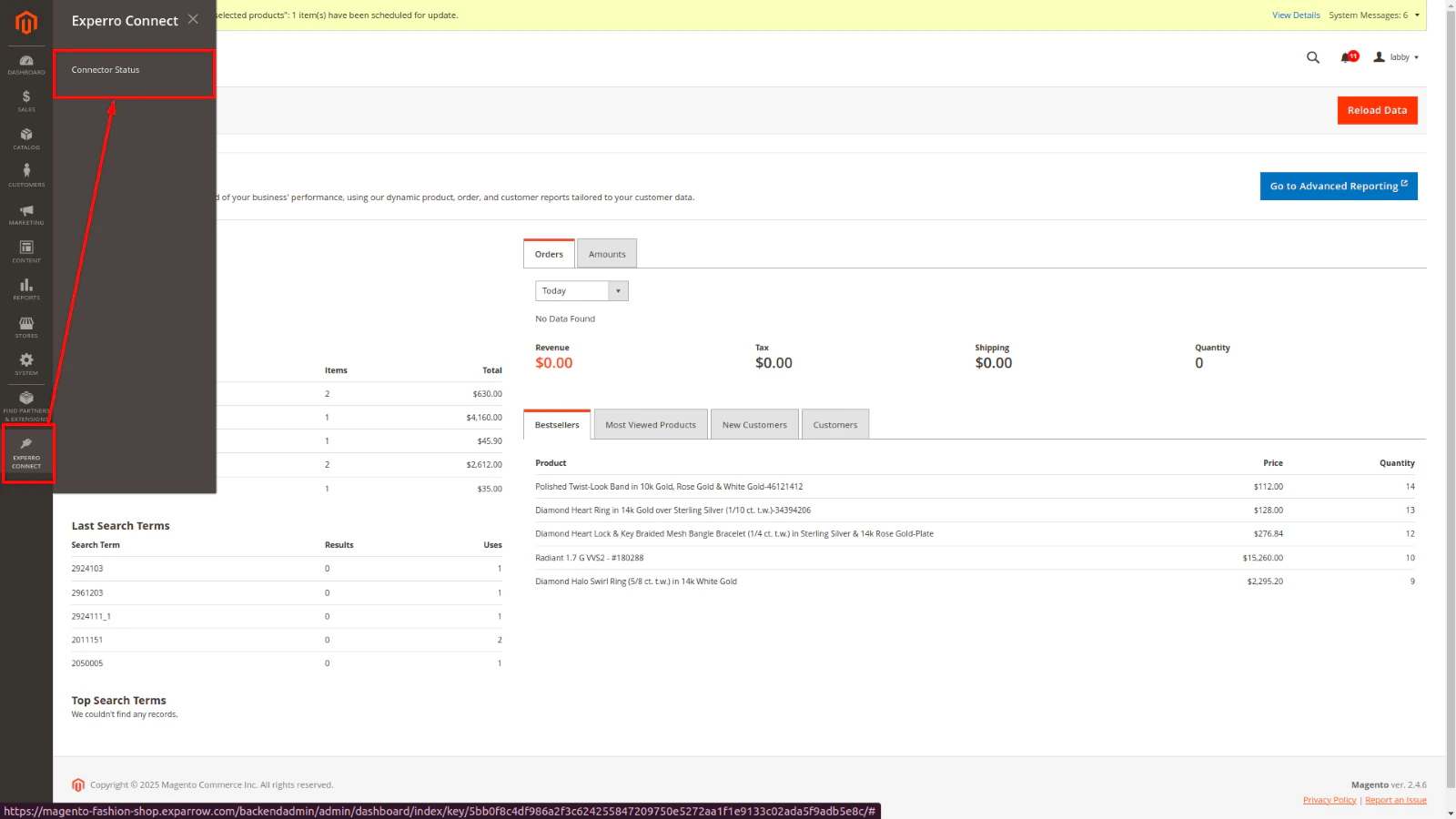
Once the installation is complete, log in to your Magento Admin panel. You should see the Experro module logo in the left sidebar.
To verify connectivity, navigate to:
```
Admin > Experro > System Status
```
## 2. Configuring the Magento–Experro Integration
### Prerequisites
* Ensure that you have already uploaded the Experro Connector ZIP file to your server as shown in the previous section.
### Integration Steps
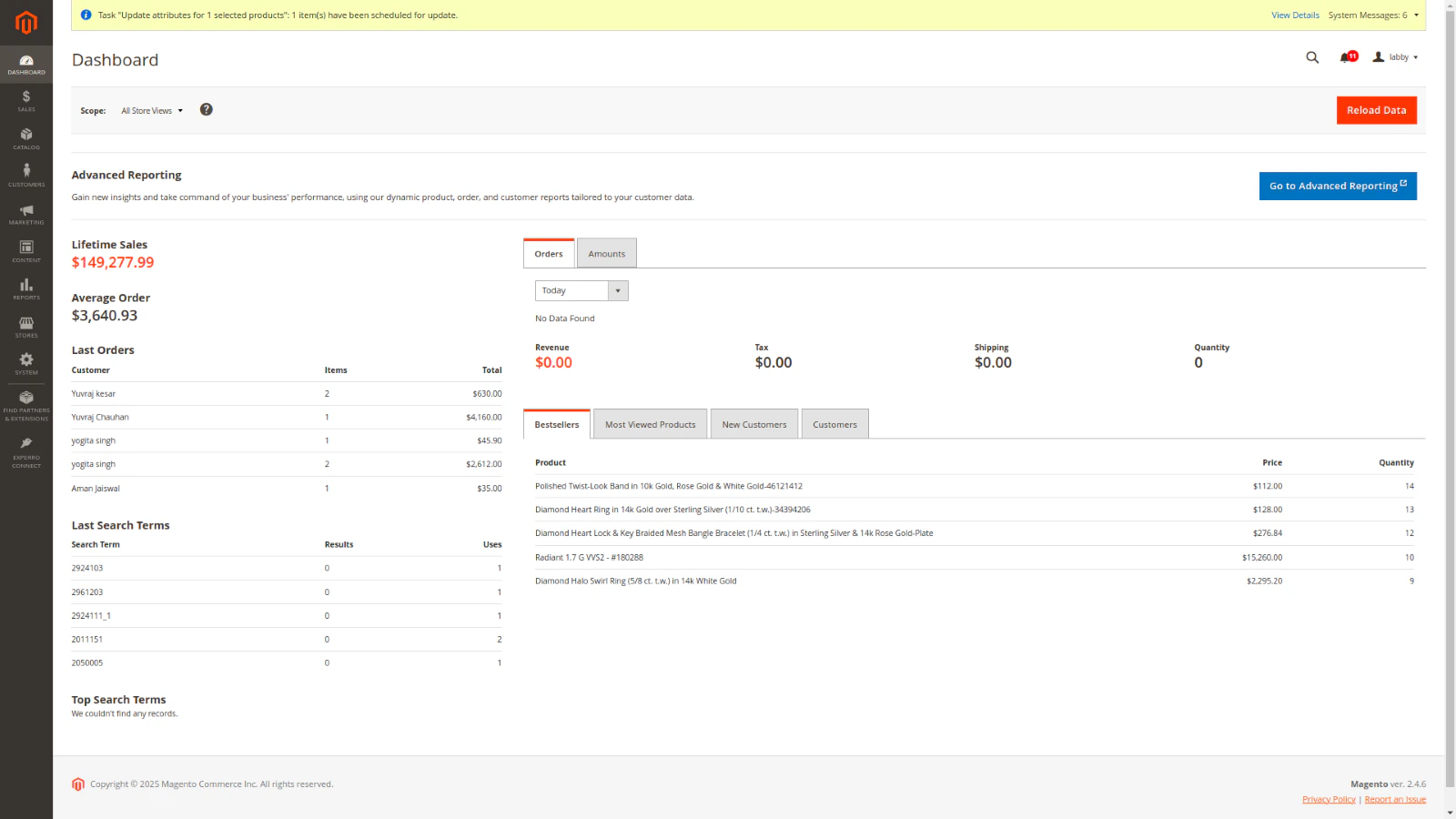
* Log in to the Magento Admin panel.
* Navigate to **Experro Connect**.
 * Log in to the Experro Admin panel.
* Navigate to the **Platform** section.
* Select **Install Magento Integration**.
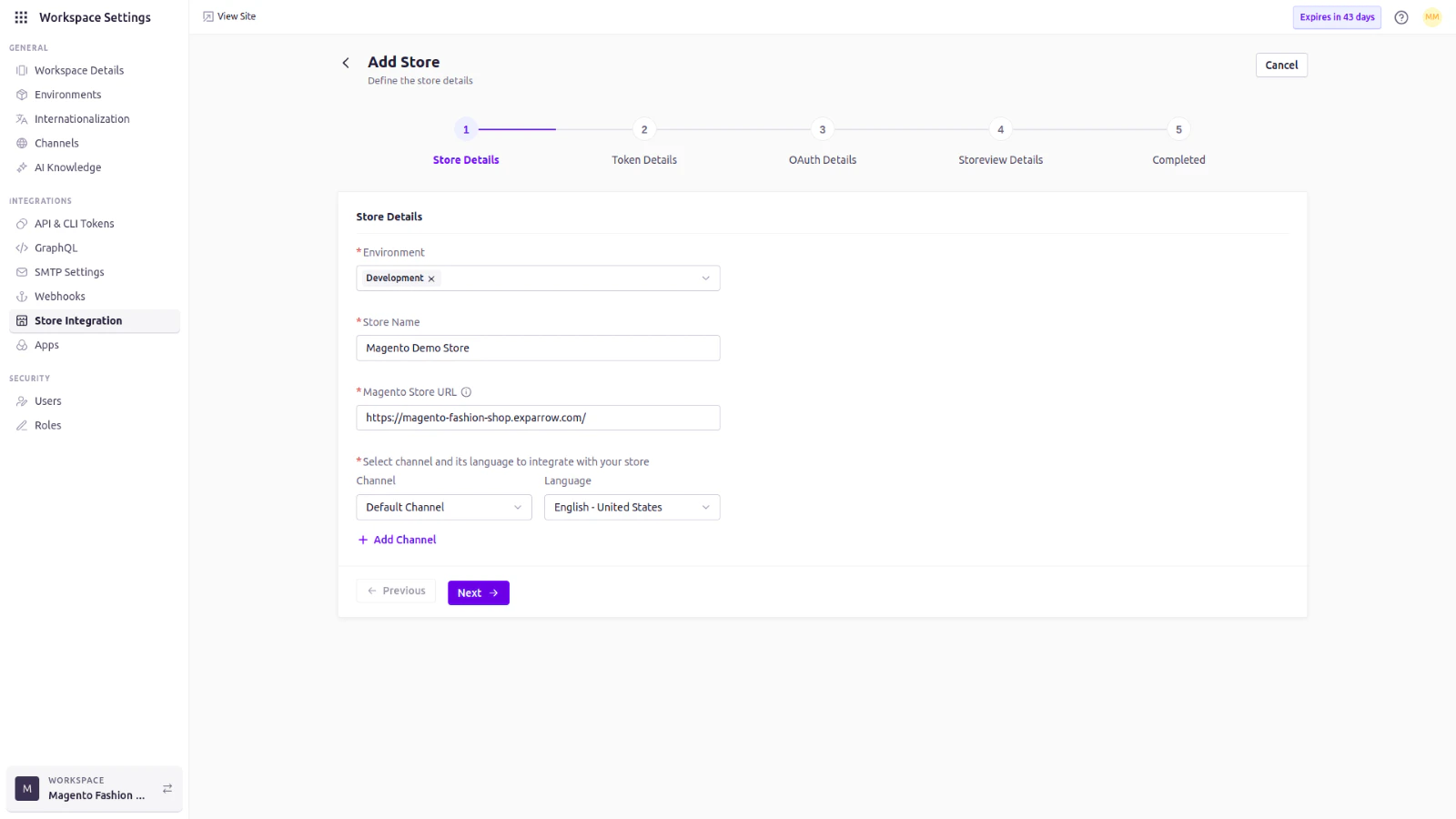
* Click **Add Store** and fill in the required details (Environment, Store name, Magento store URL, Channel, and Language).
* Click **Next**.
* Log in to the Experro Admin panel.
* Navigate to the **Platform** section.
* Select **Install Magento Integration**.
* Click **Add Store** and fill in the required details (Environment, Store name, Magento store URL, Channel, and Language).
* Click **Next**.
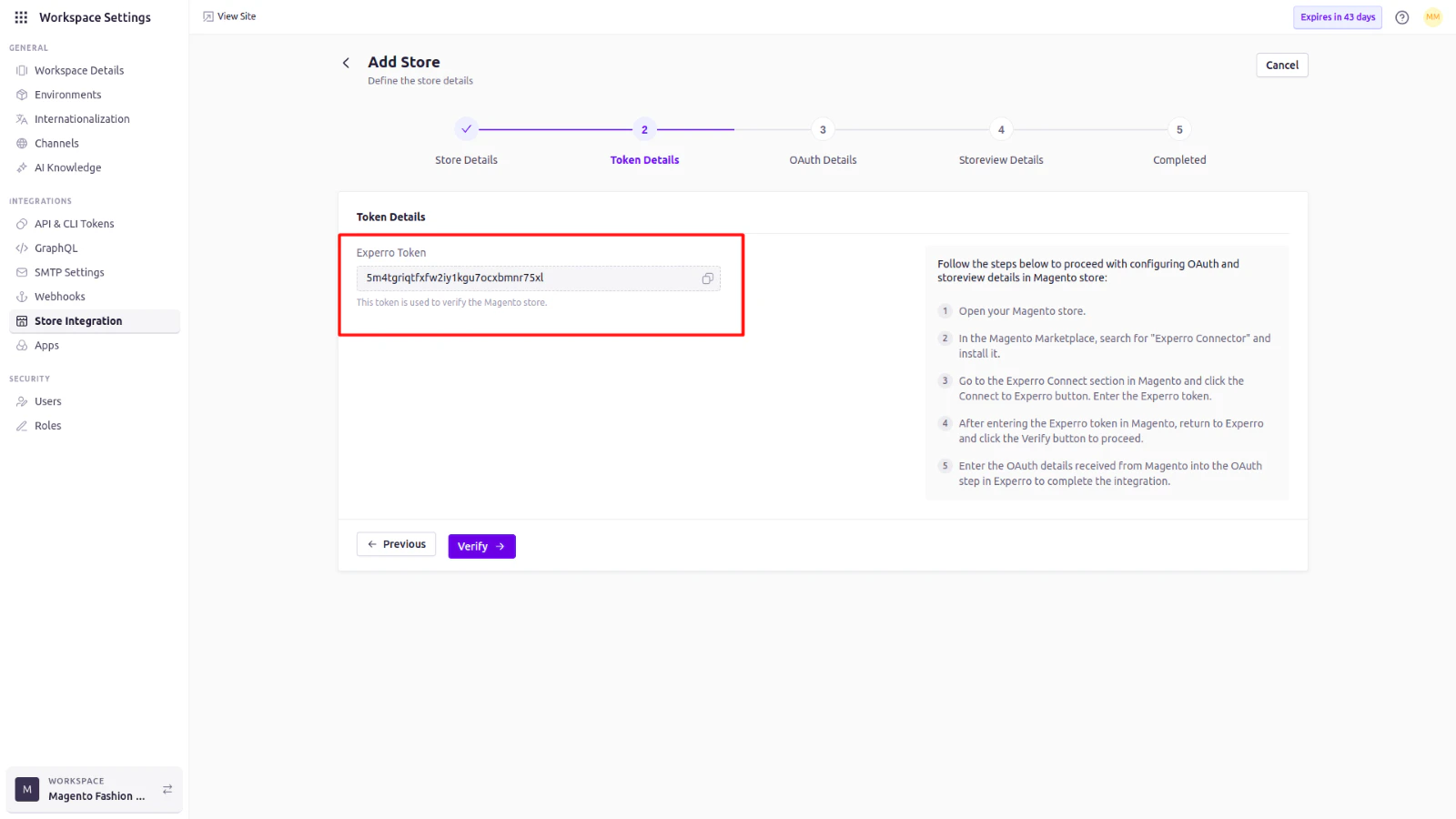
 * The system will redirect you to a new page displaying the Experro token.
* Copy the displayed token.
* The system will redirect you to a new page displaying the Experro token.
* Copy the displayed token.
 * Return to the Magento Admin panel.
* Click on the **Connect to Experro** button.
* Return to the Magento Admin panel.
* Click on the **Connect to Experro** button.
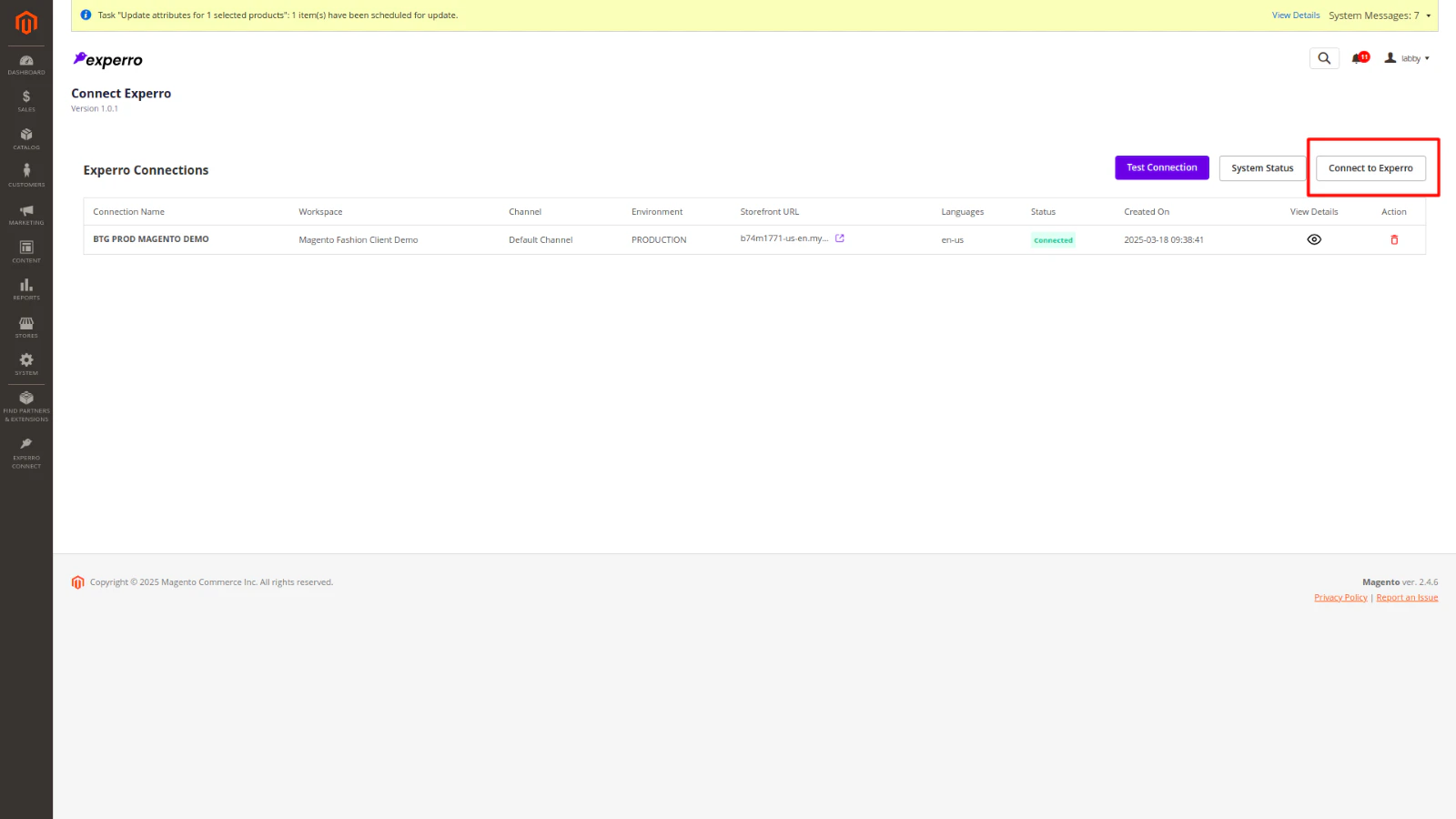 * You will be redirected to a connection form.
* Paste the Experro token (copied earlier) and fill in the other required details.
* Click **Next**.
* You will be redirected to a connection form.
* Paste the Experro token (copied earlier) and fill in the other required details.
* Click **Next**.
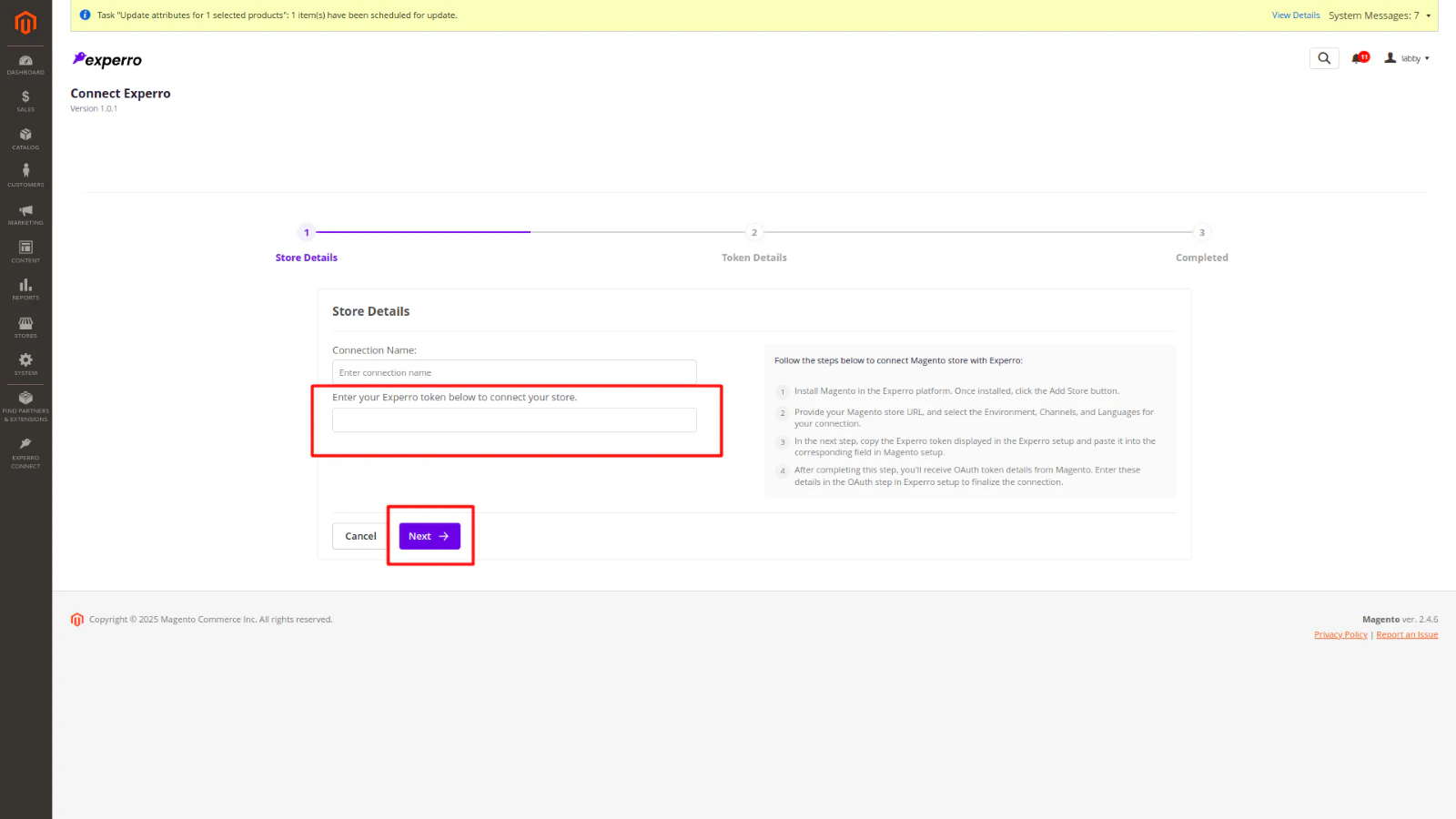 * The store details page will now be displayed in Magento.
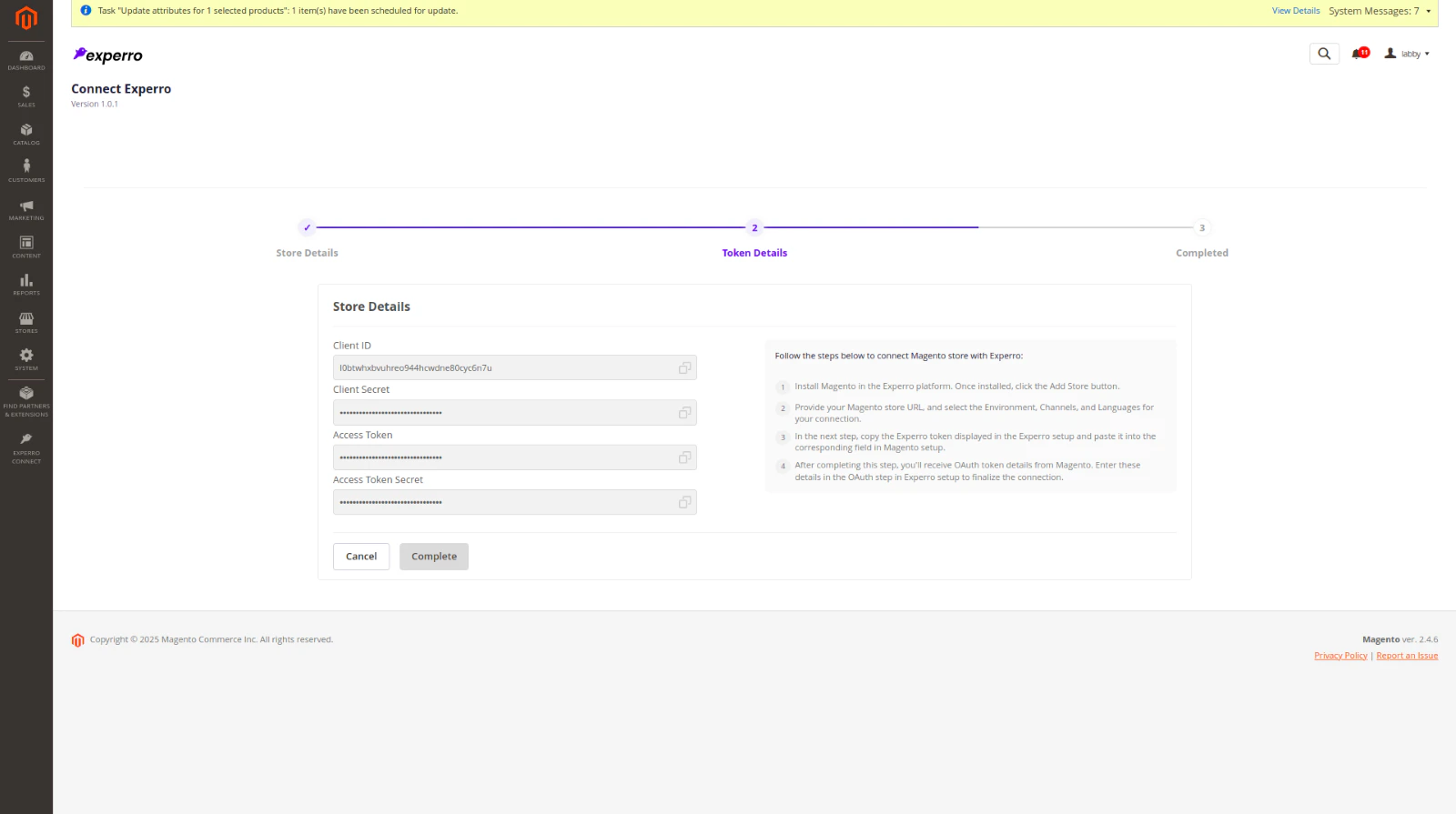 * Navigate to **Experro**, and click the **Verify** button.
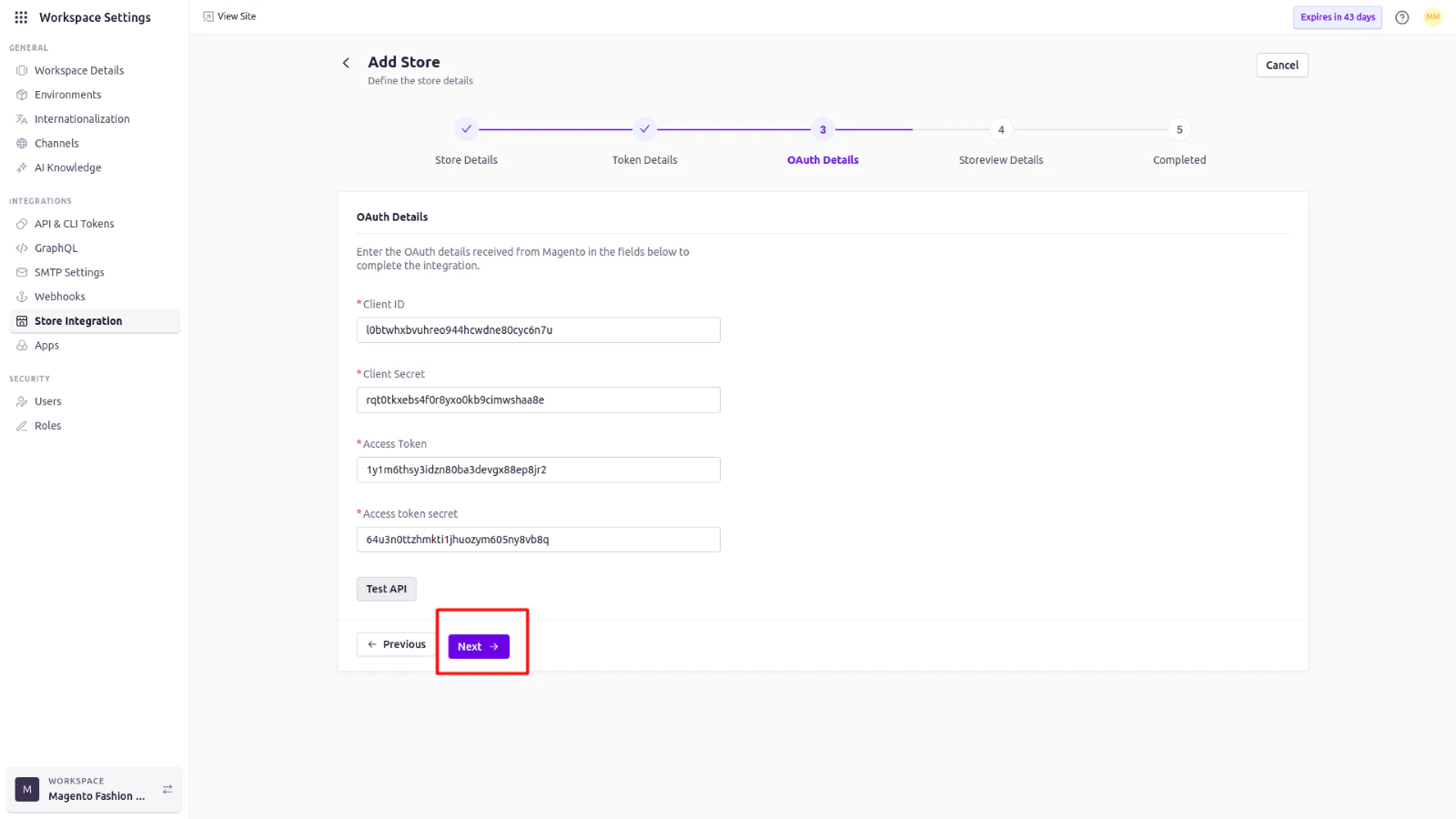
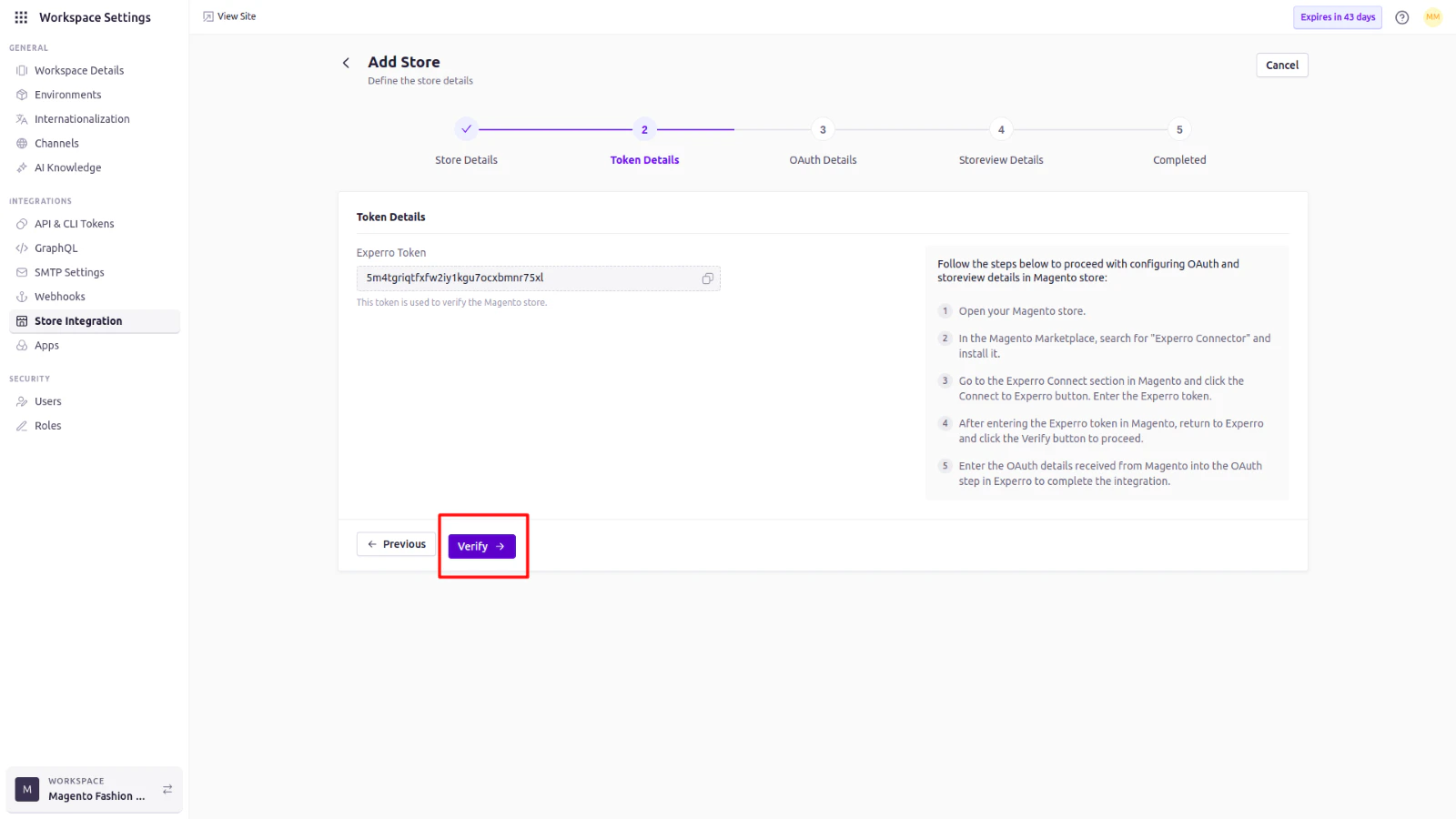 * After clicking **Verify**, you will be redirected to the **OAuth Details** page.
* Copy the store details information from the Magento Admin panel into the respective fields.
* Click **Next**.
* After clicking **Verify**, you will be redirected to the **OAuth Details** page.
* Copy the store details information from the Magento Admin panel into the respective fields.
* Click **Next**.
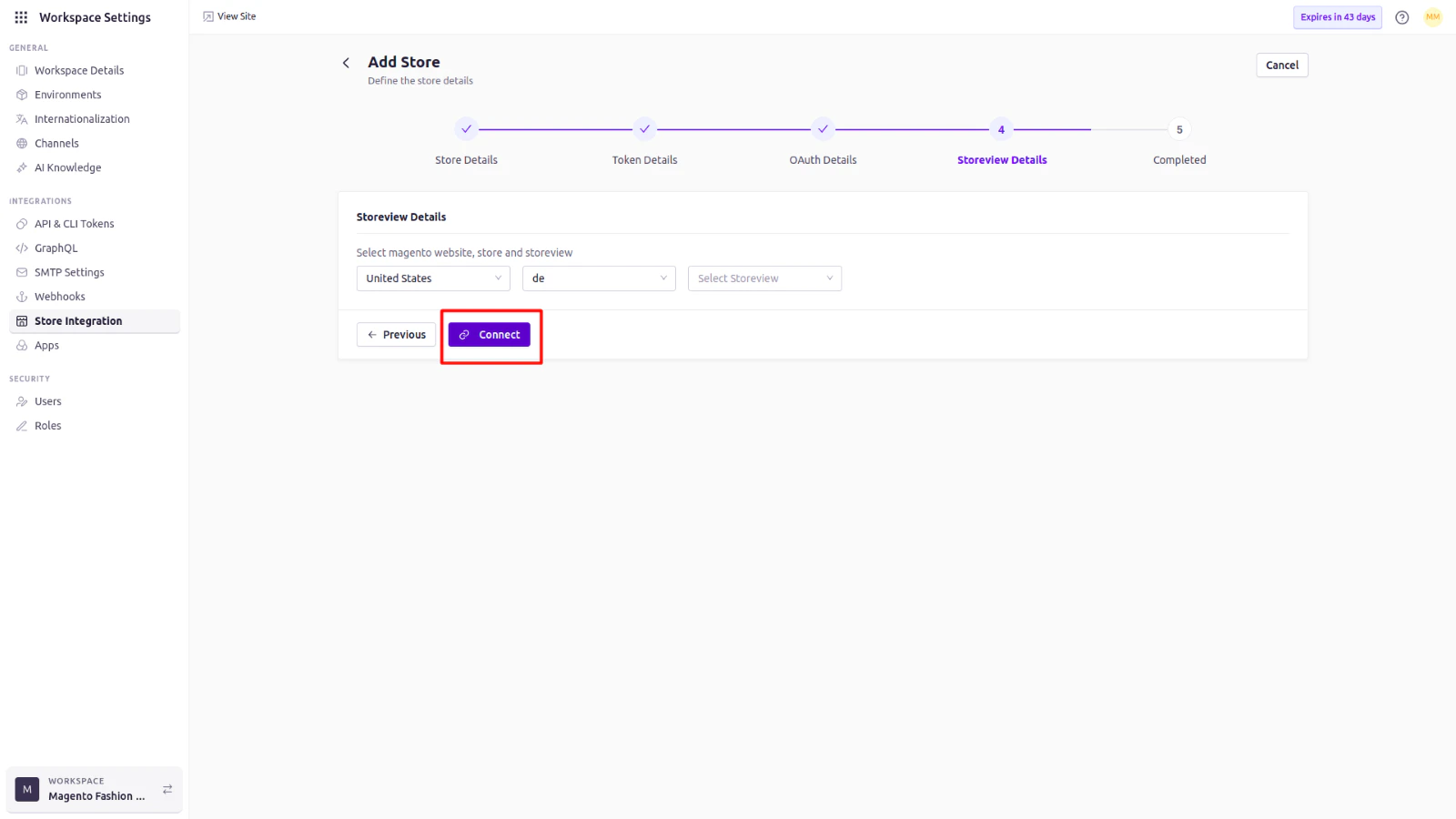
 * Complete the final details on the **Storeview Details** page.
* Click **Connect**.
* You should see a confirmation message:
> **Store added successfully**
* The system will then redirect you to the store listing page, where your newly added store will be displayed.
* Complete the final details on the **Storeview Details** page.
* Click **Connect**.
* You should see a confirmation message:
> **Store added successfully**
* The system will then redirect you to the store listing page, where your newly added store will be displayed.
 This guide should help you smoothly integrate Magento with Experro.