> ## Documentation Index
> Fetch the complete documentation index at: https://help.experro.com/llms.txt
> Use this file to discover all available pages before exploring further.
# Search Results
## Search Results Customization
The **Search Results** tab in UI Customization lets you tailor every aspect of how search results appear to your customers—on both desktop and mobile. While general layout and display settings apply by default, here you can override them specifically for search results, ensuring that product listings, filtering, sorting, and messaging align perfectly with your brand and user experience goals.
### Device View Selection
At the top of the page, use the **Desktop View** and **Mobile View** toggles to switch between device-specific settings. This ensures your search results are optimized for different screen sizes:
* **Desktop View:** Configure wider layouts, multi‑column grids, and detailed product cards.
* **Mobile View:** Enable compact layouts, single‑column grids, and streamlined cards for touch navigation.
### Overriding Default Settings
By default, the search results page inherits the **Layout**, **Grid**, **Card**, and **Sort** configurations defined in the general **UI Customization → Layout** tab. To customize search results independently:
1. Toogle **Use different page layout for search results**
2. Toggle **Use different product grid layout for search results**
3. Toggle **Use different product card layout for search results**
4. Toggle **Use different sort options for search results**
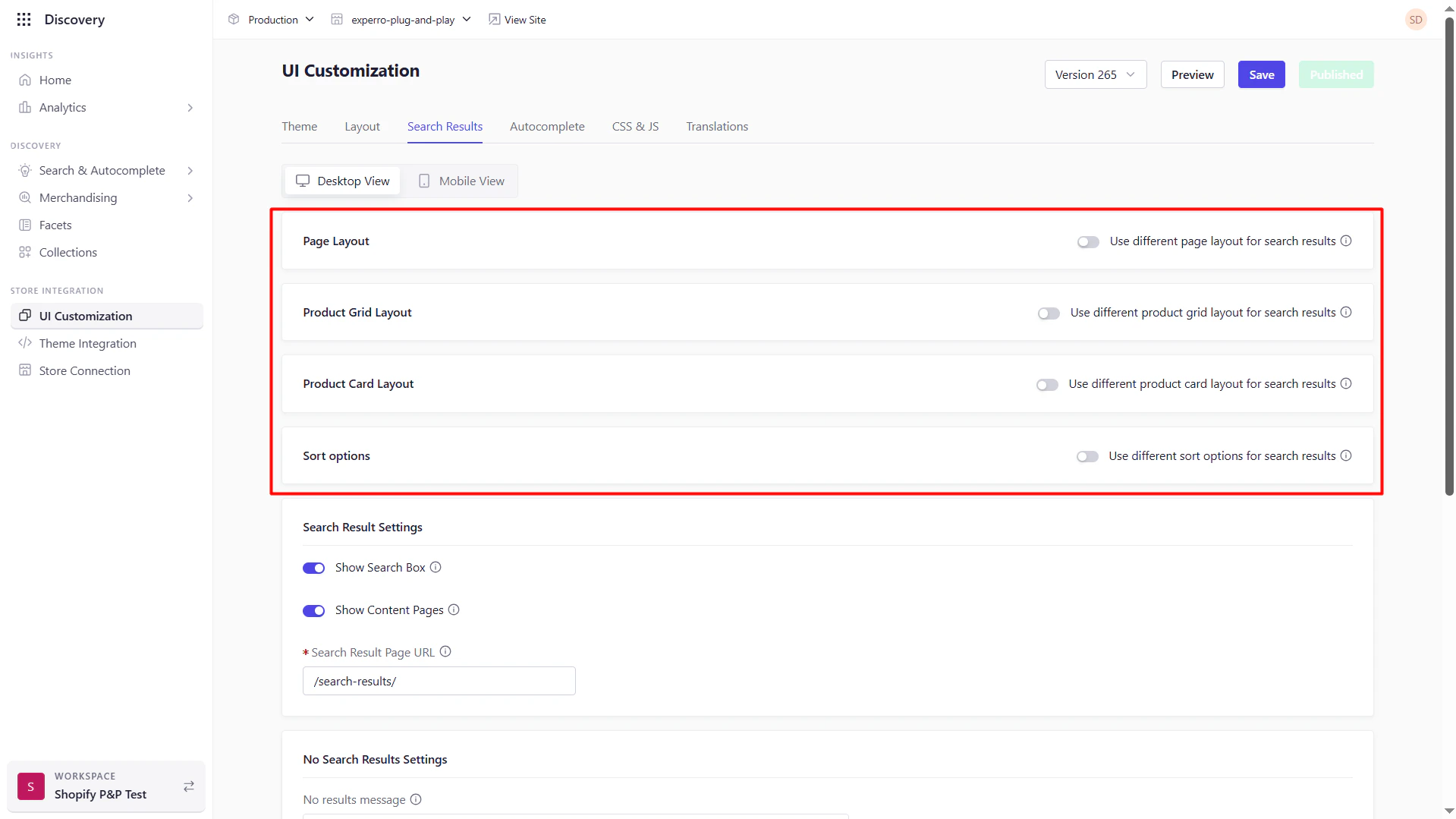 Once enabled, each section below becomes configurable for search results only.
### Search Result Settings
**Purpose:** Configure core search page behaviors.
* **Show Search Box:** Toggle visibility of the search input on the results page.
* **Show Content Pages:** Include content pages (e.g., FAQs) alongside product results.
* **Search Result Page URL:** Set or override the URL slug by creating a custom page in BigCommerce and link the URL here (default: `/search-results/`).
Once enabled, each section below becomes configurable for search results only.
### Search Result Settings
**Purpose:** Configure core search page behaviors.
* **Show Search Box:** Toggle visibility of the search input on the results page.
* **Show Content Pages:** Include content pages (e.g., FAQs) alongside product results.
* **Search Result Page URL:** Set or override the URL slug by creating a custom page in BigCommerce and link the URL here (default: `/search-results/`).
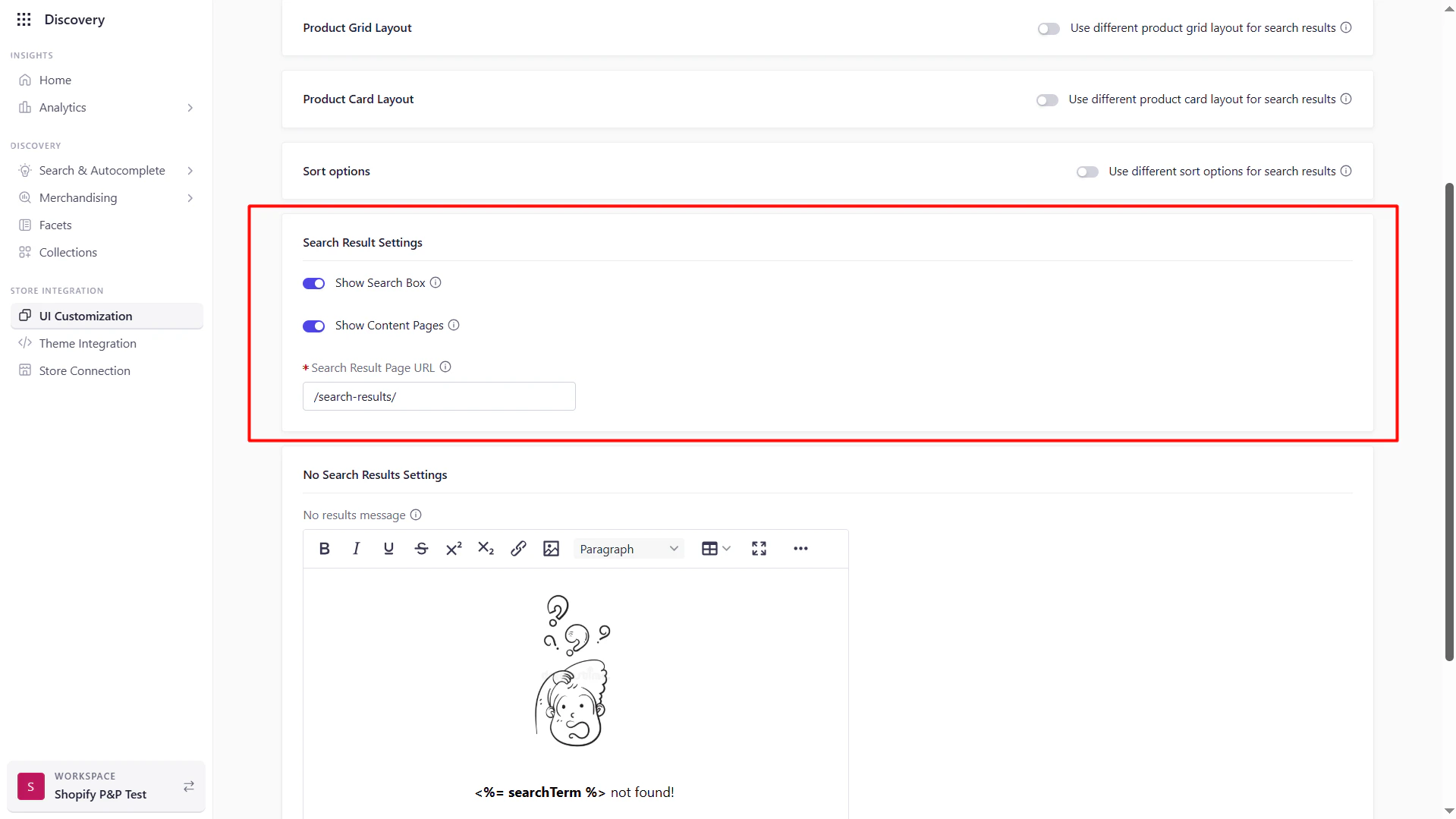 Keeping the search box visible encourages users to refine their queries on the fly.
### No Results Settings
**Purpose:** Customize messaging and fallback when a search yields zero products.
* **No Results Message:** Enter up to 6 words of friendly copy (e.g., “Sorry, no matches for `<%= searchTerm %>`”).
* **Dynamic Tag Replacement:** Use the `<%= searchTerm %>` tag to inject the user’s query into your message automatically.
Keeping the search box visible encourages users to refine their queries on the fly.
### No Results Settings
**Purpose:** Customize messaging and fallback when a search yields zero products.
* **No Results Message:** Enter up to 6 words of friendly copy (e.g., “Sorry, no matches for `<%= searchTerm %>`”).
* **Dynamic Tag Replacement:** Use the `<%= searchTerm %>` tag to inject the user’s query into your message automatically.
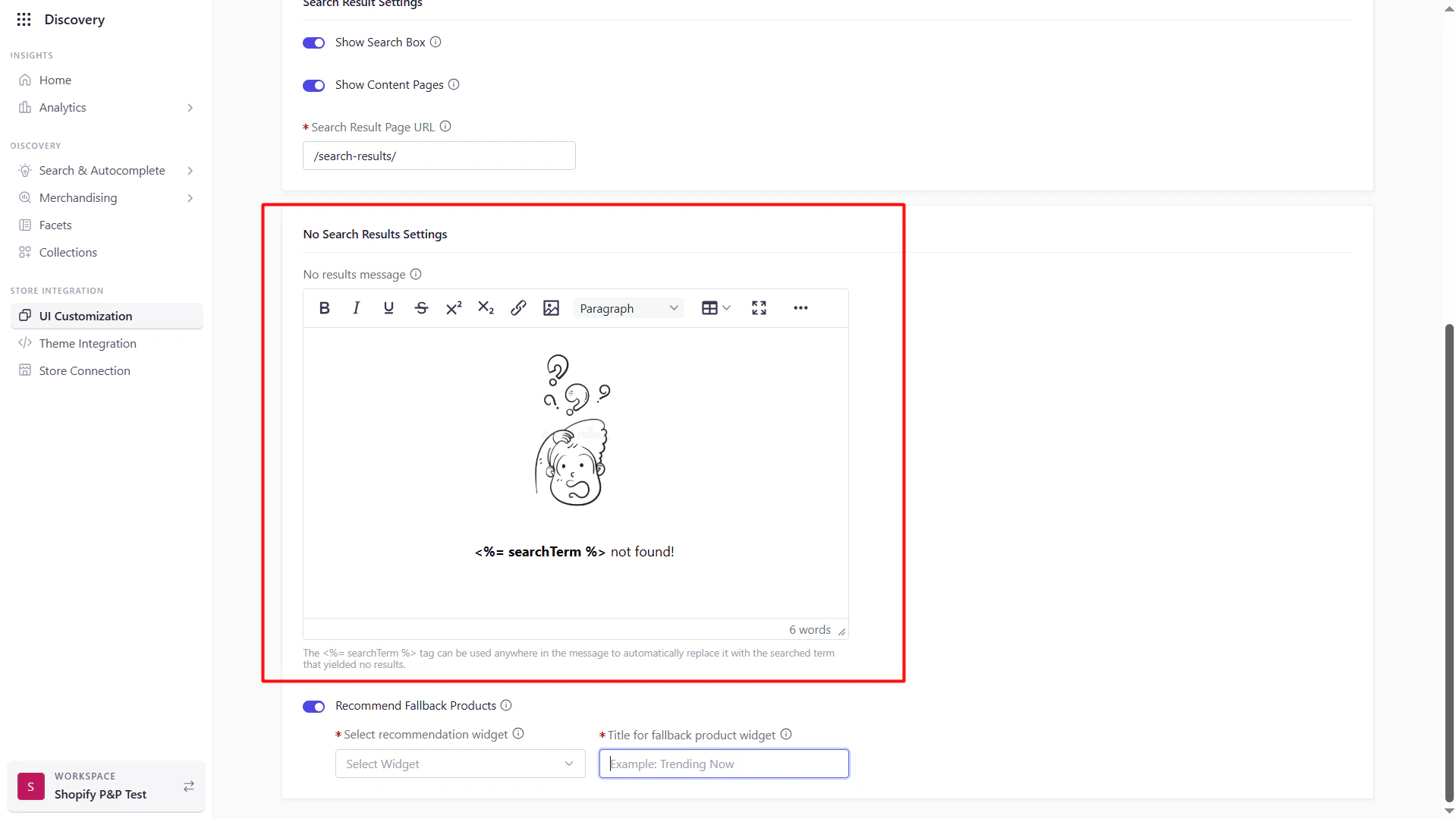 For Example, “We couldn’t find any ‘\<%= searchTerm %>’. Here are some popular items instead.”
### Recommend Fallback Products
**Purpose:** Display alternative or popular products when no exact matches exist.
* **Enable Recommendations:** Toggle on to curate a fallback recommendation widget.
* **Source Configuration:** Choose the recommendation widget and the title for the recommendation widget.
**Outcome:** Keep users engaged by offering relevant alternatives, reducing bounce rates from no‑result searches.
For Example, “We couldn’t find any ‘\<%= searchTerm %>’. Here are some popular items instead.”
### Recommend Fallback Products
**Purpose:** Display alternative or popular products when no exact matches exist.
* **Enable Recommendations:** Toggle on to curate a fallback recommendation widget.
* **Source Configuration:** Choose the recommendation widget and the title for the recommendation widget.
**Outcome:** Keep users engaged by offering relevant alternatives, reducing bounce rates from no‑result searches.