> ## Documentation Index
> Fetch the complete documentation index at: https://help.experro.com/llms.txt
> Use this file to discover all available pages before exploring further.
# Theme
## Overview
The **Theme** tab in Experro’s UI Customization lets you instantly transform the look and feel of your search, autocomplete, and recommendation components to match your storefront’s branding—no coding required. Select from our curated, mobile‑friendly themes, preview them in context, and apply your choice with a single click.
## Key Features
* **Instant Preview**\
View each theme in action across the Category List, Search Results, Autocomplete dropdown, and Recommendations widget before you commit.
* **One‑Click Apply**\
Select your preferred theme and hit **Save**—Experro will automatically update all search‑related UI components in your storefront.
* **Extensible Library**\
Our backend supports adding new themes or uploading custom theme packages, ensuring you can expand your visual toolkit as your brand evolves.
## Selecting & Previewing a Theme
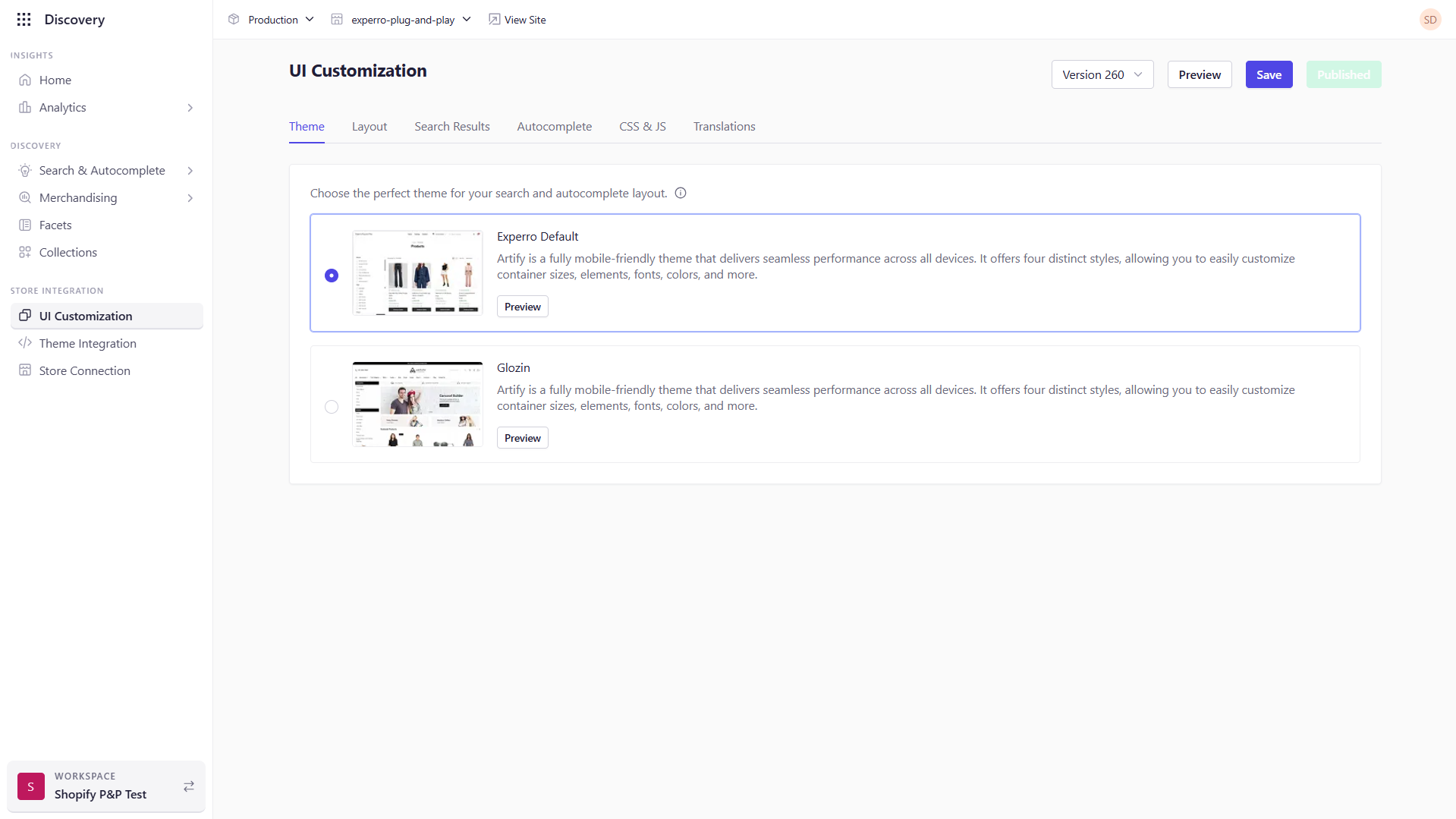
Navigate to **UI Customization → Theme**.
Each theme tile displays a thumbnail and a brief description.
Click **Preview** to preview the storefront with the selected them in action.
Select another theme and preview it again to compare the styles until you find the perfect match.
 ## Applying Your Theme
After previewing, click the theme’s radio button to mark it as your choice.
Click **Save** at the bottom of the Theme tab to persist your choice in Experro.
Once styling and any other UI customizations are complete, navigate to **Publish** button and deploy to production. The new theme will replace your previous look across all search‑related elements.
Once you’ve configured each tab under **UI Customization**, simply click **Publish** to apply your changes.
## Best Practices
* **Brand Consistency**\
Choose a theme whose typography and color accents align with your primary storefront palette to maintain a unified customer experience.
* **Preview on Multiple Devices**\
Use Experro’s preview carousel on desktop, tablet, and mobile to confirm responsive layouts before publishing.
* **Leverage Custom CSS/JS**\
For fine‑tuned adjustments beyond the theme settings, switch to the **CSS & JS** tab and apply targeted overrides without affecting your core theme.
* **Version Control**\
Keep track of which theme you publish and when—this makes it easy to roll back if you need to revert to a previous look.
By following these steps, you can effortlessly tailor Experro’s search UI to your brand’s unique style—ensuring a seamless, on‑brand experience from the moment customers begin typing in your search bar.
## Applying Your Theme
After previewing, click the theme’s radio button to mark it as your choice.
Click **Save** at the bottom of the Theme tab to persist your choice in Experro.
Once styling and any other UI customizations are complete, navigate to **Publish** button and deploy to production. The new theme will replace your previous look across all search‑related elements.
Once you’ve configured each tab under **UI Customization**, simply click **Publish** to apply your changes.
## Best Practices
* **Brand Consistency**\
Choose a theme whose typography and color accents align with your primary storefront palette to maintain a unified customer experience.
* **Preview on Multiple Devices**\
Use Experro’s preview carousel on desktop, tablet, and mobile to confirm responsive layouts before publishing.
* **Leverage Custom CSS/JS**\
For fine‑tuned adjustments beyond the theme settings, switch to the **CSS & JS** tab and apply targeted overrides without affecting your core theme.
* **Version Control**\
Keep track of which theme you publish and when—this makes it easy to roll back if you need to revert to a previous look.
By following these steps, you can effortlessly tailor Experro’s search UI to your brand’s unique style—ensuring a seamless, on‑brand experience from the moment customers begin typing in your search bar.