> ## Documentation Index
> Fetch the complete documentation index at: https://help.experro.com/llms.txt
> Use this file to discover all available pages before exploring further.
# Quickstart
Now that we have guided you with the prerequisites, let us start with downloading the base theme on your device.
## Download & Configure Base Theme
### Download
1. Login into the Admin Panel using the provided credentials.
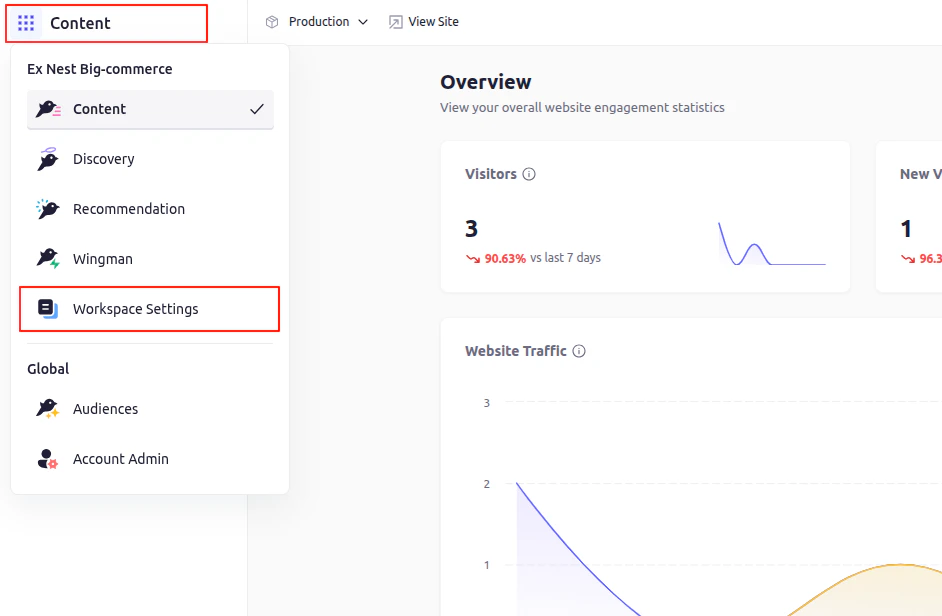
2. Click on the **Settings** icon from the left menu.
3. Click on **Workspace Settings**.
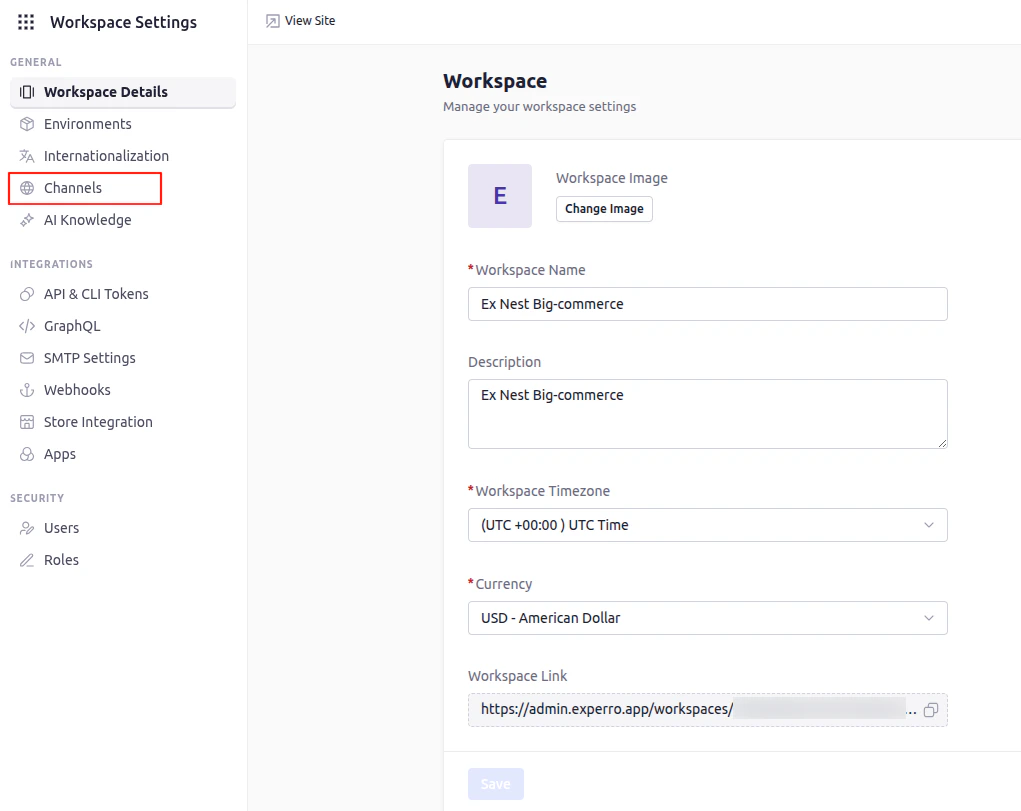
 4. Click on **Channels** from the left menu.
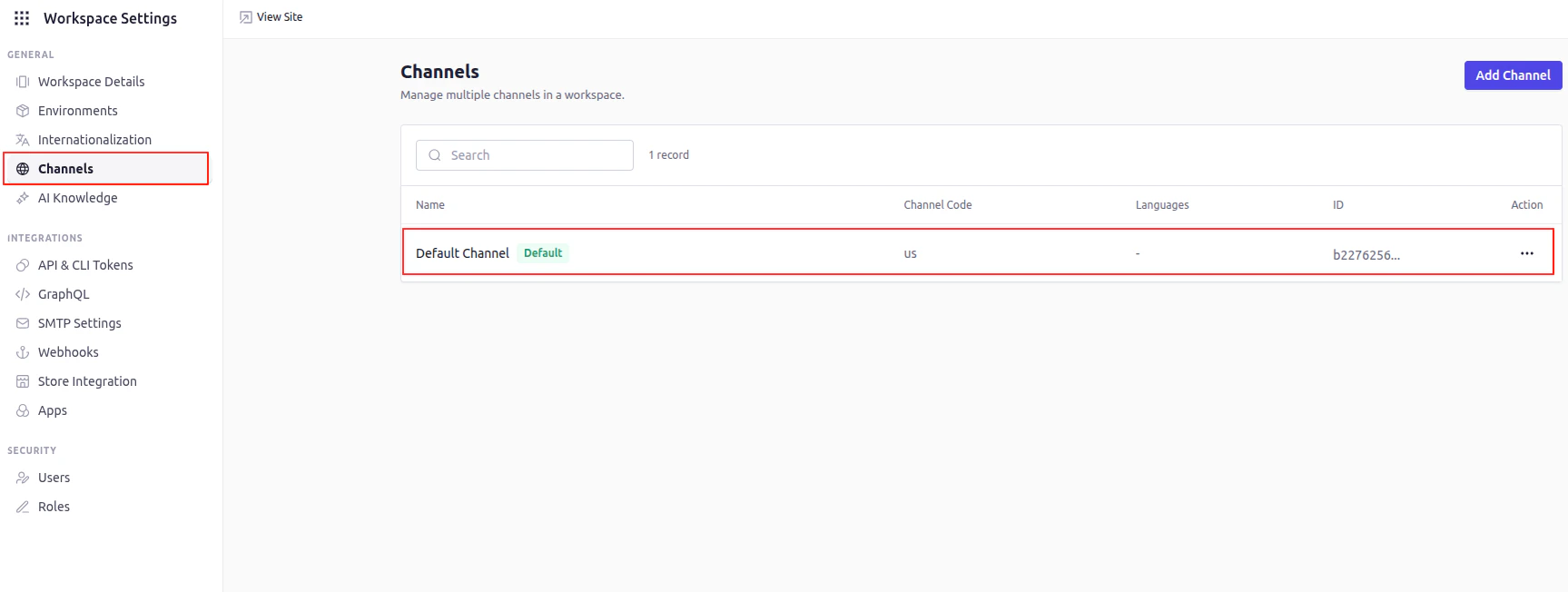
 5. Go in to **Default Channel**.
 6. Here, you will find environment wise theme options.
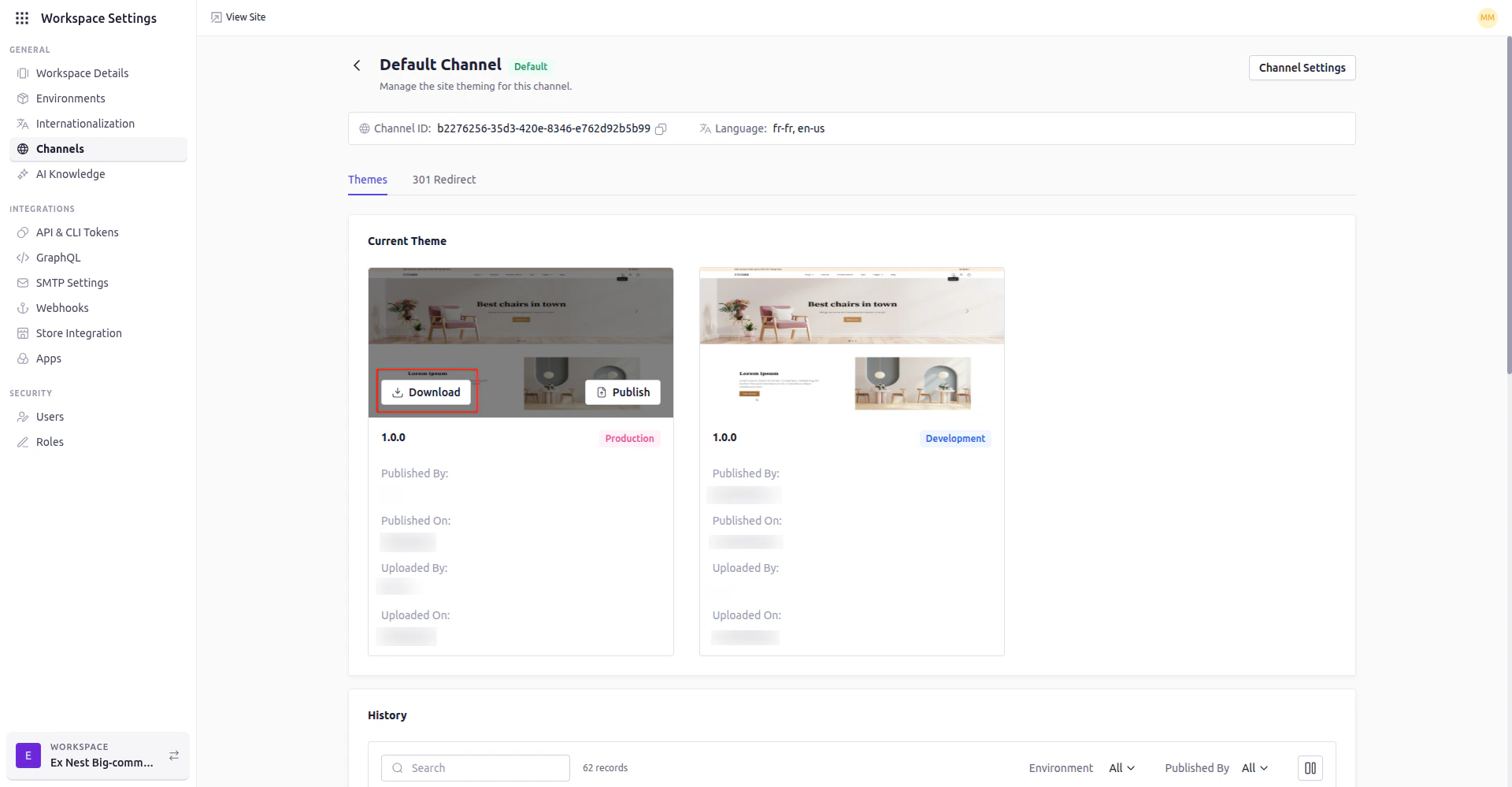 7. Click on **Download** button.
This will download a `1.0.0.zip` file. Extract it under a folder named `cms`. Inside, you’ll find another folder named `cms-`. That folder contains your base theme.
### Configure Base Theme
As you have now downloaded the base-theme, let us configure it to work with your local environment.
To run base-theme in your local machine, you need to set-up a `.env` file with required information.
You can generate the [CLI Token](../experro-cli/get-cli-token) file and get all the required information from it, where channel id will not be there but you can copy a channel id from Step 6 environment wise above.
After setting up the `.env` file it looks like this
#### `.env`
```sh theme={null}
CLI_TOKEN=I6InZpa2FzIiwidHlwZSI6IkZVTExfQUNDRVNTIiwidG9rZW5UeXBlIjoiQ0xJIiwiYnlUb2tlbiI6InZpa2FzIiwiYXBwSWQiOiI2NjI3N2MzMy0yODIzLTQ4YTQtYmI0Yi1mMmU0Mjc3NjBmMjMiLCJpYXQiOjE3NDc4MzE3OTN9.
STORE_URL=rekfdwer-us-en.experro.app
TENANT_ID=925411b2-28f3-43fsdafs-fs4dca88bc
WORKSPACE_ID=fsdfasf222-234e-4fcc-bafc-b3ad7fc6e
API_HOST=apis.experro.app
CHANNEL_IDS=b2276256-35ddfd3-fd0e-8dd6-e7we242b5b99
```
Where `API_HOST` key value you need to keep it as it is `apis.experro.app`.
Now `.env` is set for as per your requirement. You can proceed to the next step to run the base theme locally.
Will need to install a node modules for the base theme to work. Run the following command in the terminal to install the dependencies.
```sh theme={null}
npm install
```
Now run command
```sh theme={null}
experro-cli server start
```
This command will run a server on :5050 port which is responsible to fetch data from experro to local machine.
Now, Open another terminal and run below command to run base-theme locally.
```sh theme={null}
npm start
```
That's all to setup a base-theme locally.
7. Click on **Download** button.
This will download a `1.0.0.zip` file. Extract it under a folder named `cms`. Inside, you’ll find another folder named `cms-`. That folder contains your base theme.
### Configure Base Theme
As you have now downloaded the base-theme, let us configure it to work with your local environment.
To run base-theme in your local machine, you need to set-up a `.env` file with required information.
You can generate the [CLI Token](../experro-cli/get-cli-token) file and get all the required information from it, where channel id will not be there but you can copy a channel id from Step 6 environment wise above.
After setting up the `.env` file it looks like this
#### `.env`
```sh theme={null}
CLI_TOKEN=I6InZpa2FzIiwidHlwZSI6IkZVTExfQUNDRVNTIiwidG9rZW5UeXBlIjoiQ0xJIiwiYnlUb2tlbiI6InZpa2FzIiwiYXBwSWQiOiI2NjI3N2MzMy0yODIzLTQ4YTQtYmI0Yi1mMmU0Mjc3NjBmMjMiLCJpYXQiOjE3NDc4MzE3OTN9.
STORE_URL=rekfdwer-us-en.experro.app
TENANT_ID=925411b2-28f3-43fsdafs-fs4dca88bc
WORKSPACE_ID=fsdfasf222-234e-4fcc-bafc-b3ad7fc6e
API_HOST=apis.experro.app
CHANNEL_IDS=b2276256-35ddfd3-fd0e-8dd6-e7we242b5b99
```
Where `API_HOST` key value you need to keep it as it is `apis.experro.app`.
Now `.env` is set for as per your requirement. You can proceed to the next step to run the base theme locally.
Will need to install a node modules for the base theme to work. Run the following command in the terminal to install the dependencies.
```sh theme={null}
npm install
```
Now run command
```sh theme={null}
experro-cli server start
```
This command will run a server on :5050 port which is responsible to fetch data from experro to local machine.
Now, Open another terminal and run below command to run base-theme locally.
```sh theme={null}
npm start
```
That's all to setup a base-theme locally.