> ## Documentation Index
> Fetch the complete documentation index at: https://help.experro.com/llms.txt
> Use this file to discover all available pages before exploring further.
# Custom templates
If default templates are not enough, base theme support and provide a way to create custom templates. With just a few steps, you can easily create a custom template.
Let's follow these steps by creating a custom template for the FAQs page.
**Step 1** - Create a new file with name `faq-template.tsx` in `templates` folder.
**Step 2** - Add the following code in this newly created file.
```tsx theme={null}
const FAQPage = ({ pageData, components }: FAQPageProps) => {
return (
);
};
export default FAQPage;
```
As mentioned in the [default templates](./default-templates), by default all the template accept two props - `pageData` and `components`. If the FAQ template allow to drag-n-drop the component, we need to add the `` component from `experro-storefront` package.
```tsx theme={null}
import { DraggableArea } from 'experro-storefront';
const FAQPage = ({ pageData, components }: FAQPageProps) => {
return (
);
};
export default FAQPage;
```
Make sure that the `` component must have the unique `id` value in the template page.
> The usage of the `DraggableArea` component in `template` is optional and determined by the theme developers based on whether they want to provide `drag-and-drop` functionality for that specific template or not.
**Step 3** - Import the created `FAQTemplate` component in `templates.ts` file.
```jsx theme={null}
// ...existing imports
import FAQPage from './faq-page';
export default {
// ...existing export
FAQPage,
};
```
**Step 4** - Finally, in this step, add template in `template-list.ts` file. In this file, you can define the template with custom name that you want to display in the Admin Panel.
```tsx theme={null}
const getTemplates = (templates: any) => {
const experroTemplateMap = {
'default':{ // Default channels Templates
// ...existing templates
'FAQ Template': {
component: templates['FAQPage'],
displayName: 'FAQs',
},
}
},
}
```
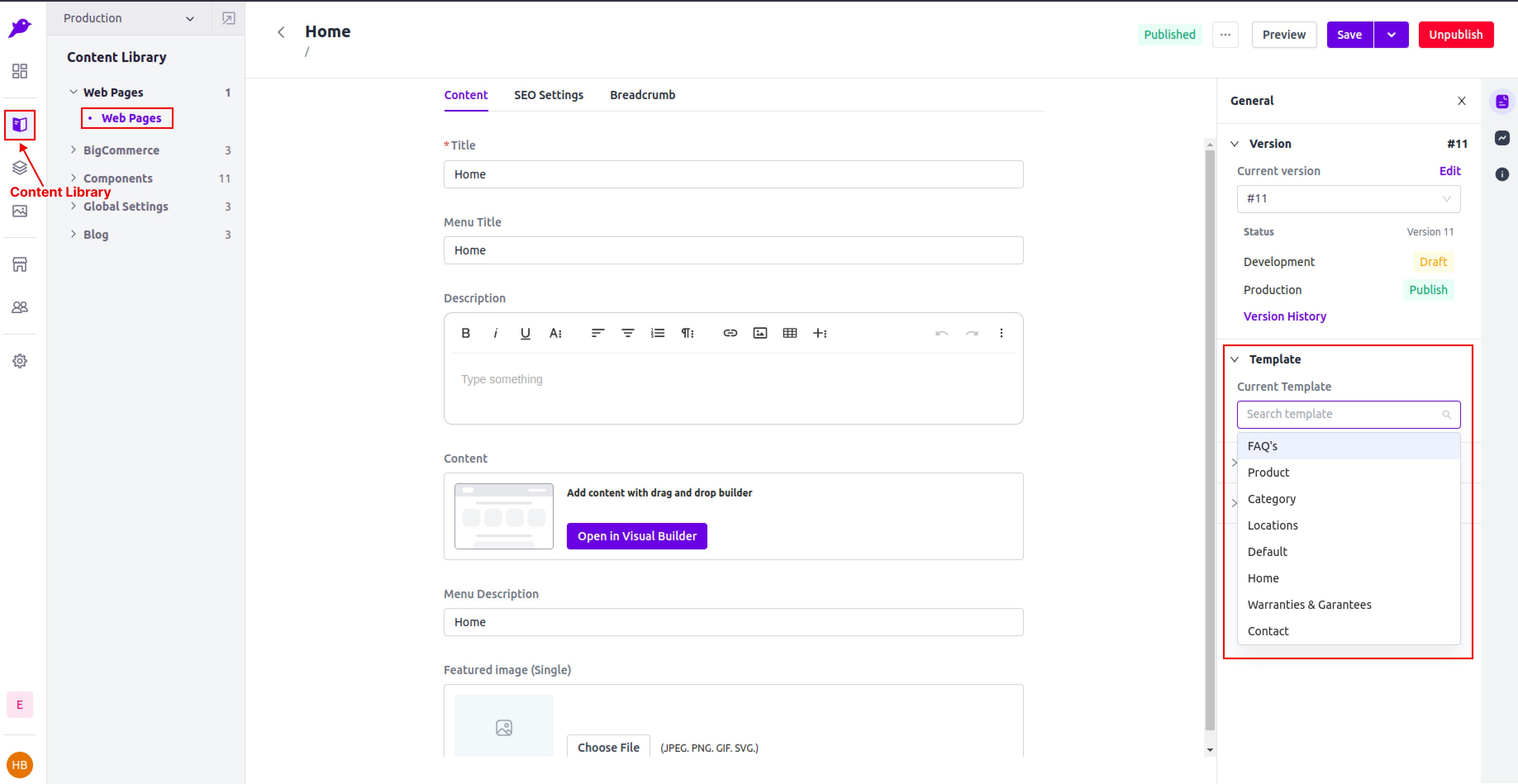 Tada! The custom FAQ Template is now ready to use in the base theme as well as in Admin Panel to attach.
To learn more about how Routing works in the Base Theme, tap here - [Routing](./routing).
Tada! The custom FAQ Template is now ready to use in the base theme as well as in Admin Panel to attach.
To learn more about how Routing works in the Base Theme, tap here - [Routing](./routing).