> ## Documentation Index
> Fetch the complete documentation index at: https://help.experro.com/llms.txt
> Use this file to discover all available pages before exploring further.
# Create and Manage Facet Rules
Learn how to create, configure, and manage Facet Rules in Experro Discovery. Facet Rules group one or more facets and tie them to a specific surface on your storefront. For background on what facets are and how scope works, see Facets Overview.
## The Facets Listing Screen
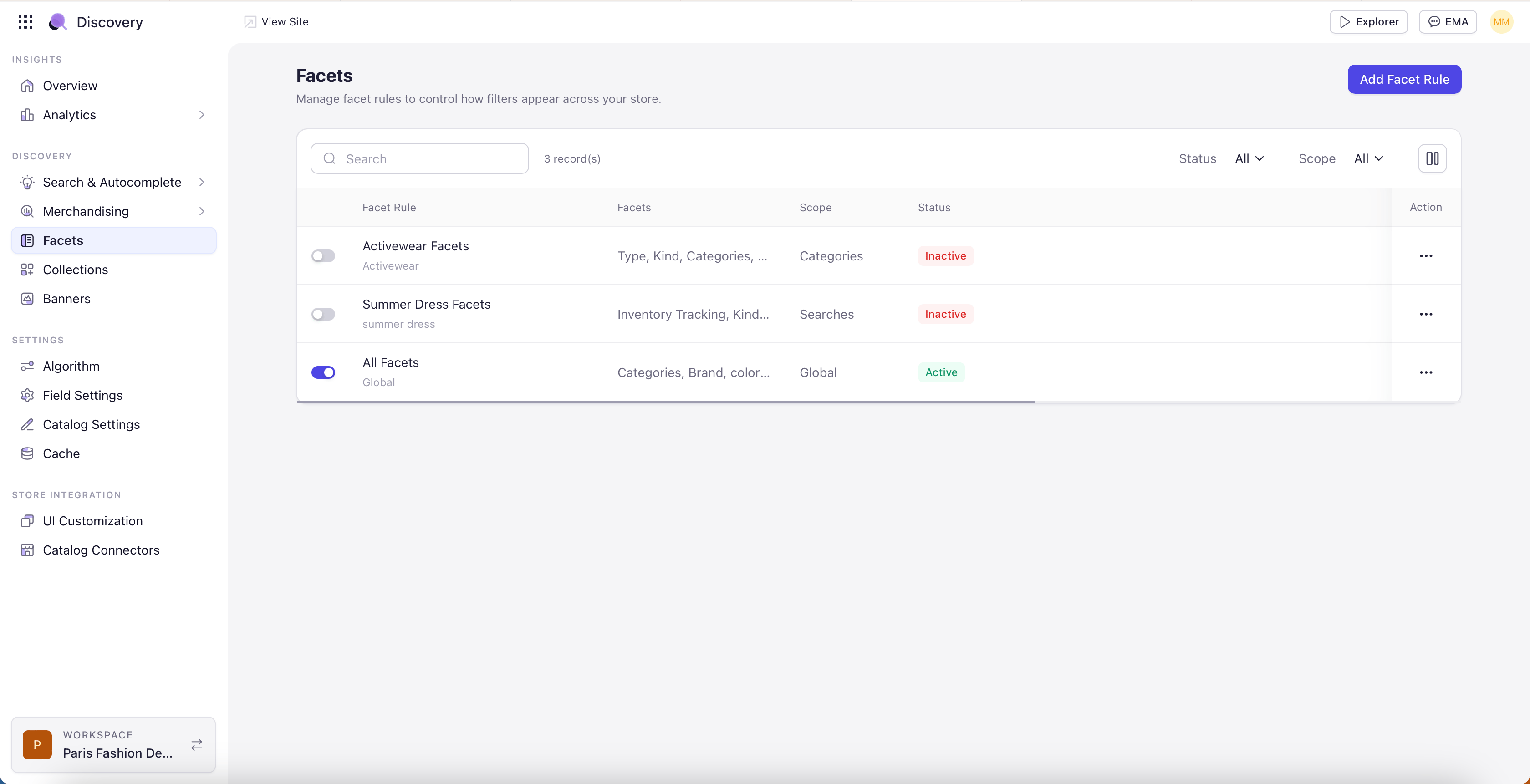
Open **Discovery > Facets** in the sidebar. Each row in the listing shows the rule’s toggle, name, scope label, facets inside the rule, status, last modified, and an action menu. Use the Status and Scope filters at the top right to narrow the list, or search by rule name.
 ## Creating a Facet Rule
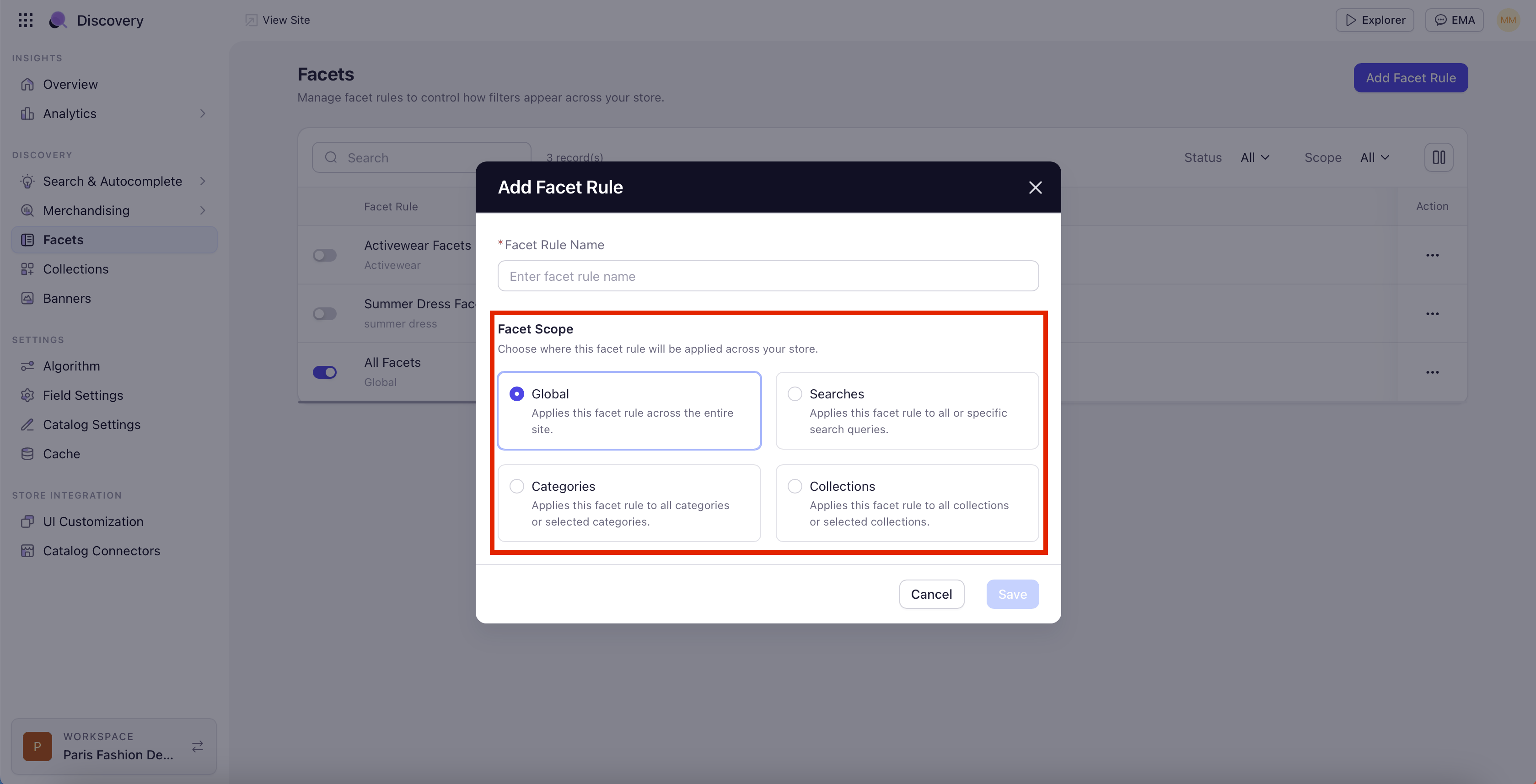
Click **Add Facet Rule** in the top right. The pop-up has two sections — the rule name and the Facet Scope.
Use a descriptive name that identifies the surface and intent, for example "Engagement Rings — Diamond Shape" or "Winter Jacket Search Tuning".
Pick one of four scope types: Global, Searches, Categories, or Collections. Each card describes where the rule will apply.
## Creating a Facet Rule
Click **Add Facet Rule** in the top right. The pop-up has two sections — the rule name and the Facet Scope.
Use a descriptive name that identifies the surface and intent, for example "Engagement Rings — Diamond Shape" or "Winter Jacket Search Tuning".
Pick one of four scope types: Global, Searches, Categories, or Collections. Each card describes where the rule will apply.
 For Searches, Categories, and Collections, an **Apply On** section appears below the scope cards. Pick either the "All" or "Specific" option. The Global scope does not show an Apply On section.
If you pick **Specific**, the controls depend on the scope you chose:
**Specific Searches** — An operator dropdown and a free-text input appear:
* **Operator** — Equal to (exact match), Starts with, Ends with, or Contains.
* **Search term input** — Type a term and press Enter to add it. Each term becomes a removable chip and shares the same operator.
Use Equal to for exact-match terms. Use Contains or Starts with when one rule should cover a family of related queries (for example, every query containing "diamond").
**Specific Categories** — A "Select categories" dropdown appears, with no operator. Each entry shows the category name with its full path (for example, Jeans — /women/jeans/). The path disambiguates same-named categories across the tree.
**Specific Collections** — A "Select collections" dropdown appears. If no collections exist in the workspace, the dropdown shows a "No data" state — create collections from the Collections module first.
Click **Save**. The rule is created as Inactive. From the rule detail screen, add facets and configure them — see [Configure Facet Appearance](/experro_discovery/facets/configure_facet_appearance/).
## Conflict Resolution
**Most Recently Active Wins:** If two rules at the same scope conflict, the system applies the most recently active facet rule. Deactivate any rule you no longer want active rather than leaving it alongside a newer one.
## Managing Rules
A facet rule is Inactive by default. Toggle it Active from the rule detail screen or from the listing row when configuration is complete. Click any rule row to edit it. Use the action menu (three dots) on a row to duplicate or delete a rule — duplication is useful for cloning a rule into a different scope.
For Searches, Categories, and Collections, an **Apply On** section appears below the scope cards. Pick either the "All" or "Specific" option. The Global scope does not show an Apply On section.
If you pick **Specific**, the controls depend on the scope you chose:
**Specific Searches** — An operator dropdown and a free-text input appear:
* **Operator** — Equal to (exact match), Starts with, Ends with, or Contains.
* **Search term input** — Type a term and press Enter to add it. Each term becomes a removable chip and shares the same operator.
Use Equal to for exact-match terms. Use Contains or Starts with when one rule should cover a family of related queries (for example, every query containing "diamond").
**Specific Categories** — A "Select categories" dropdown appears, with no operator. Each entry shows the category name with its full path (for example, Jeans — /women/jeans/). The path disambiguates same-named categories across the tree.
**Specific Collections** — A "Select collections" dropdown appears. If no collections exist in the workspace, the dropdown shows a "No data" state — create collections from the Collections module first.
Click **Save**. The rule is created as Inactive. From the rule detail screen, add facets and configure them — see [Configure Facet Appearance](/experro_discovery/facets/configure_facet_appearance/).
## Conflict Resolution
**Most Recently Active Wins:** If two rules at the same scope conflict, the system applies the most recently active facet rule. Deactivate any rule you no longer want active rather than leaving it alongside a newer one.
## Managing Rules
A facet rule is Inactive by default. Toggle it Active from the rule detail screen or from the listing row when configuration is complete. Click any rule row to edit it. Use the action menu (three dots) on a row to duplicate or delete a rule — duplication is useful for cloning a rule into a different scope.