

When Pause Is Available
The Pause button appears in the header when the experiment is Scheduled or Published. It is hidden in every other state.Pause the Experiment
1
Open the experiment
Click the experiment on the Experiments list to open its results screen, then click Configure Experiment.
2
Click Pause
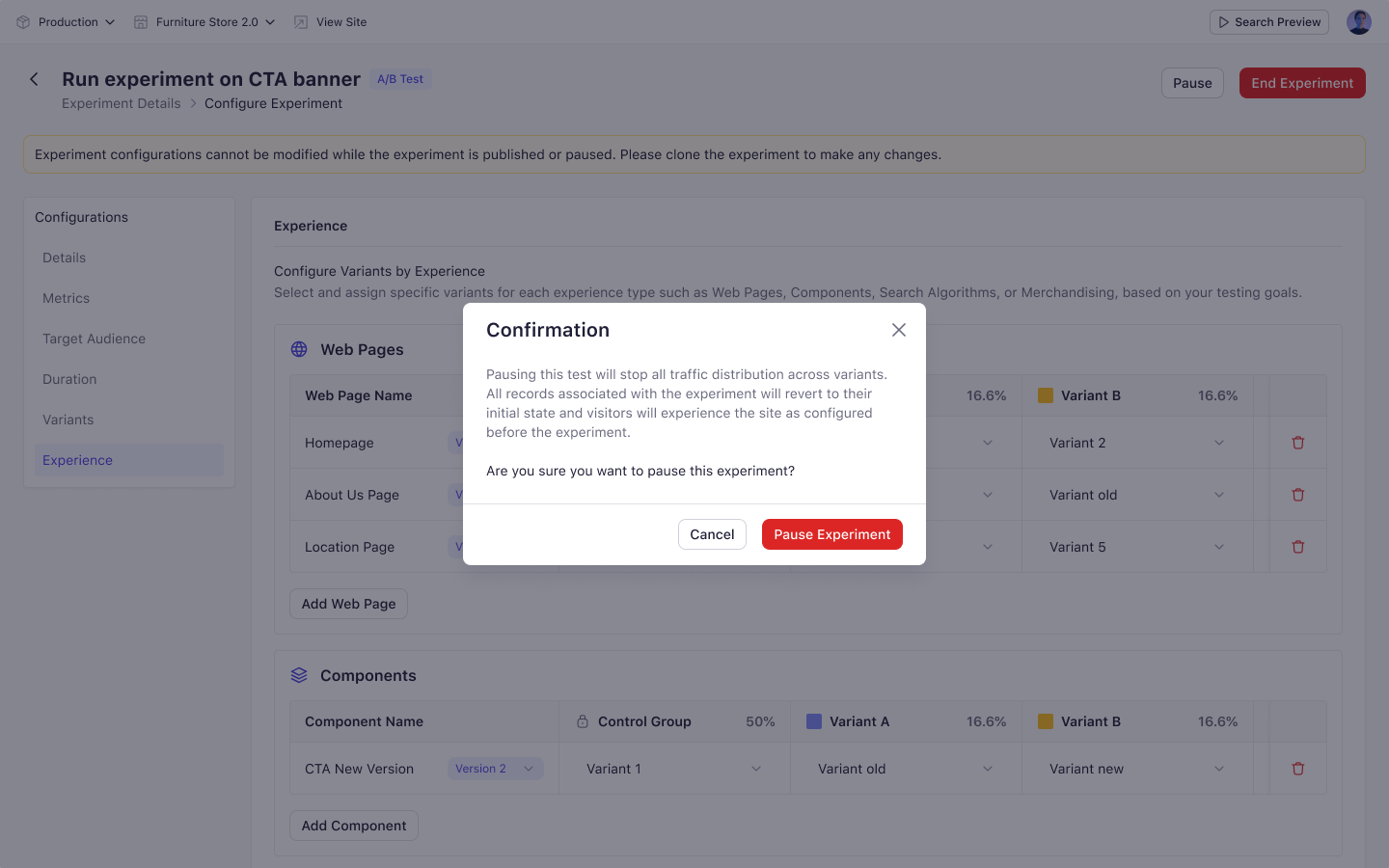
A confirmation dialog explains what pausing does.For an A/B test: “Pausing this test will stop all traffic distribution across variants. Visitors will only see the control group experience until the experiment is resumed.”For a personalization experiment: “Pausing this experiment will temporarily stop all personalized experiences. Users will see the default experience until the experiment is resumed.”
3
Confirm
Click Pause Experiment. Traffic distribution stops immediately.
What Happens to Enrolled Visitors
Visitors already assigned to the experiment stay assigned. They see the control experience for as long as the pause lasts, then return to their assigned variant when you resume. Their assignment is not lost, so resuming does not restart your sample.Resume the Experiment
Click Start Experiment to resume.- If the end date is still in the future, the experiment returns to Published and data collection continues.
- If the end date has already passed, the experiment moves to Completed.
Configuration is preserved exactly as you left it. All fields remain populated when you resume.