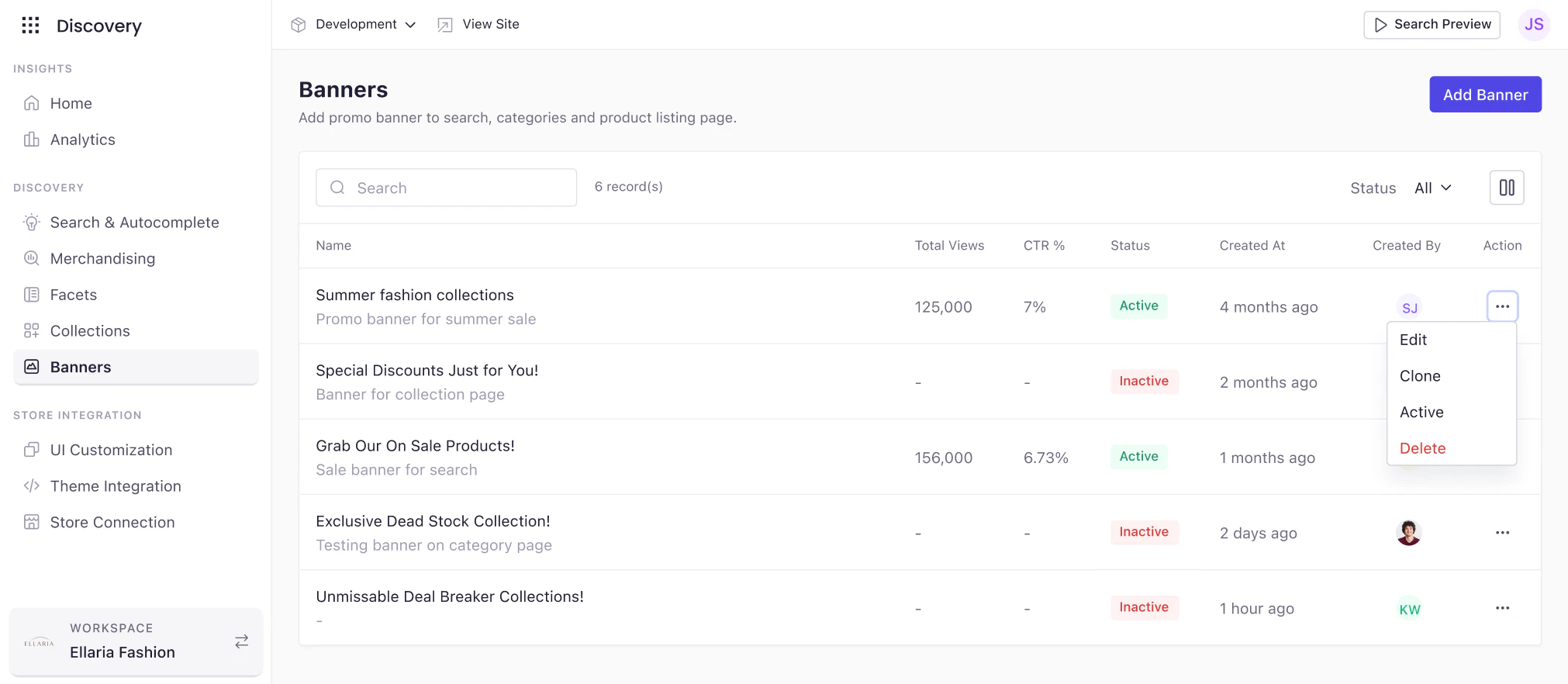
The Banners feature in Experro allows merchandisers to create and manage promotional banners that appear across key discovery touchpoints such as Search Results, Category Pages, and Product Listing Pages (PLPs). These banners help promote collections, campaigns, or special offers and improve product discovery through visually engaging content. From Discovery → Banners, users can access a centralized dashboard that displays all configured banners along with their status, creation details, and available actions. This view enables quick management of promotional content without leaving the discovery workflow. Using the Banners dashboard, you can:
  • View all banners with details such as Name, Status, Created At, and Created By
  • Search banners by name and filter them by status
  • Create new banners using the Add Banner button
  • Manage banners using the action menu, including:
    • Edit banner details and configuration
    • Clone an existing banner to reuse settings
    • Activate/Deactivate banners to control visibility
    • Delete banners when no longer needed
By using the Banners feature, teams gain full control over promotional messaging placement, helping deliver relevant and timely experiences across the storefront.

Create a Banner

The Create a Banner flow allows you to configure how and where a promotional banner appears across discovery pages such as Search, Category, and Product Listing Pages (PLPs). Experro provides flexible configuration options to control banner content, layout, device visibility, and interactions.
1

Add Basic Details

To create a new banner:
  1. Navigate to Discovery → Banners
  2. Click Add Banner
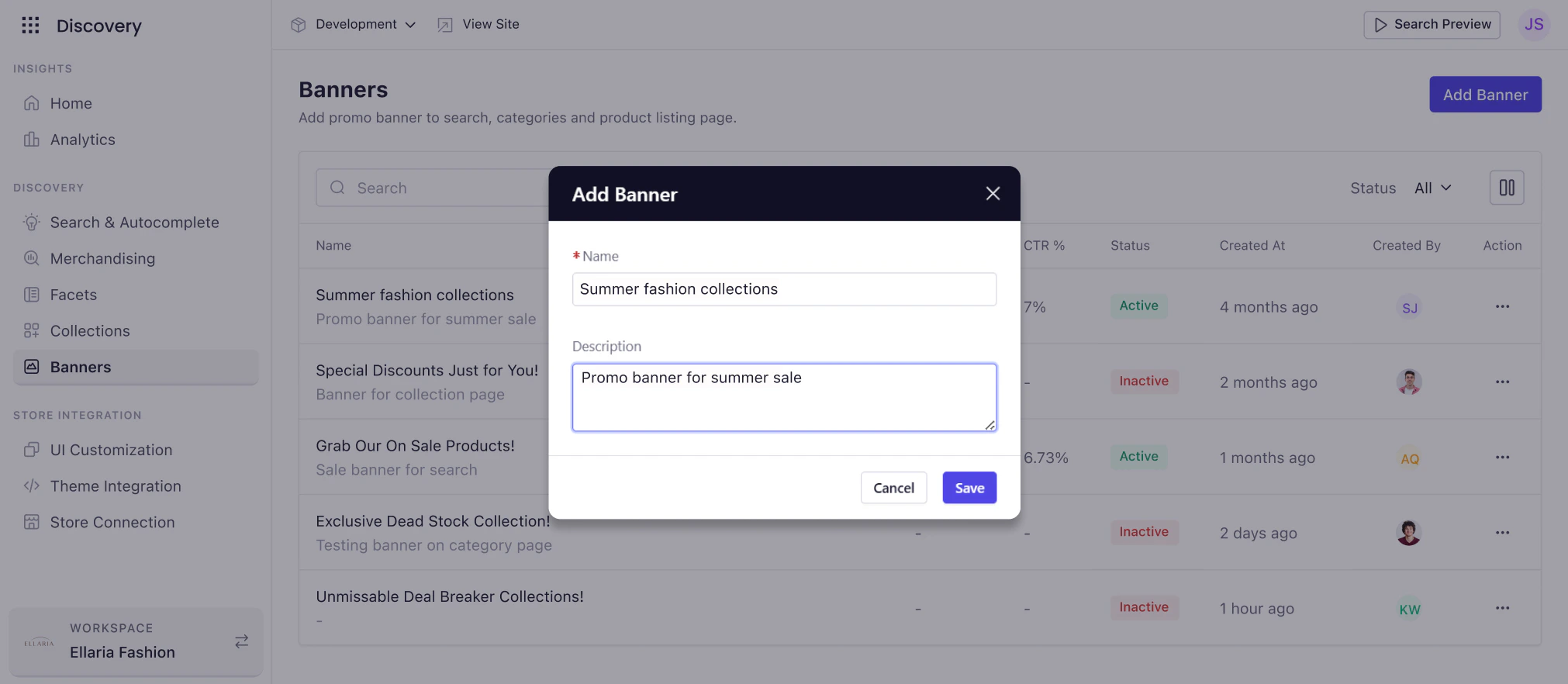
  3. In the Add Banner modal, enter the required details:
    • Name (Required) – Internal name to identify the banner
    • Description (Optional) – Additional details for reference
  4. Click Save to proceed to banner configuration
2

Configure Banner

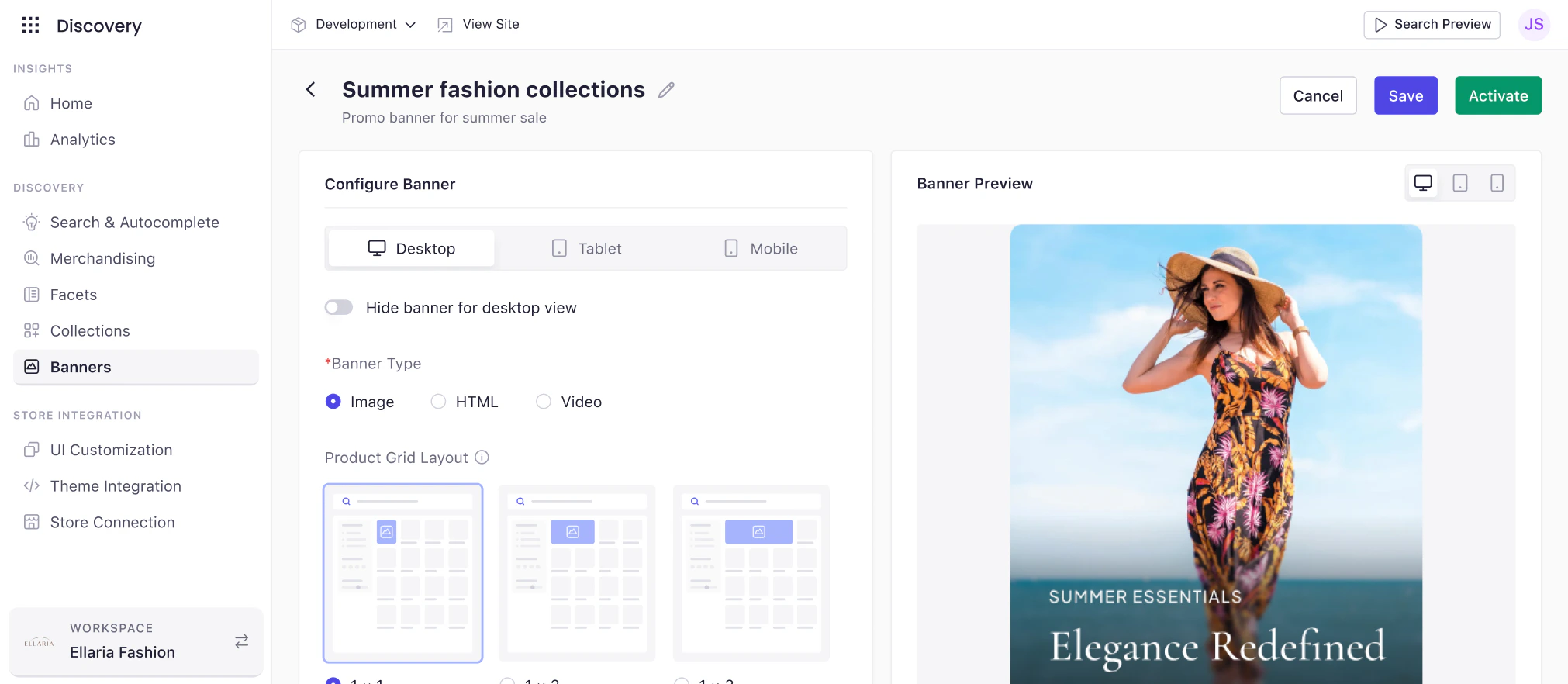
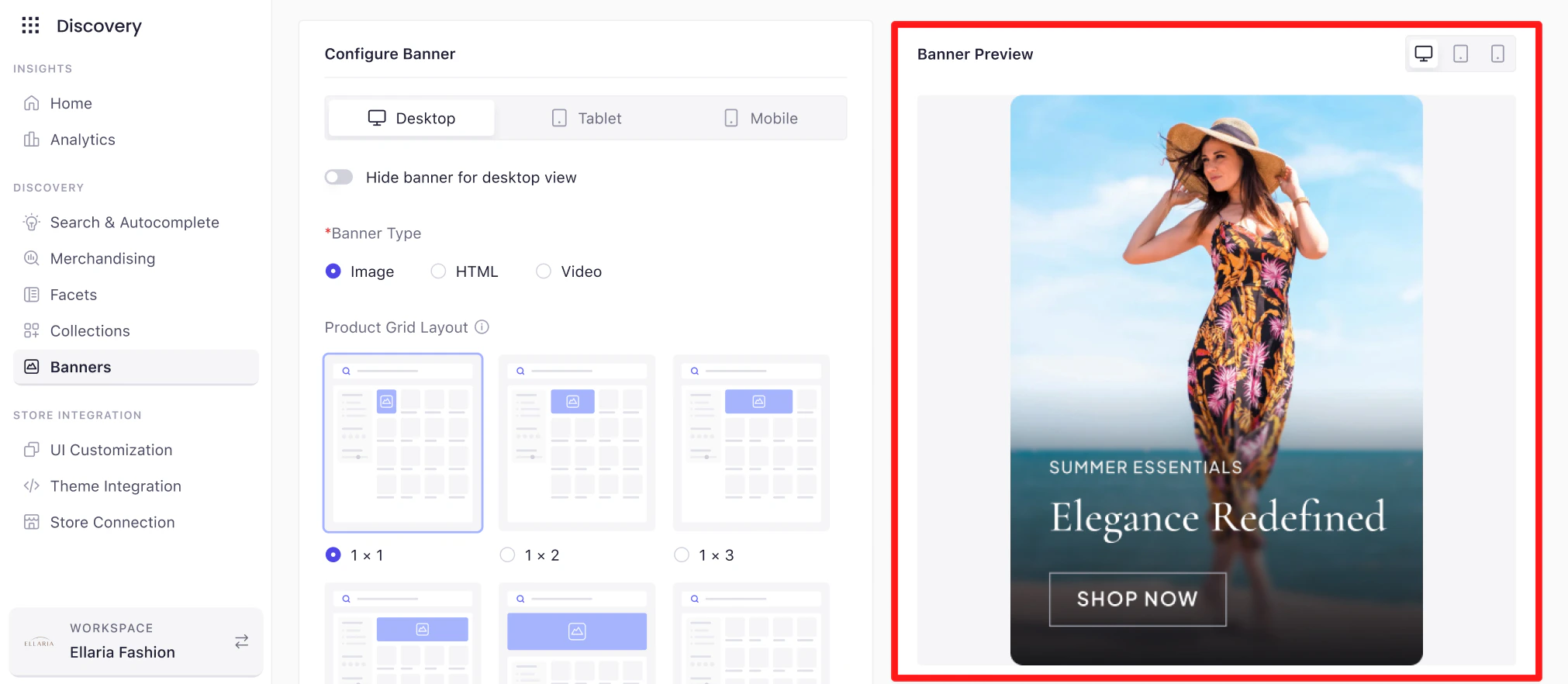
After saving, you’ll be taken to the Configure Banner screen where you can define the banner’s behavior, layout, and content.Device ConfigurationYou can configure banners separately for:
  • Desktop
  • Tablet
  • Mobile
Each device view allows independent configuration to ensure optimal display across screen sizes. You can also choose to hide the banner for a specific device if required.
Banner Type Select the type of banner content:
  • Image – Upload an image-based banner
  • Video – Display a video banner
  • HTML – Use custom HTML for advanced use cases

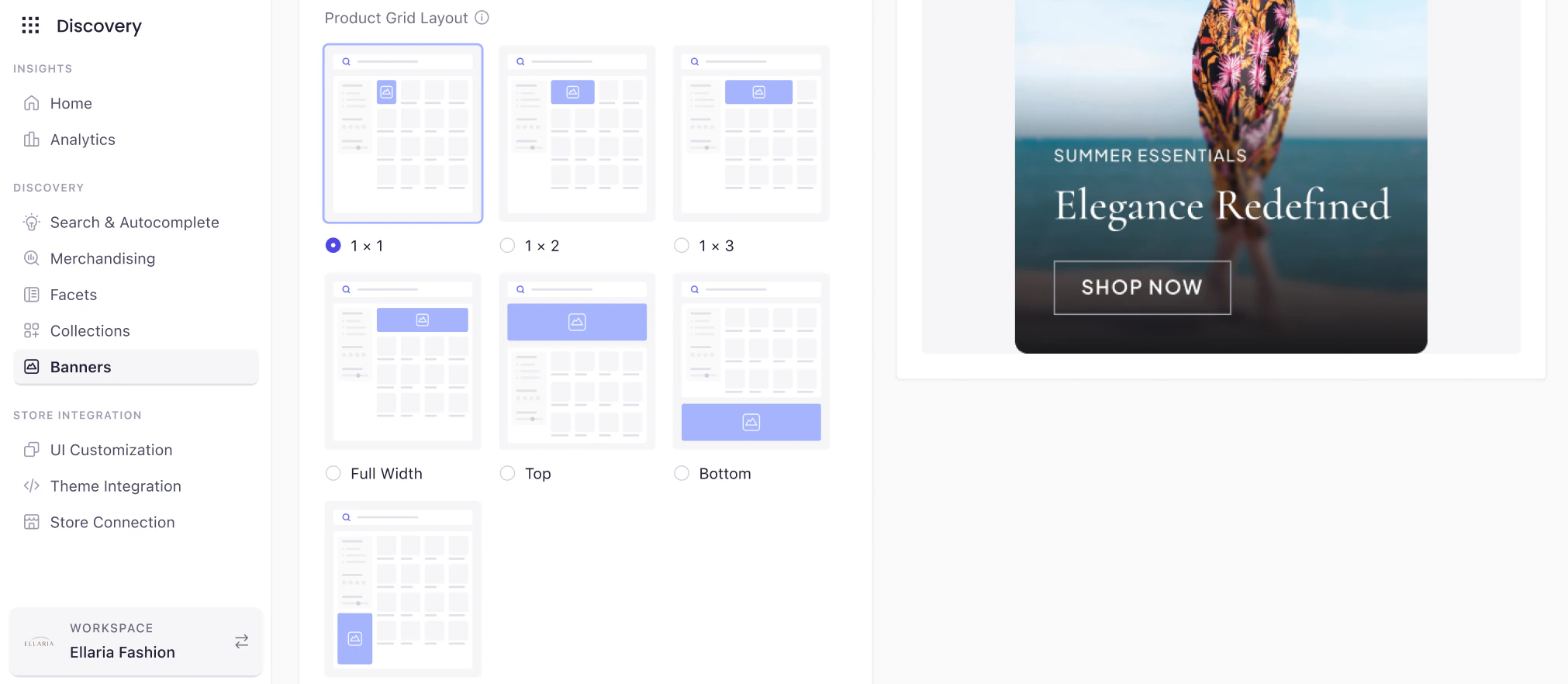
Product Grid Layout

  • 1 × 1 : Displays the banner in the grid occupying the same space as a single product tile.
  • 1 × 2 : Displays the banner spanning the width of two product tiles in a single row.
  • 1 × 3 : Displays the banner spanning the width of three product tiles in a single row.
  • Full Width : Displays the banner across the full width of the product grid.
  • Top : Displays the banner at the top of the product listing, above all products.
  • Bottom : Displays the banner at the bottom of the product listing, below all products.
  • Below Facet : Displays the banner below the facet/filter section and above the product grid.
Configure the banner’s content and behavior:
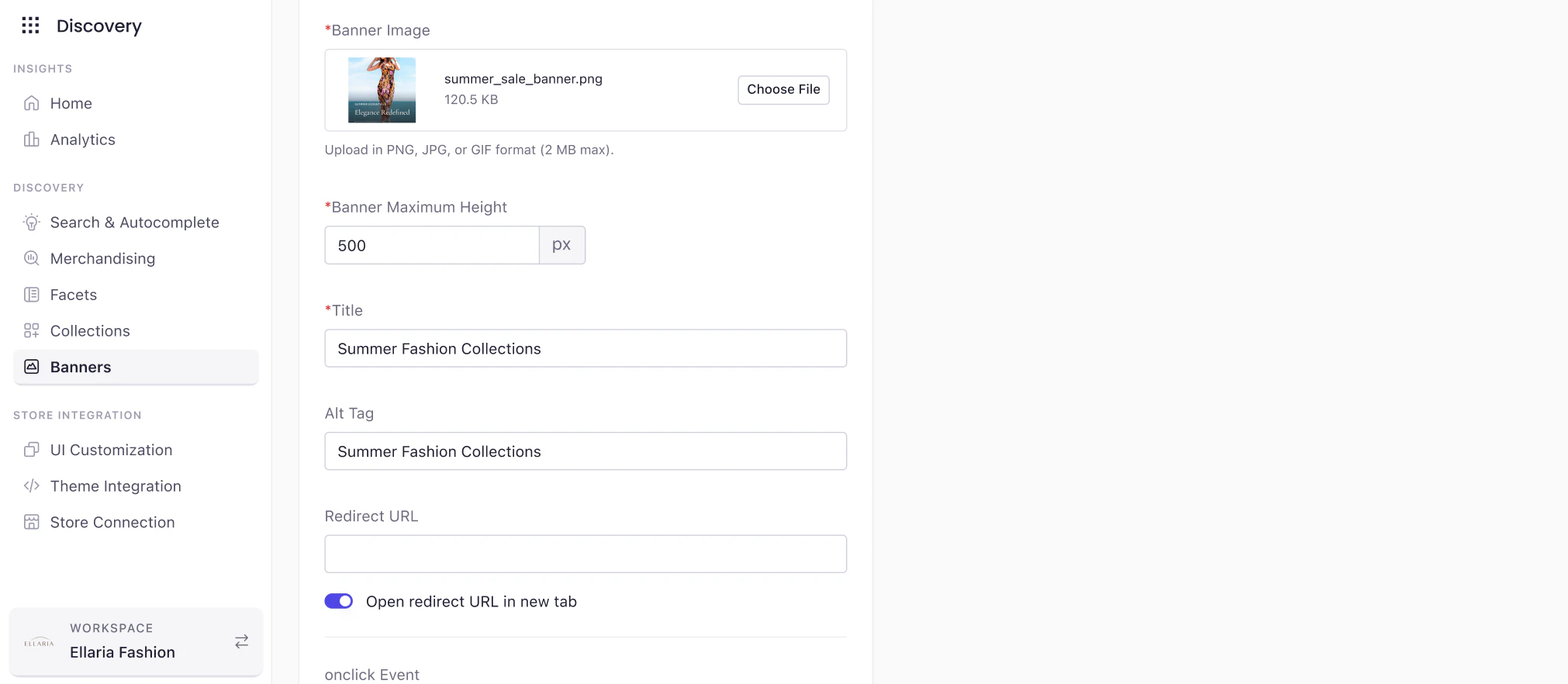
  • Banner Image – Upload an image (PNG, JPG, or GIF, up to 2 MB)
  • Title – Add a banner title
  • Banner Maximum Height – Define maximum height in pixels
  • Alt Tag – Improve accessibility and SEO
  • Redirect URL – URL to open when the banner is clicked
  • Open redirect URL in new tab – Optional toggle

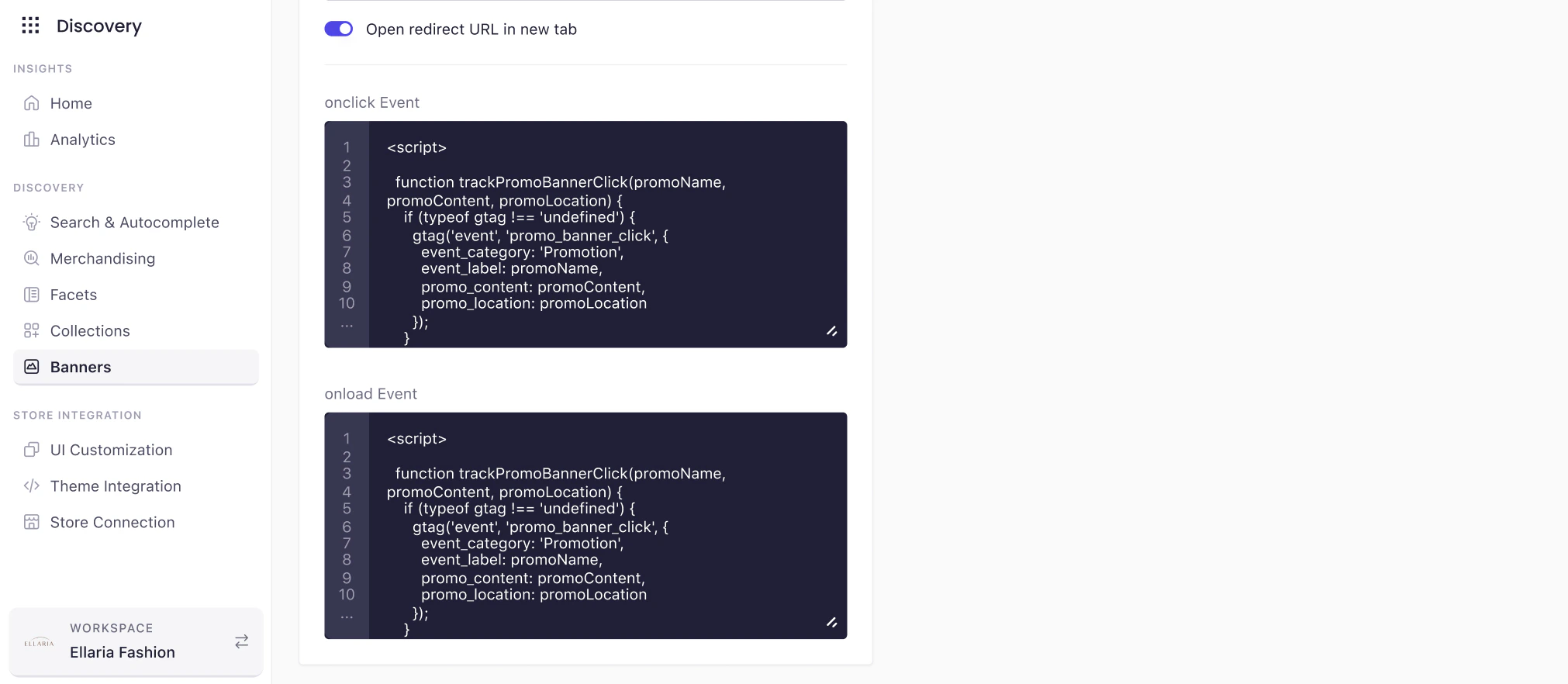
Event Tracking (Advanced)

Event tracking allows you to attach custom JavaScript events to banners for advanced analytics, personalization, and third-party integrations. These events help track user interactions and banner visibility beyond basic metrics. Experro supports two types of banner events:
  • Onload Event
  • Onclick Event

Onload Event – Use Case

The Onload Event is triggered when the banner is rendered on the page.

Common Use Cases

  • Track banner impressions for analytics
  • Fire third-party tracking pixels
  • Send banner visibility data to analytics platforms
  • Trigger personalization or A/B testing tools when the banner appears

Example Scenario

A merchandiser wants to measure how many users see a promotional banner on a category page. When the page loads and the banner is displayed:
  • An impression event is sent to Google Analytics
  • A tracking pixel is fired for an ad platform
  • Internal analytics record banner visibility
This helps teams understand banner exposure, even if users don’t click the banner.

Onclick Event – Use Case

The Onclick Event is triggered when a user clicks on the banner.

Common Use Cases

  • Track banner click-through rates (CTR)
  • Capture campaign performance data
  • Trigger conversion or remarketing events
  • Integrate with marketing and analytics tools

Example Scenario

A banner promotes a seasonal collection and redirects users to a landing page. When a user clicks the banner:
  • A click event is sent to Google Analytics
  • A conversion or engagement event is recorded
  • Marketing platforms receive interaction data for retargeting
This allows teams to measure banner effectiveness and user engagement. Banner Preview A real-time Banner Preview panel is available on the right side of the screen. This preview helps you visualize the banner layout and content before publishing. Note: The actual storefront rendering may vary depending on your theme and template. Save and Activate Banner Once configuration is complete:
  • Click Save to store changes
  • Click Activate to make the banner live
  • Use Cancel to discard changes

Add Merchandising Rules for Banners

Once a banner is created and configured, it will not appear on the storefront until a merchandising rule is applied. Merchandising rules determine where, when, and on which pages the banner should be displayed. Experro uses Merchandising Rules to control banner placement across different discovery experiences such as Search, Category (Collection), and Global pages.

Why Merchandising Rules Are Required

Merchandising rules allow you to:
  • Define the page type where the banner should appear (Search, Collection, or Global)
  • Control the position of the banner within the product listing
  • Apply banners to specific collections or searches
  • Schedule banners using start and end dates
  • Manage visibility across different channels
Without an active merchandising rule, a banner remains inactive on the storefront even if it is created and activated.

Types of Merchandising Rules

Experro supports different rule types based on where you want the banner to appear:
  • Global Rules : Apply banners site-wide across all applicable pages.
  • Category Rules : Apply banners to specific collection or category pages.
  • Search Rules : Apply banners to search result pages based on user queries.
  • Collection Rules : Collection Rules apply banners to custom collection pages created within Experro.

Add Banner Using Merchandising Rules

After creating a banner, you must attach it to a Merchandising Rule to control where the banner appears, on which page, and at what position. Banners are added to rules from the Content & Bundle section.

Access the Banner Rule Configuration

  1. Navigate to Discovery → Merchandising
  2. Select a rule type:
    • Global Rules
    • Category Rules
    • Search Rules
    • Collection Rules
  3. Click Add Rule (or open an existing rule)
  4. On the rule configuration screen, locate the Content & Bundle section
  5. Click Banner

Configure Banner Rule Settings

Once Banner is selected, the banner configuration panel appears with the following options:
  • Rule Name : Enter a name to identify the merchandising rule.
  • Banner : Select an existing banner created in Discovery → Banners.
  • Banner Position : Choose the position where the banner should appear on the page (based on the selected layout and page type).
  • Repeat on Pagination : Enable this option to display the banner on all paginated pages. If disabled, the banner appears only on the first page.

Page and Category Selection

Use the Search Category field to select the category, collection, or search context where the banner should be applied. Once selected, products related to that page are displayed in the preview area.

Save and Preview

  • Use Preview to validate banner placement before publishing
  • Click Save to apply the rule
  • The banner becomes visible on the storefront based on the rule configuration and schedule

Use Case: Banner Merchandising Rules

Banner Merchandising Rules allow merchandisers to control where, when, and how promotional banners are displayed across discovery experiences such as Search, Category, Collection, and Global pages. These rules ensure that banners are shown to the right users, in the right context, at the right time.

Scenario

An eCommerce merchandiser wants to promote a seasonal sale banner on specific pages without impacting the overall product ranking or search relevance. The goal is to:
  • Display the banner on selected pages only
  • Control the banner’s position within the product listing
  • Schedule the banner for a limited time
  • Ensure consistent visibility across pagination

Solution Using Banner Merchandising Rules

The merchandiser completes the following steps:
  1. Create a Banner : A promotional banner is created in Discovery → Banners with the required layout, image, and redirect URL.
  2. Create a Merchandising Rule : The merchandiser navigates to Discovery → Merchandising and creates a new rule under one of the following:
    • Global Rules for site-wide visibility
    • Category Rules for specific category pages
    • Search Rules for search result pages
    • Collection Rules for Experro custom collections
  3. Add Banner to the Rule : From the Content & Bundle section, the Banner option is selected and configured with:
    • The desired banner
    • The banner position
    • Pagination behavior (repeat on pagination if required)
  4. Schedule and Activate : Start and end dates are configured, and the rule is activated.

Outcome

The banner is displayed only on the selected pages and appears at the configured position within the product listing. The merchandising rule ensures that the banner follows the defined schedule and pagination behavior, providing consistent visibility throughout the campaign duration. This allows merchandisers to promote targeted campaigns without affecting product ranking or overall discovery relevance.