

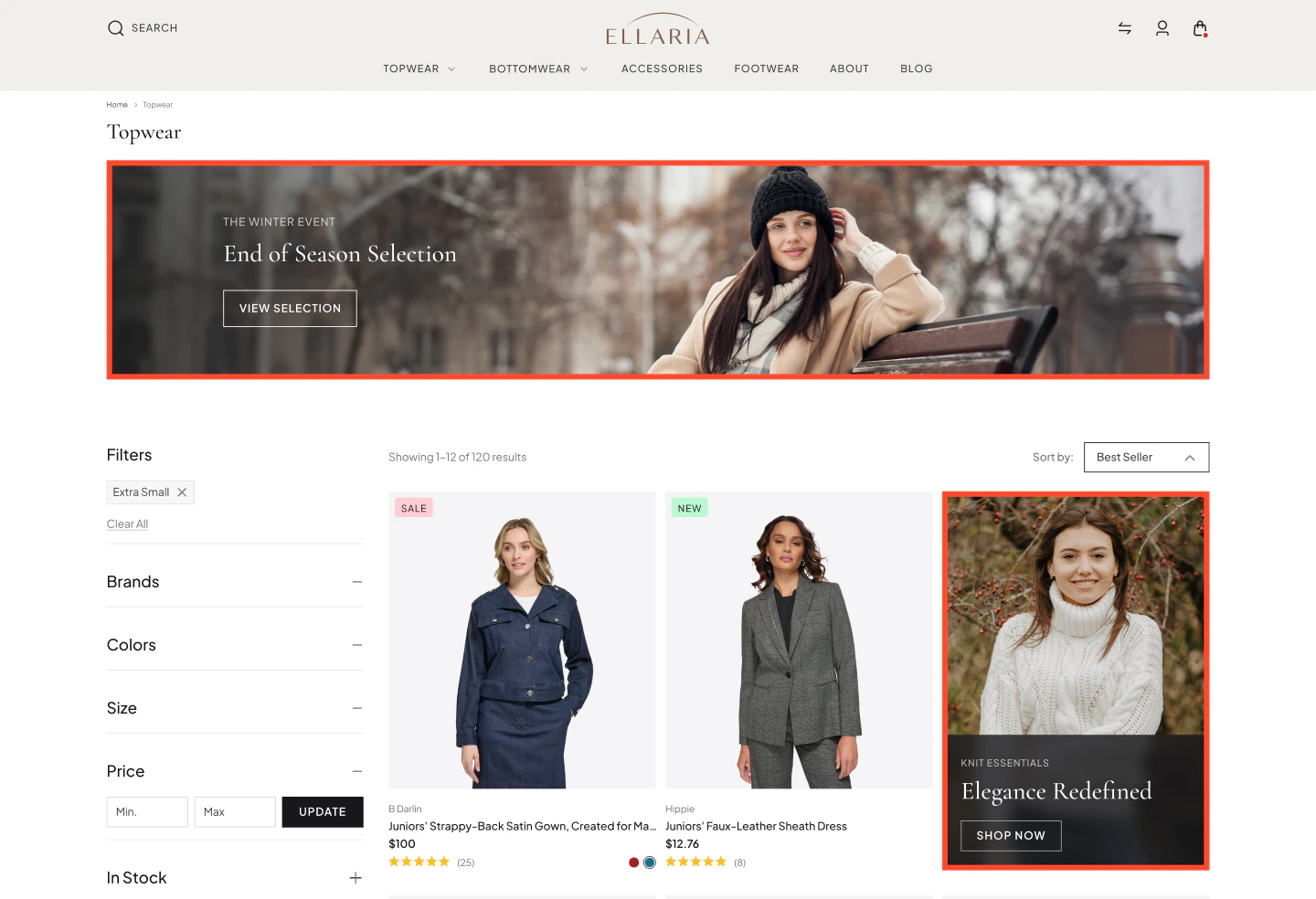
- Promote campaigns in context — surface a “Summer Sale” banner on search results for “swimwear” and “dresses”, not sitewide.
- Drive traffic to high-value pages — redirect shoppers from a browse page directly to a new collection, brand landing page, or campaign PLP.
- Reinforce brand partnerships — display co-branded content on category pages during joint campaigns, without modifying the product catalog.
- Capture high-intent moments — meet shoppers with relevant offers when they are actively searching, not after they have already left.
- React to seasonal trends — launch and retire promotional banners on a schedule, with no manual cleanup required.
What Are Banners?
Banners are promotional content units that appear within product discovery pages, configured and managed entirely from Discovery → Banners. Each banner works on a two-step model:- Create and configure the banner (content, layout, device behavior)
- Attach it to a Merchandising Rule that controls where and when it appears
Two-Step Model
Creating a banner does not make it live. A banner only appears on your storefront when it is attached to an active Merchandising Rule. See Using Discovery Dashboard: Banners for step-by-step setup instructions.
Creating a banner does not make it live. A banner only appears on your storefront when it is attached to an active Merchandising Rule. See Using Discovery Dashboard: Banners for step-by-step setup instructions.
Banner Content Types
Banners support multiple content formats based on your campaign needs:
For optimal alignment, the banner dimensions should match the size of a single product tile in the PLP grid.
Placement and Layout Control
Banners integrate directly into the product grid. Seven layout options control where the banner appears relative to products:
Each layout can be configured independently for Desktop, Tablet, and Mobile, ensuring your banners adapt to different screen sizes without breaking the browsing experience.
Example: “Summer Jewelry Sale” Banner
A jewelry retailer is launching a 30% off summer sale. The goal is to promote it on search results pages — not sitewide — because shoppers searching for jewelry are the highest-intent audience.
- Banner Creative: Full-width campaign image featuring the hero piece, with a “Shop Now” CTA linking to the sale collection page.
- Layout: Full Width, positioned above the product grid to anchor the page without competing with product tiles.
- Device Configuration: Landscape crop for Desktop and Tablet; a separate portrait crop for Mobile to preserve the focal point.
- Merchandising Rule: A Search Rule targeting queries like “gold necklace,” “diamond earrings,” and “summer jewelry” — the banner appears only when shopper intent matches.
- Schedule: Live June 15 to July 31. The rule can be scheduled to publish and run during a specific interval of date and time. The rule deactivates automatically — no manual cleanup required.
- Event Tracking: The onload event tracks impressions, clicks, and other interactions, and sends this data to third-party marketing platforms. An Onclick event records CTR and passes click data to the retargeting platform.
Ready to build your first banner? See Using Discovery Dashboard → Banners for step-by-step setup instructions.