

Add Banners to Merchandising Rules
After creating and activating a banner, attach it to a Merchandising Rule to control where it appears, on which pages, and for how long.Rule Types
Attach a Banner to a Rule
- Navigate to Discovery → Merchandising.
- Select the rule type: Global, Category, Search, or Collection.
- Click Add Rule to create a new rule, or open an existing one.
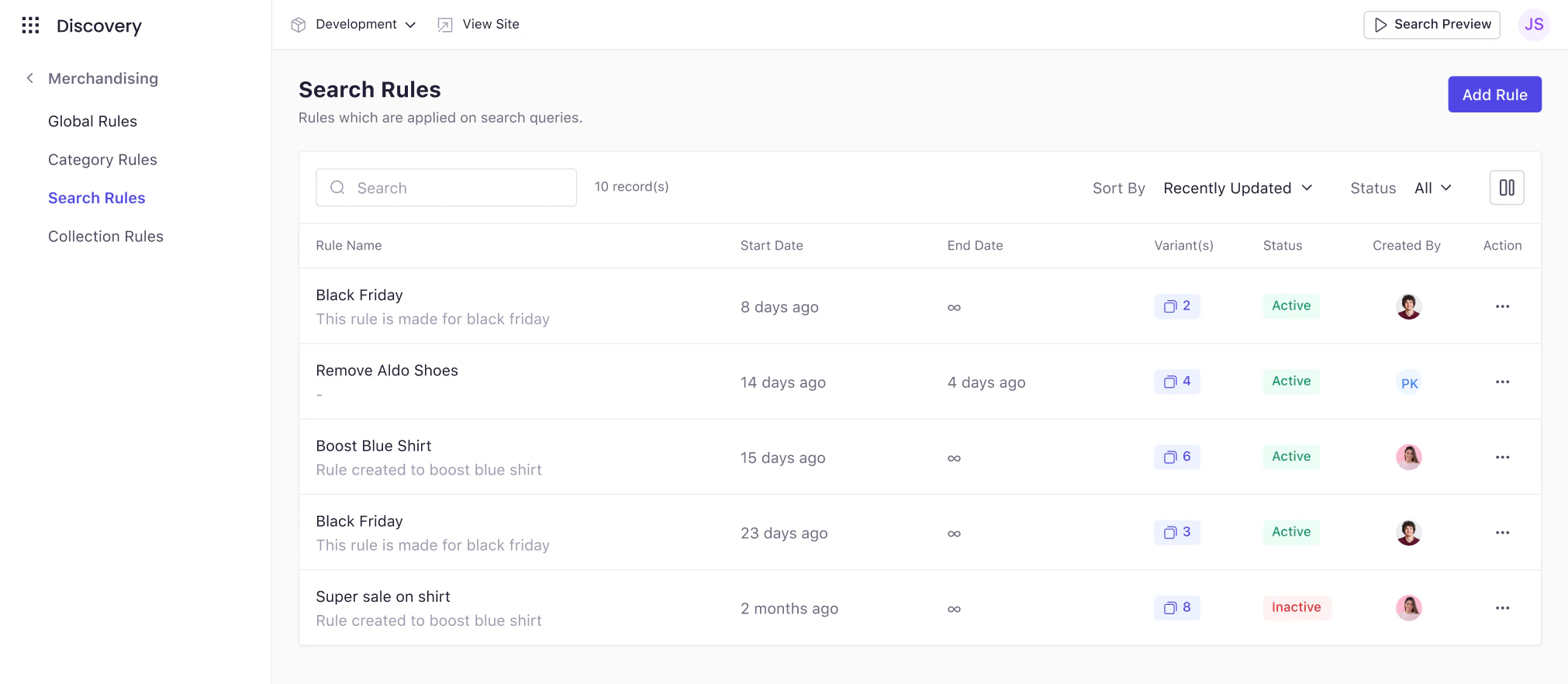
- In the rule configuration screen, locate the Content & Bundle section and click Banner.
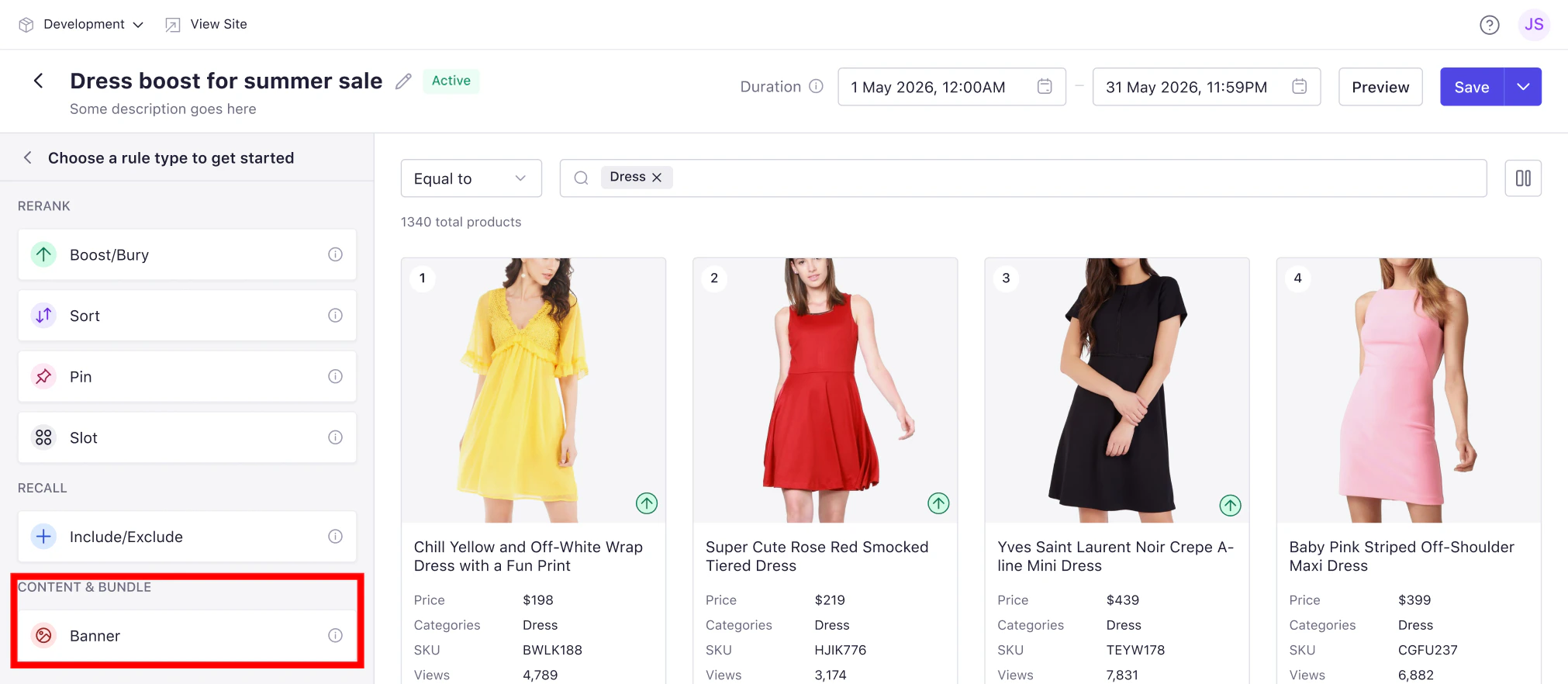
- Complete the banner rule settings:
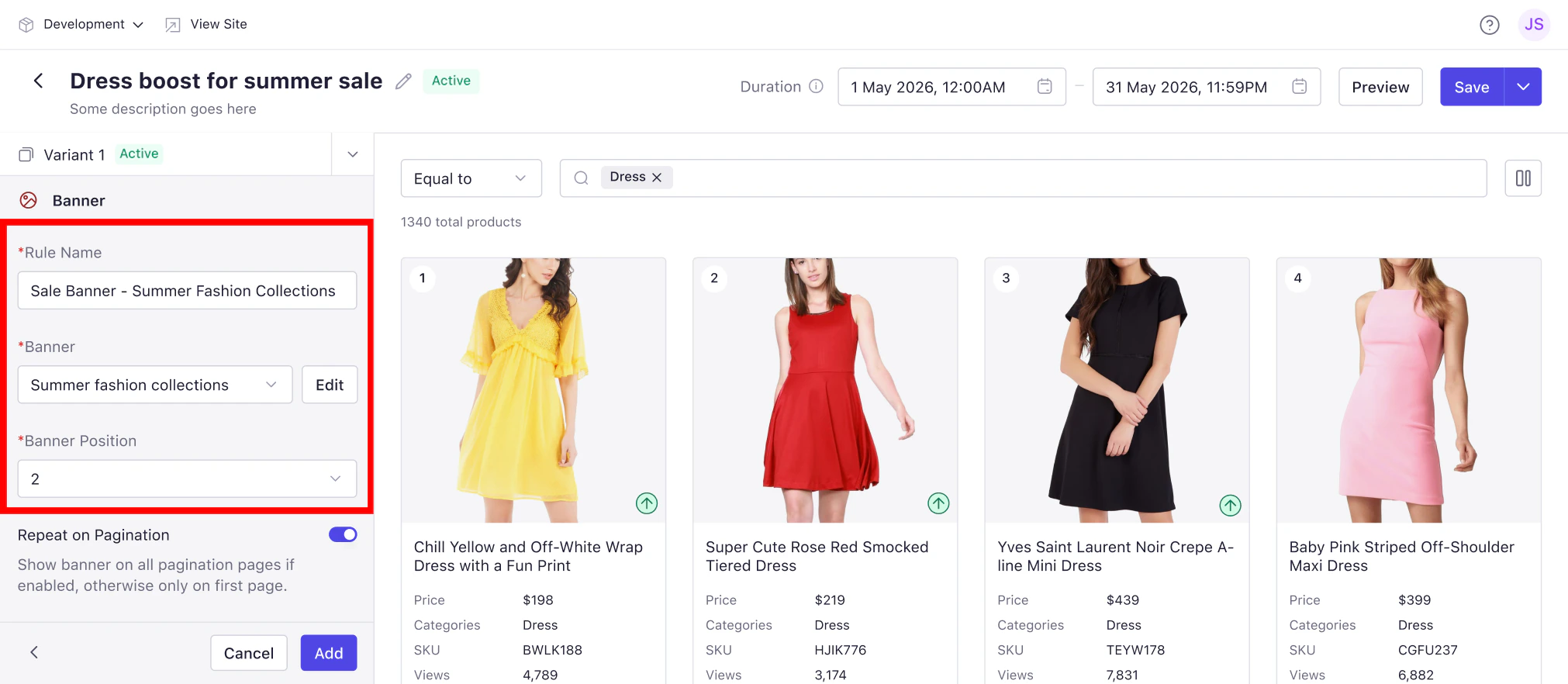
Configure Banner Rule Settings
Page and Category Selection
Use the Search Category field to select the category, collection, or search context where the banner should be applied. Once selected, products related to that page are displayed in the preview area.Schedule the Banner
Start and end dates are set at the rule level.- Click the Duration field in the rule configuration screen.
- Set a Start Date and time. Start date defaults to the current date.
- Set an End Date and time, or leave open for evergreen placements.
- Click Apply.
Save and Preview
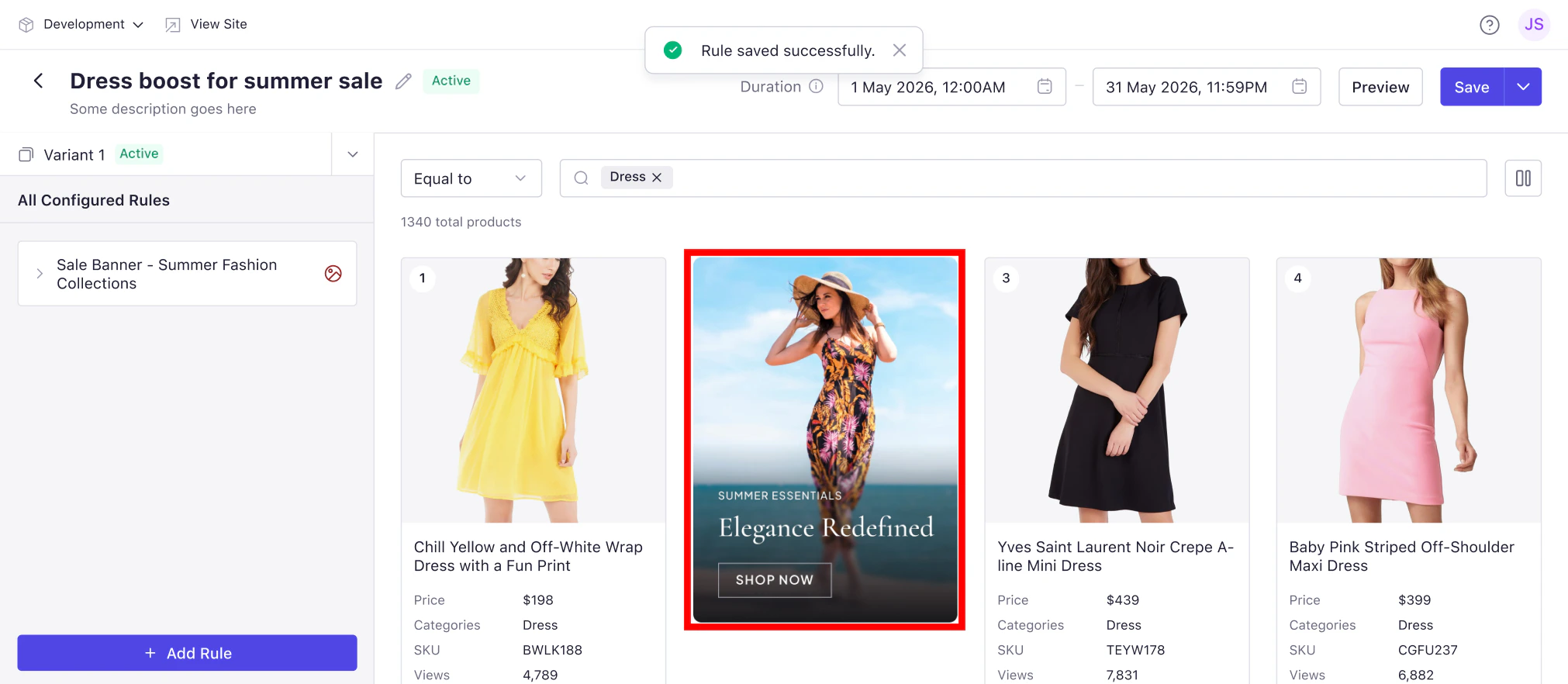
- Save — applies the rule. Once saved and active, the banner displays on the storefront according to the configuration and schedule.
- Preview — validates banner placement within the product grid before publishing.