

Prerequisites
- Permission to edit records in the content library.
- A plan that includes A/B testing. Without it, the option to save a variant does not appear.
Create a Variant
1
Open the record
In Content Library, open the page or component you want to create a variant of.
2
Make your changes
Edit the fields you want the variant to differ on — a different headline, a different image, a different call to action.Everything you do not change carries over from the variant you started from.
3
Save it as a variant
Click the arrow beside Save, then select Save as a New Variant.
4
Confirm it was created
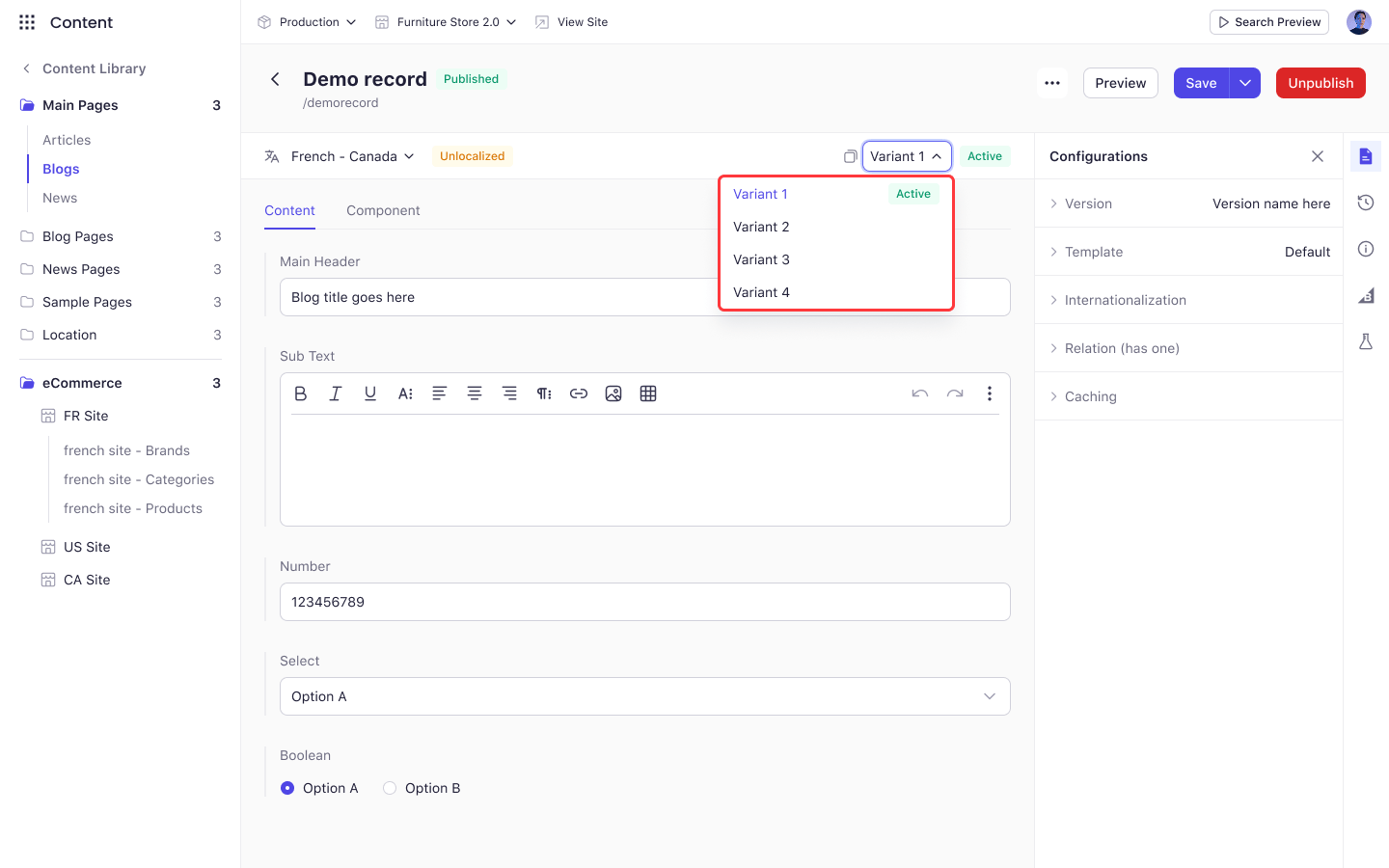
The new variant appears in the variant selector at the top of the record.
Save as a New Variant only appears when your plan includes A/B testing. If you do not see it in the dropdown, the feature is not enabled for your workspace.
Switch Between Variants
The variant selector sits at the top of the record, beside the language selector. Open it to see every variant on the record and switch between them. The variant currently served on your storefront carries an Active badge. Switching variants changes what the editor below displays. Your unsaved changes are not carried across, so save before you switch.Using Variants in an Experiment
Variants are what an experiment maps to. Once a record has more than one, it becomes selectable on the Experience step of the experiment flow, where you decide which variant each experiment group sees.A record used by an experiment cannot be deleted from the content library, whatever the experiment’s status. Delete the experiment first, or remove the record from it.