

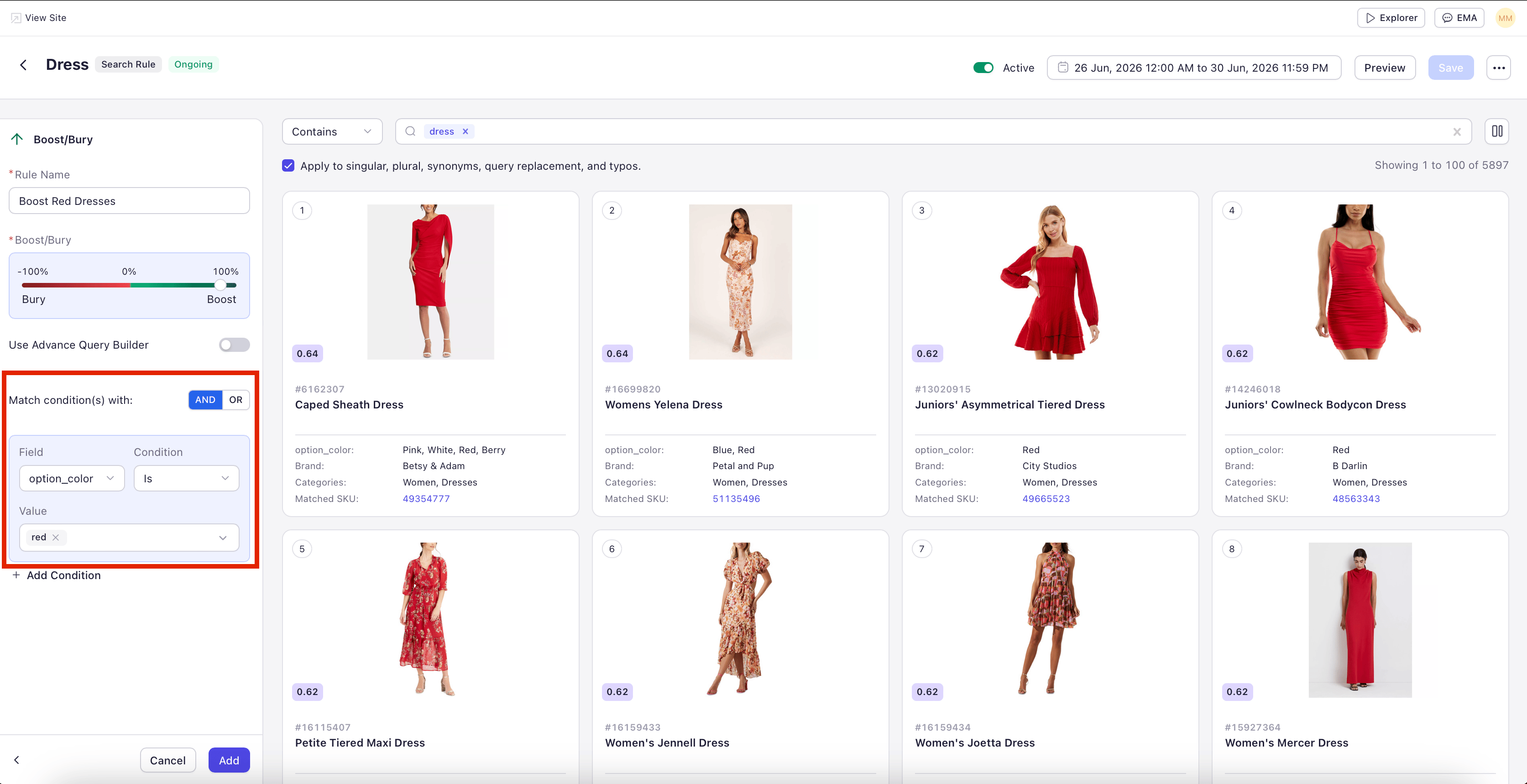
What Changed
Previously, rule conditions were limited to a fixed set of fields — primarily SKU, category, and a small number of string attributes. Adding new field types or new conditions required configuration changes from the Experro team. The rule editor has been rebuilt around the full Field Settings catalog. Any field you have indexed and marked as Filterable is now available as a condition in your merchandising rules. Numeric, date, and Boolean fields are supported with type-appropriate operators, and multi-value fields are matched element-by-element.Supported Field Types in Rule Conditions
How to Use Field-Based Conditions
1
Open or create a rule
Open an existing merchandising rule from the listing screen, or create a new rule of any type that supports conditions (Boost, Bury, Include, Exclude, Pin, Slot, or Sort).
2
Add a condition
In the rule editor, click Add Condition. The condition builder opens.
3
Select the field
Choose the field from the field list. Only Filterable fields appear in this list. If you need a field that isn’t showing up, mark it as Filterable in Field Settings and re-index.
4
Choose the operator
The operator dropdown automatically shows the operators that make sense for the selected field type. For a Number field you’ll see Equals, Greater Than, Between, etc. For a Date field you’ll see Before, After, Within Last N Days, etc.
5
Enter the value
Provide the value (or values, for range and list operators). For multi-value support, the editor lets you add multiple values to a single condition.
6
Combine conditions
Add additional conditions to build compound logic. Conditions are combined with AND by default — all conditions must be true for the rule to match a product. You can adjust the logic operator from the condition list.
7
Save and activate
Save the rule. Toggle to Active when you’re ready for it to apply on the storefront.
Example Use Cases
- Boost recently-added premium products — Create a Boost rule with two conditions: Created Date is Within Last 30 Days AND Price is Greater Than 200. Surfaces new high-margin inventory at the top of category pages.
- Bury low-stock items quietly — Create a Bury rule with the condition Inventory Count is Less Than 5. Products with limited stock are pushed down without being completely removed, so customers see them only after the higher-stock alternatives.
- Exclude end-of-life products — Create an Exclude rule with the condition Discontinued is True. Products flagged as discontinued in your catalog are kept out of the storefront entirely.
- Promote in-season collections — Create a Boost rule on the Search scope “winter” with the condition Tags Contains Any “winter, cold-weather, insulated.” Lifts every product carrying any one of those tags when shoppers search for “winter.”
- Surface products by sub-brand or part-number family — Create a Boost rule with the condition Part Number Starts With a specific prefix. Useful for OEM-grouped catalogs where part numbers carry meaningful prefix information about the product family.
Important Notes
Field-based conditions are only available on rule types that operate on a product selection — Boost, Bury, Include, Exclude, Pin (when filtering the product list before pinning), Slot, and Sort. Variant Slicing and Banner rules use their own configuration models and do not use field conditions.
Multi-Value Field Matching: When using Contains Any or Contains All on a multi-value field, the field must be marked as Multi-Value in Field Settings with the correct delimiter specified. Without this, Experro treats the values as a single string and the match fails.
Sensitive Data Fields: Fields marked as Sensitive Data in Field Settings are available as condition fields in rules. This is intentional — sensitive data such as cost price can drive internal merchandising decisions without being exposed to the storefront. The condition runs server-side; the value is never returned through the Search API.