

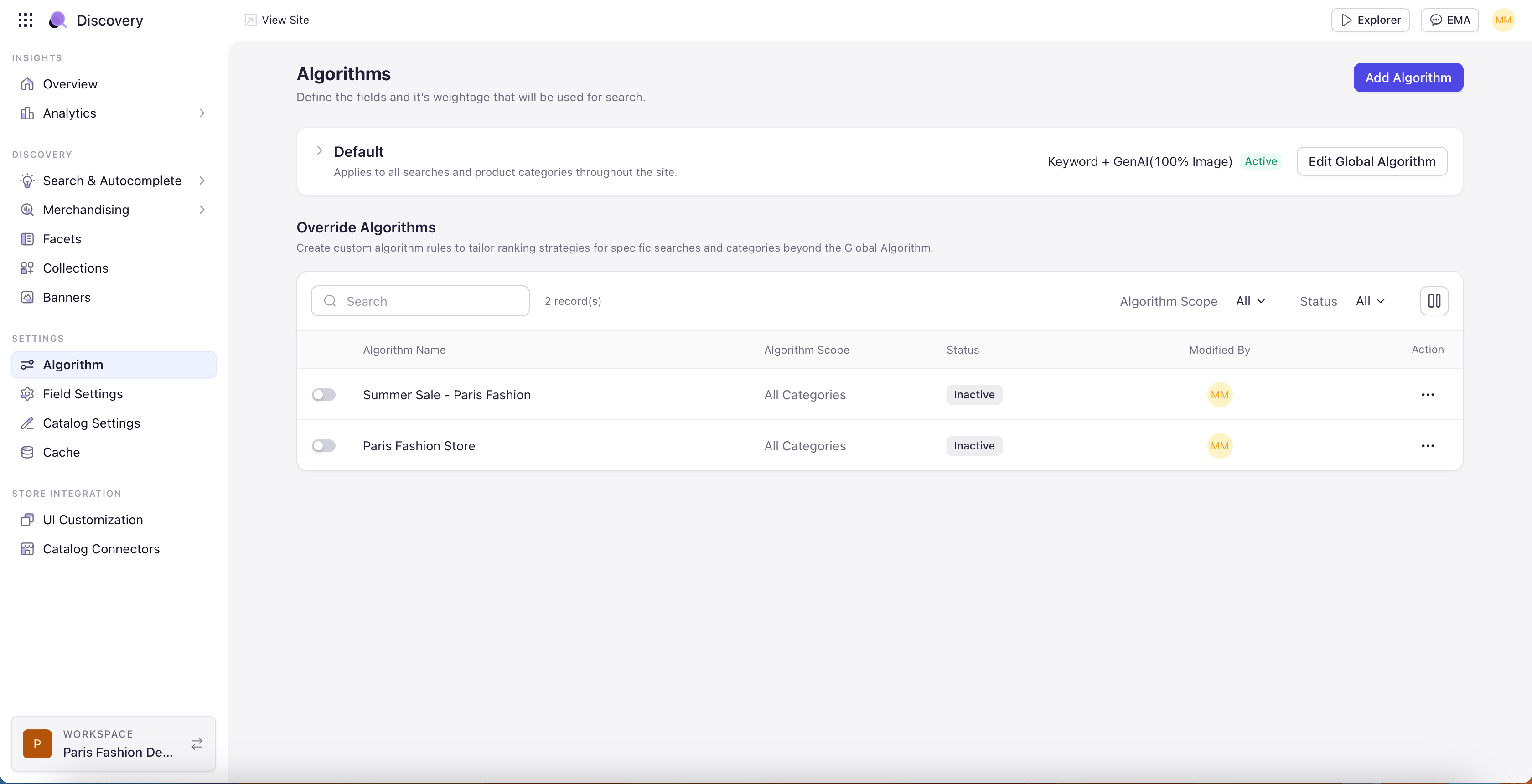
Algorithm Scope
Every algorithm has a scope that defines where it applies on the storefront. Scope is set when creating the algorithm and cannot be changed afterward — instead, create a new algorithm.- Global Algorithm — One Global Algorithm exists per store. It is the default ranking configuration that applies when no scope-specific algorithm overrides it.
- Specific Searches — Algorithm applies only when the user’s search query matches the configured search terms. Multiple search terms can be added — each can use a qualifier (Equal to, Contains, Starts with, Ends with) to control how it matches incoming queries.
- Specific Categories — Algorithm applies only on the configured category pages. Multiple categories can be added.
The Five Algorithm Tabs
Once you open an algorithm for editing, the configuration is divided across five tabs: Relevance, Performance, Personalization, Newness, and Ranking. The tabs are independent of each other — you can configure any combination — and a tab does not need to be touched if you want its defaults.Relevance Tab
The Relevance tab controls how Experro decides which products are most relevant to a search query or category context. This is where you pick the search engine, configure variant slicing defaults, and set up parent-child grouping.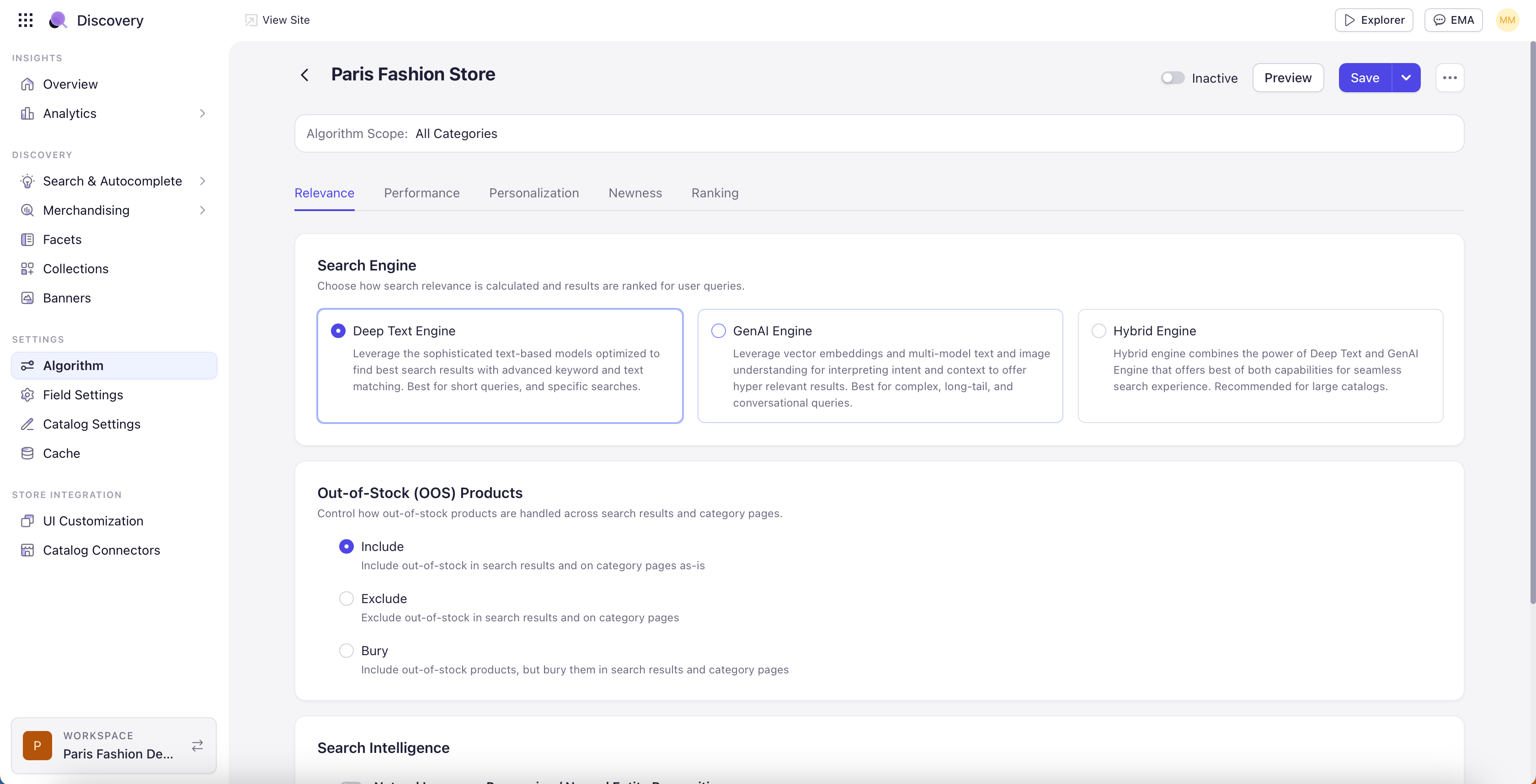
Search Engine
Search Engine picks the matching strategy for the algorithm. Three options are available as cards on the Relevance tab.- Deep Text Engine — Keyword-based matching with linguistic enrichments: typo tolerance, stemming, synonym expansion, NLP/NER tagging. The right default for most catalogs because it is fast, predictable, and well-understood.
- Gen AI Engine — Semantic matching using the vector embeddings configured in Catalog Settings. The Gen AI engine matches by meaning rather than literal text, so a query for “comfortable office chair” can surface products described as “ergonomic desk seating.” Requires Text Vector or Image Vector (or both) to be enabled in Catalog Settings.
- Hybrid Engine — Combines Deep Text and Gen AI: keyword matches lead the result set, with semantic matches filling in where keyword recall is sparse. Recommended for long-tail and natural-language queries where users phrase intent loosely. Requires vectors enabled in Catalog Settings.
Gen AI Engine Configuration
When the Gen AI or Hybrid engine is selected, you also choose which embedding model to use. Three options are available.- Text Semantic — Uses product text content (title, description, attributes) to understand semantic meaning. Best for catalogs with rich textual descriptions and minimal visual differentiation between products.
- Image Understanding — Uses image embeddings to match similar product images directly by visual similarity. Best for visually-driven categories (apparel, home decor, jewelry) where shoppers care about how something looks.
- Multi-modal (Text + Image Understanding) — Combines text and image embeddings for the broadest coverage. Most reliable choice when in doubt — it handles both text-driven and image-driven queries.
Dominant Category or Type Identification
For algorithms still relying on the legacy behavior, this setting controls the sample size — how many top search results Experro examines to identify the dominant category when a query does not directly tag one. The default is 50.Out-of-Stock (OOS) Products
Controls how out-of-stock products are handled across the storefront. Pick one of two options.- Include — Out-of-stock products continue to appear in search results and on category pages, typically with reduced ranking. Use when you want shoppers to discover OOS products (and potentially sign up for back-in-stock notifications) rather than hiding them entirely.
- Exclude — Out-of-stock products are removed from search results and category pages entirely. Use when displaying unavailable inventory hurts the shopping experience.
How OOS is detected: Experro uses the Inventory field from your catalog to determine stock status. Make sure the field is correctly mapped in the Catalog Connection screen so OOS detection works as expected.
Parent-Child Grouping
Parent-Child Grouping controls whether the parent product or one of its variants appears in the result tiles. Most relevant for catalogs structured around parent products with many variants (paint colors, jewelry rings with multiple metals, apparel with sizes and colors). Primary Group — the default behavior. Pick the field that distinguishes parent from variant products in your catalog (usually a Type field) and the value that should lead by default. Secondary Group (conditional override) — overrides the Primary Group when specific NLP-tagged values appear in the search query. Add as many secondary group rules as you need. For example, with Primary Group set to “parent” and a Secondary Group rule that says “if the query tags a color value, show the variant_color product”:- Search “acrylic paint”: Returns parent products (no color tag in the query).
- Search “yellow acrylic paint”: Returns variant_color products in yellow.
Performance Tab
The Performance tab boosts products that are performing well — selling more, generating more revenue, or scoring higher on a custom signal. The mechanism is independent of Relevance: a product can rank high on Relevance and be lifted further by Performance, or rank moderately on Relevance and still surface near the top because of strong Performance.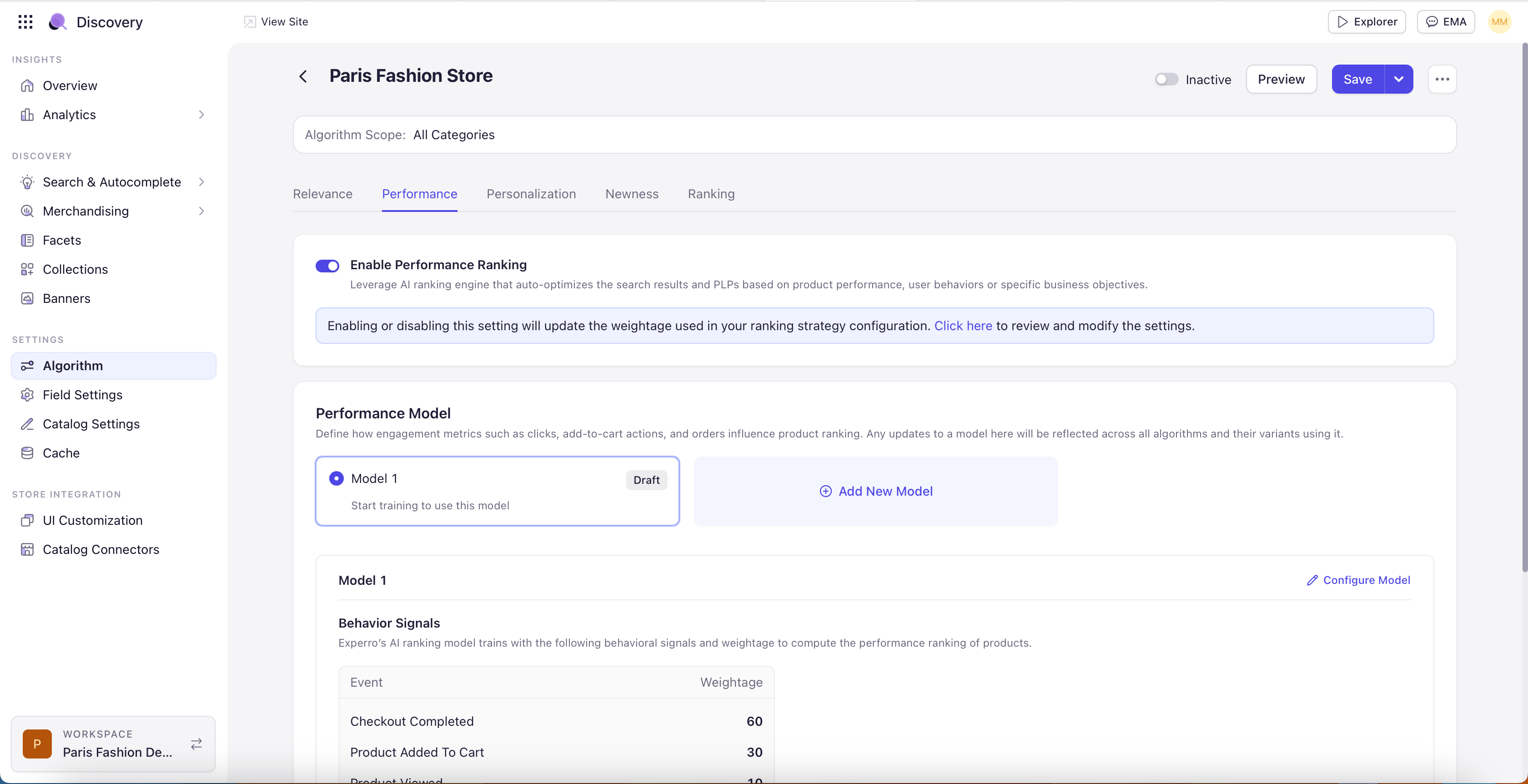
Conversion Source
Conversion Source defines what counts as a “good performance” signal. Three options.Time Decay Window
Time Decay defines the window of historical performance data the algorithm considers when computing the performance score.- Rolling Window — considers the last N days of data (typically 7, 14, 30, 60, or 90 days). The window rolls forward each day. The right default for most catalogs because it captures current performance.
- Previous Year Same Period — considers the same N-day window from the previous year. Built for seasonal catalogs where current performance does not reflect what will sell next week.
Custom Performance Signal (External Data)
If you have your own performance score — calculated in your ERP, PIM, or analytics warehouse — Experro can use it directly instead of computing one from Experro’s own event data. This is built for customers who sell across multiple channels (eCommerce, retail, marketplaces) and have a unified performance score that already accounts for all channels. Setting it up:1
Include the score in your feed
Ensure your product feed includes a numeric field with the performance score for each product.
2
Confirm the field is indexed
In Field Settings, confirm the score field is indexed (Display Field on, Match Type set so it is searchable internally).
3
Switch the source to Custom
In the Performance tab, switch the source to Custom and pick the field.
4
Set the weightage
Set the weightage as you would for any other performance signal.
Personalization Tab
The Personalization tab tailors search and category results to the individual shopper based on their browsing and purchase history.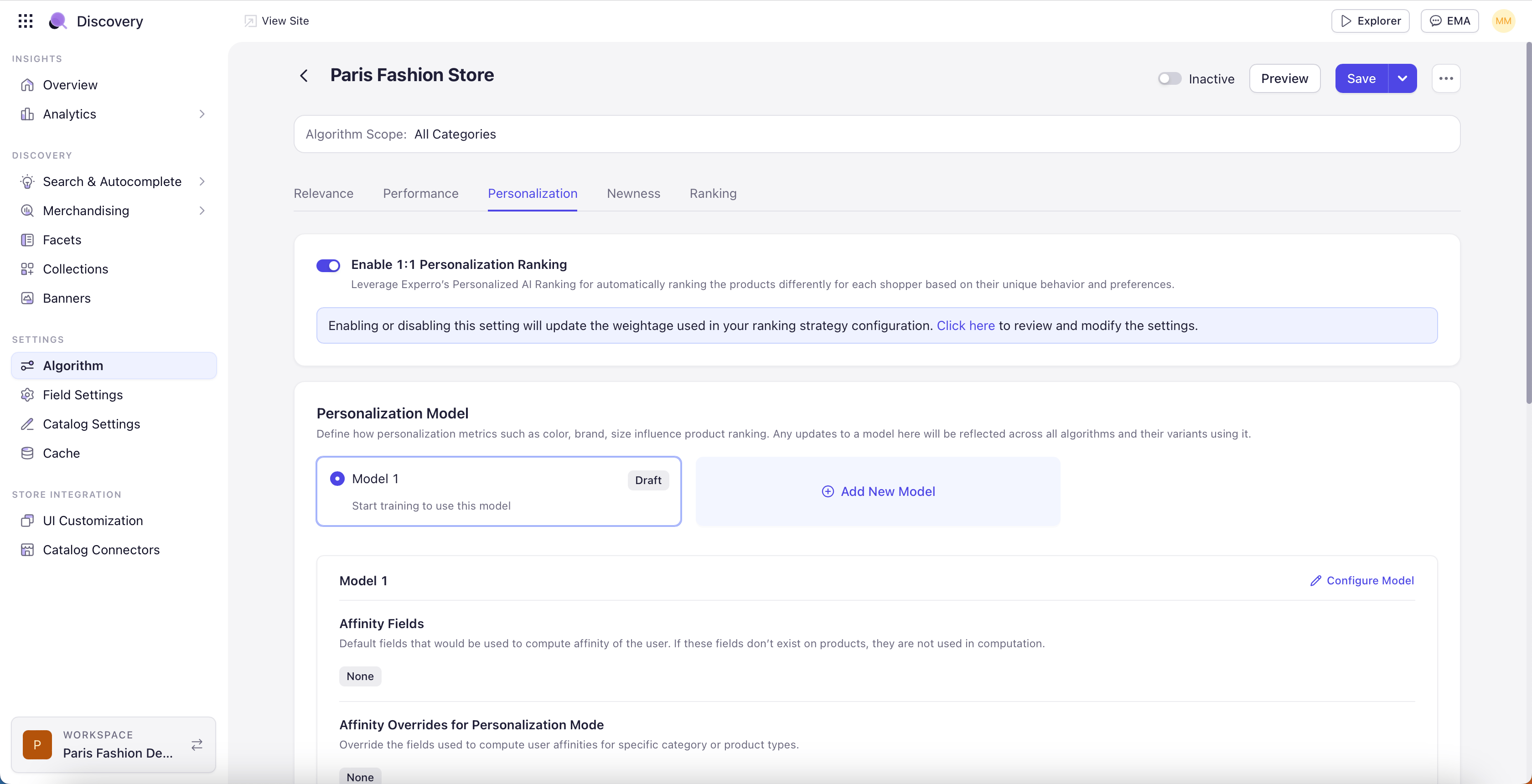
Personalization on Untagged Searches
Personalization now applies on search queries that do not match any category. Previously, a query such as “jewelry gift for my friend” — which carries no category tag — bypassed personalization entirely because the system had no category context to scope affinities to. The system now computes a dominant category from the search results themselves and applies personalization scoped to that dominant category. The result is that more queries benefit from personalization, including the long-tail intent queries that customers actually type.Global Affinities
Affinities are the user signals Experro uses to personalize results — a user who has viewed many Levi’s products develops a Levi’s affinity. Previously, affinities were always scoped to a category. A user’s Levi’s affinity on jeans did not influence what they saw on shirts. Global Affinities lifts this restriction for specific fields. A field marked as a Global Affinity is treated as cross-category — a Honda affinity built up from Honda car parts also applies when the user browses Honda motorcycle accessories. When to use Global Affinities:- Brand (most common) — In hardware, automotive, and tools, where a single brand spans many product categories, brand affinity is naturally global.
- Color (sometimes) — In fashion or home decor, color affinity may be global if customers tend to coordinate across product types.
- Material — In furniture or jewelry, material preferences (oak, gold, sterling silver) often carry across categories.
Rolling Window for Personalization
Personalization supports a rolling window setting that limits how far back the system looks when computing affinities. Older interactions decay out of the user’s profile, keeping personalization current to recent intent.Newness Tab
The Newness tab boosts recently-added products so they are not buried by performance ranking before they have had a chance to accumulate sales. Newness is its own tab — independent of Performance — because the configuration is meaningfully different and customers want to tune them separately.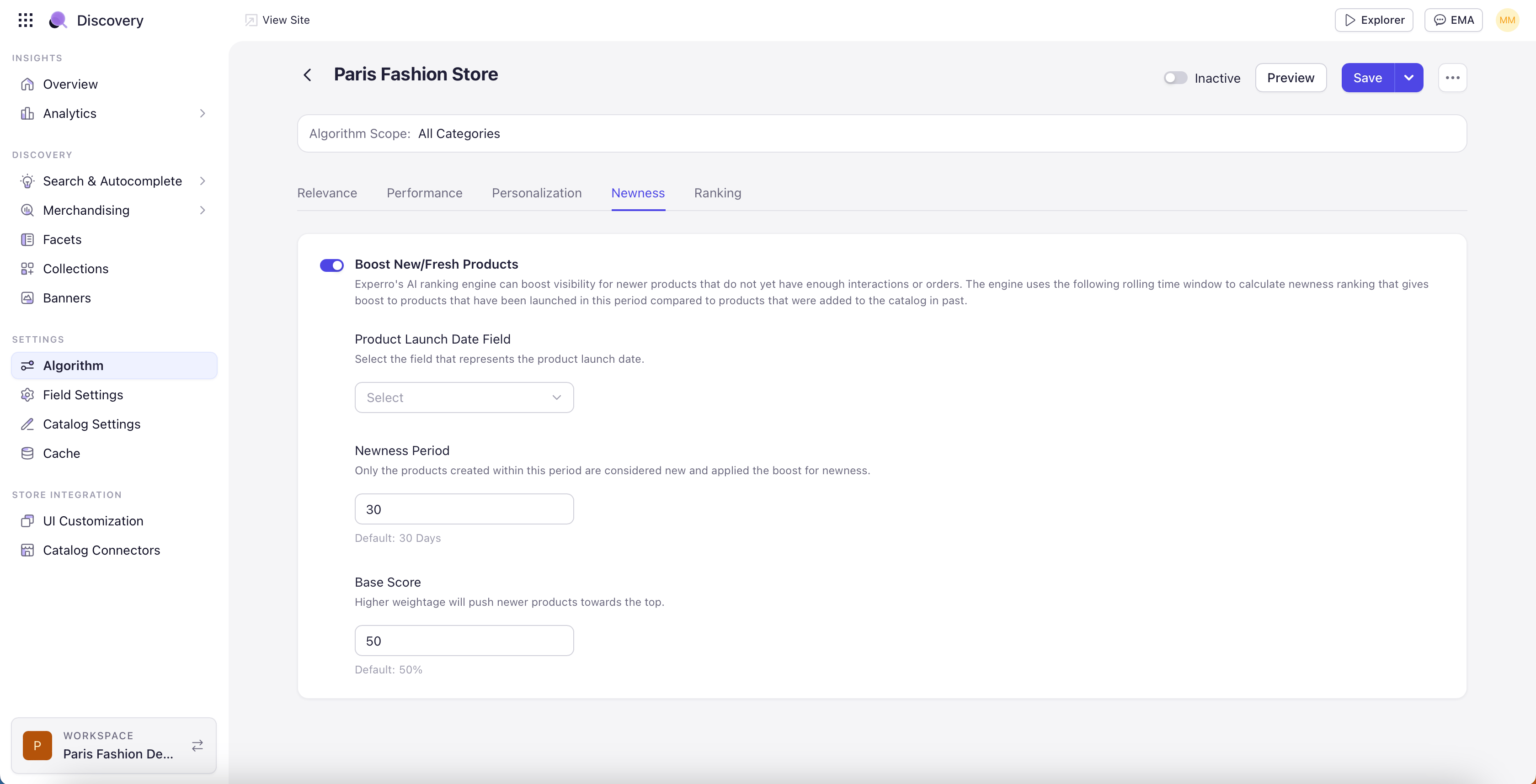
Configuration
- Newness Field — A date field, typically Created Date or Published Date.
- Newness Period — How recent a product must be to qualify for the boost. Common values are 14 days, 30 days, or 60 days.
- Weightage — How much the newness boost contributes to the final ranking score, relative to relevance, performance, and personalization.
Ranking Tab
The Ranking tab combines Relevance, Performance, Personalization, and Newness into a final ordered list. This is where you choose the overall ranking strategy.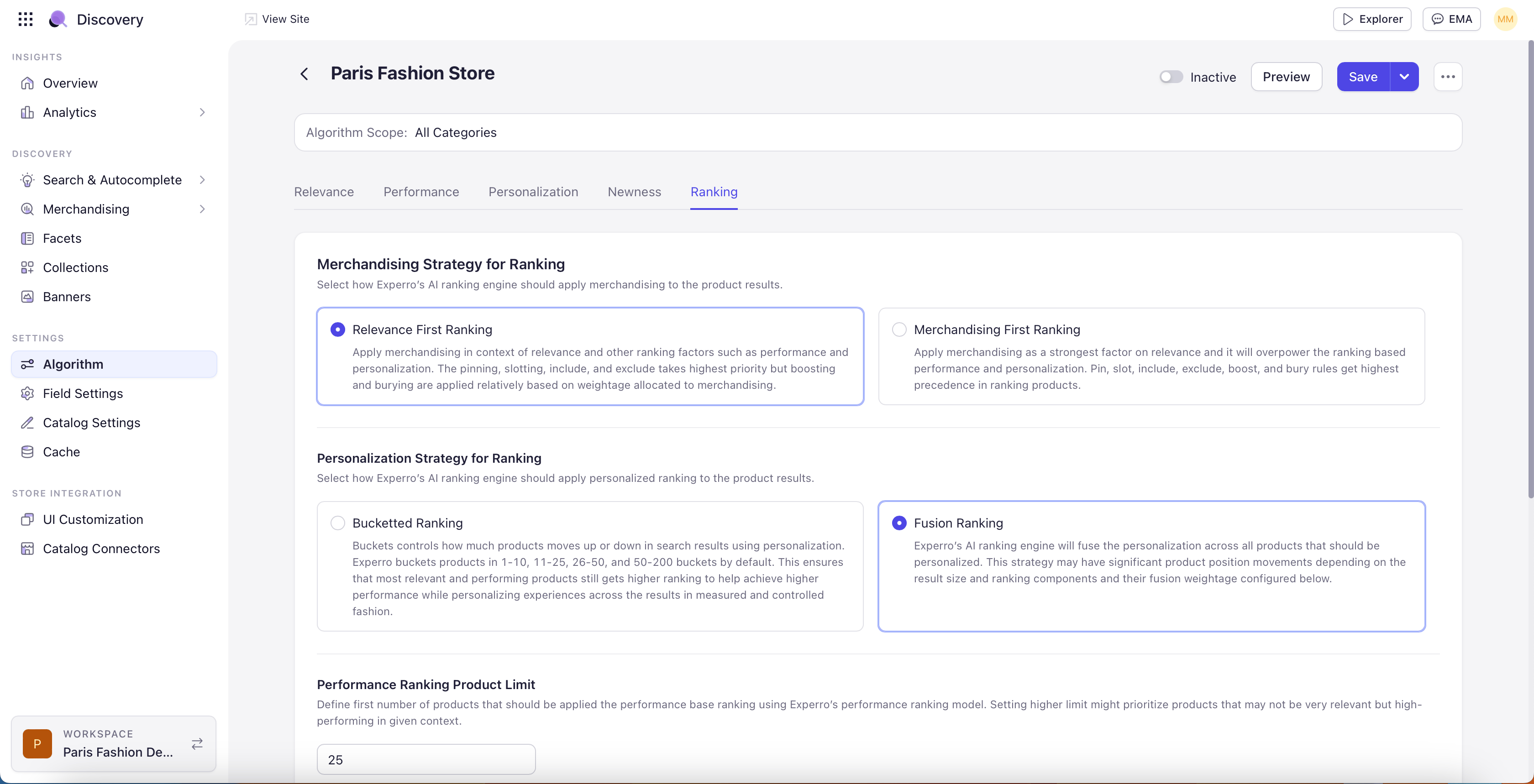
Ranking Modes
- Relevance First — pure relevance ordering. Performance, personalization, and newness signals are ignored. Use when you want the cleanest possible match-to-query ordering and have no commercial considerations to apply.
- Fusion (recommended default) — blends relevance with performance, personalization, and newness into a unified score. The right default for most storefronts — products that are highly relevant and selling well rank above products that are merely relevant.
- Bucketing — divides the result set into position buckets (positions 1–10, 11–25, 26–50, and so on) and applies different ranking logic within each bucket. Useful when you want strong relevance at the top of the page and need variety further down.
Merchandising Priority
Merchandising rules always take priority over the algorithmic ranking. A pinned product appears at its pinned position regardless of relevance, performance, or personalization scores. A boost rule lifts the boosted product even if relevance would have buried it. This is by design — merchandising rules represent explicit business intent, and Experro respects that intent over algorithmic decisions. The Ranking modes above describe how the algorithm orders the products not directly affected by merchandising rules.Saving, Activating, and Managing Algorithms
Save and Activate
When you create or edit an algorithm, you have these actions:- Save as Draft — Persists your changes without applying them. The storefront continues to use the previously-active algorithm. Useful for staging changes before they go live.
- Save and Activate — Persists and applies the algorithm to the storefront. Takes effect within a few seconds.
- Preview — Loads a preview pane showing how the algorithm would rank a sample query against the live catalog, so you can sanity-check the configuration before activating.
Variants
A variant is an alternate configuration of the same algorithm. Each one holds its own relevance, performance, personalization, and ranking settings, so you can test two ranking strategies against each other instead of choosing between them upfront.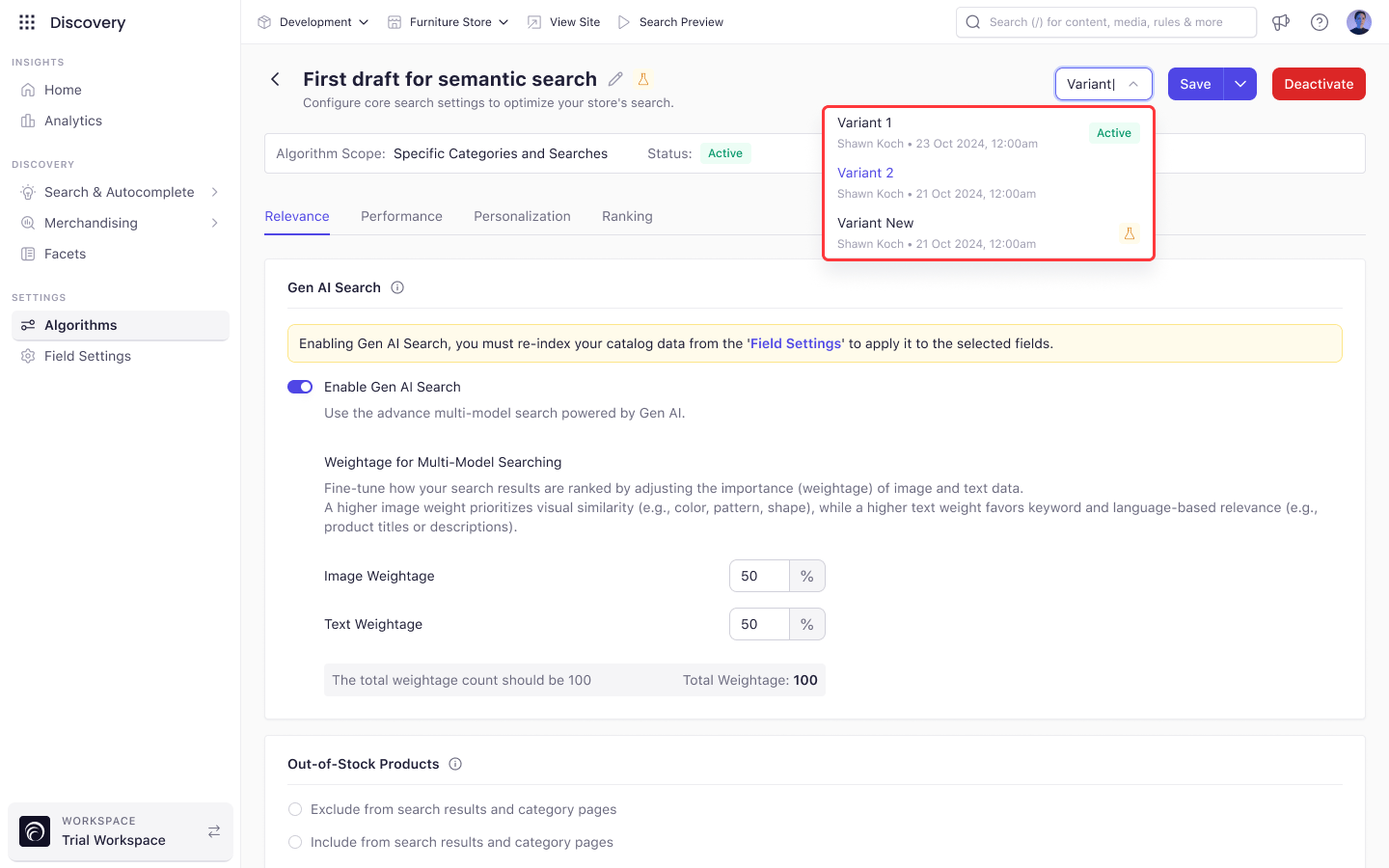
Save as a New Variant only appears when your plan includes A/B testing.