General Tab
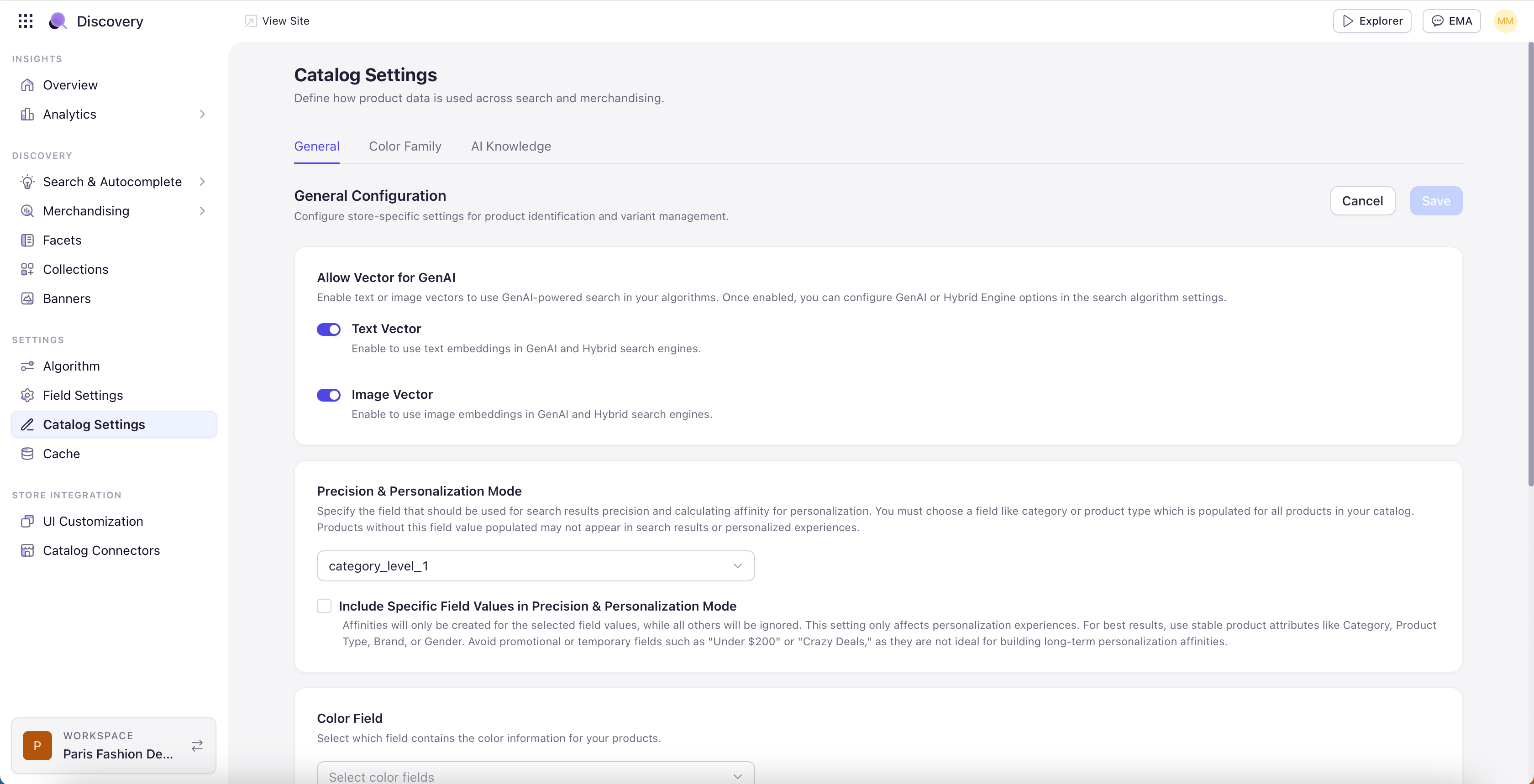
Allow Vector for Gen AI
Vector indexing generates a numeric embedding for each product so the Gen AI search engine can reason about semantic similarity rather than literal keyword matches. Two independent toggles control which kinds of embeddings are generated.- Text Vector — Enables semantic understanding of product text content: title, description, attributes. When enabled, a search for “comfortable office chair” can surface products described as “ergonomic desk seating” even when no keywords overlap.
- Image Vector — Enables visual-similarity matching using product images. Required for image-based engines and for image-similarity recommendations such as Complete the Look.
Prerequisite for Gen AI Engine: The Gen AI engine and Hybrid engine choices in the Algorithm screen require at least one vector to be enabled here. If neither Text Vector nor Image Vector is on, those engine options are disabled in the Algorithm screen with a notice pointing back to Catalog Settings.
Precision & Personalization Mode
Precision & Personalization Mode picks the single field that Experro uses as the primary signal for product type — its dress-ness, shoe-ness, ring-ness. This signal drives several downstream behaviors:- Dominant category detection when a search returns no direct category match.
- Personalization scoping — affinities are scoped to the product type represented by this field by default.
- Gen AI search fallback when literal matches are sparse.
- Categories — Works well if your category tree is well-structured and every product is tagged to a single primary category.
- Product Type (Shopify) — Most Shopify customers find Product Type more reliable than Categories — Categories tend to include marketing groupings such as Sale or New Arrivals that pollute precision.
- Category Level 1 — If you have a multi-level category structure where Level 1 captures the primary type (Dresses, Shoes) and Level 2/3 captures style, Category Level 1 is often the cleanest precision signal.
- Custom field (e.g. Style Category) — Some customers maintain a separate, curated product-type field for exactly this purpose. If you have one, use it.
Color Field
Tells Experro which fields in your catalog should be treated as colors for the purpose of color-family grouping and color-based merchandising. Most customers select a single Color field, but if you have multiple color-related fields — for example Dress Color on apparel and Frame Color on jewelry — include all of them. The selected fields are also the basis for the Color Family tab.Variant Slicing Attributes
Variant Slicing Attributes is the catalog-level list of variant attributes available for slicing on the storefront. Variant attributes you select here become available in the Algorithm screen’s Variant Slicing setup and in Merchandising Variant Slicing Rules. The picker shows every field marked as Variant Option in Field Settings. Pick the attributes you want available for slicing — typically color, size, material, metal, finish.Two layers, one feature: Variant Slicing Attributes here defines what is available. The Algorithm screen’s Relevance tab defines how the default variant is chosen. The Merchandising Variant Slicing Rule overrides the default for specific search queries or category pages.
Hero Variant
Hero Variant is the catalog-level fallback for which variant leads the tile. It is a Boolean field at the variant level — one variant per product should havehero_variant set to true. When no Variant Slicing Rule and no NLP-detected value dictates a variant, the Hero Variant is shown.
Variant Resolution Priority
When multiple signals are in play, Experro applies them in this order (highest priority first) to decide which variant leads the tile:1
NLP-tagged values in the search query
For example, “red dress” forces the red variant.
2
Active Variant Slicing Rule
A rule scoped to the current search or category.
3
Personalization signal
The user’s built-up affinity for a specific value.
4
Hero Variant
The variant marked as hero on the product.
5
System default
The best-performing variant by Experro’s internal model.
Color Family Tab
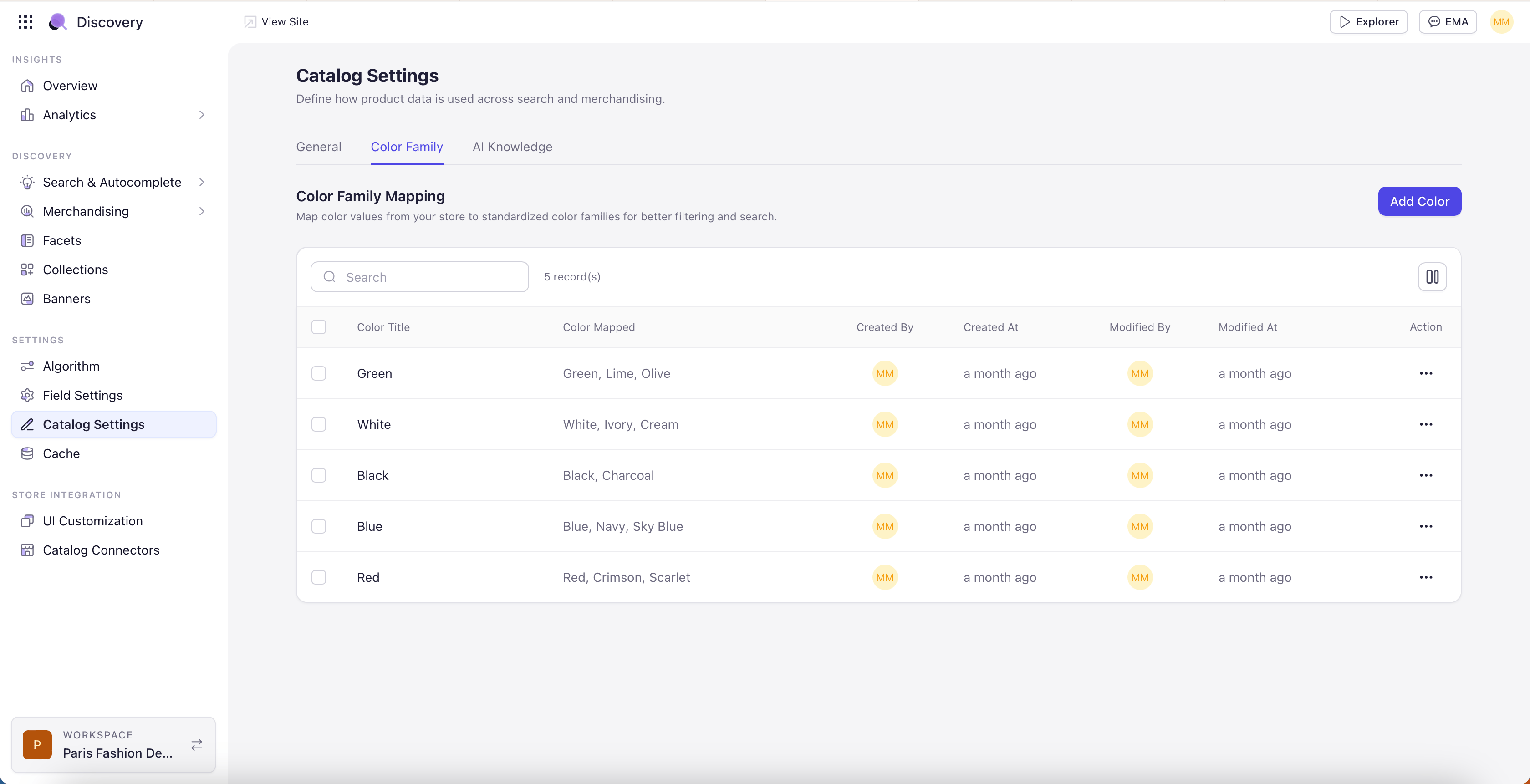
The Color Family tab manages how visually-similar colors are grouped together so that a search for one color also surfaces close matches. For example, a search for “red” can surface burgundy, scarlet, and maroon when these are grouped into a single family. Experro ships with a predefined color library covering the most common groupings (reds, greens, blues, neutrals, and so on). Future releases will support customer-defined libraries built from your own catalog data.