

Accessing Field Settings
1
Select the apps icon at the top left of the application.
2
Select Discovery from the dropdown menu.
3
Navigate to Catalog from the navigation panel.
4
Open the Field Settings tab.
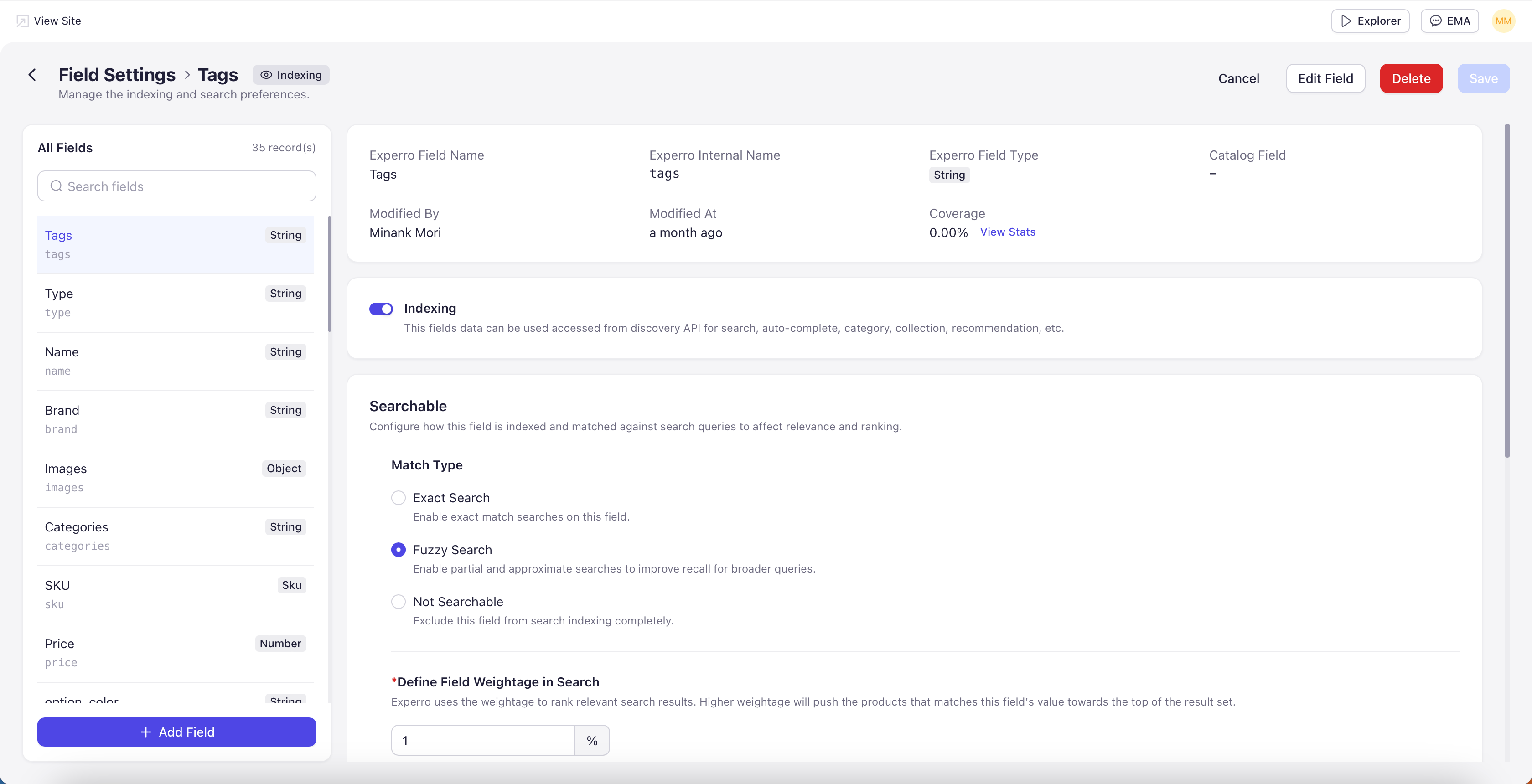
Field List and Field Header
The All Fields panel lists every field in your catalog along with its type. Selecting a field opens the configuration form on the right. The list supports a filter dropdown — narrow the list by attribute (Display Field, Not Searchable, Not Filterable, Filterable, NLP, Sensitive Data, Variant Option, Multi-Valued) or by Most Modified Date when you have a large catalog to navigate. When you open a field, the header at the top of the form shows:- Experro Field Name — The display name of the field inside Experro.
- Experro Internal Name — The internal identifier used by the API and merchandising rules.
- Experro Field Type — String, Number, Date, Boolean, SKU, Long Description, or Object.
- Catalog Field — The corresponding field name in your source catalog (Shopify, BigCommerce, JSONL feed, custom API).
- Modified By and Modified At — Audit trail showing who last changed this field and when.
- Coverage — The percentage of products in your catalog that have a value for this field, with a View Stats link for the full distribution (unique value count, top values, sparse-coverage warnings).
- Header chips — Quick-reference chips along the top show which options are currently active for the field — for example, Display Field, Sensitive Data, Variant Option, Multi-Valued.
Adding Custom Fields
The Add Field button at the bottom of the All Fields list lets you create custom fields without engineering involvement. Custom fields are configured with the same options as connector-mapped fields and participate in search, faceting, merchandising, and NLP the same way. Custom field rows are tagged as Custom Field in the type column.Field Configuration Options
The configuration form on the right has the same set of options for every field. Not every option is meaningful for every field type — for example, Long Description fields cannot be filterable because filtering long-form text is not useful. Options that don’t apply to the selected field are hidden.Display Field
Marks the field for inclusion in the search index. Only fields with Display Field enabled are accessible from the Discovery API for search, auto-complete, category, collection, and recommendation surfaces.Searchable
The Searchable section controls how the field participates in user-typed search queries. It has three controls. Match Type — pick one:- Exact Search — Enable exact match searches on this field. Useful for identifiers and short attributes where the user is expected to type the value verbatim.
- Fuzzy Search — Enable partial and approximate matches to improve recall for broader queries. Surfaces near-matches when the user makes typos or types only part of the value.
- Not Searchable — Exclude this field from search indexing entirely. The field will not influence search ranking even if other options are enabled.
Filterable & Merchandisable
A single combined toggle that does two things — it makes the field available as a facet on storefront search and category pages, and it makes the field available as a condition in merchandising rules. The two capabilities are linked because they share the same indexed-attribute infrastructure under the hood. Long Description and Object fields cannot be marked Filterable & Merchandisable.Sensitive Data
Marks the field as internal-only. Sensitive fields are indexed and available for internal use — search relevance, merchandising rules, performance ranking, preview — but are never returned through the Discovery API and cannot appear as a facet to end shoppers.Variant Option
Marks the field as a variant-level attribute used to define product variants (color, size, metal, material, finish, and so on). Connectors such as Shopify and BigCommerce auto-detect most variant fields; mark fields manually here when importing from a custom CSV or any source where variant fields are not auto-detected. Variant Option fields appear in the Variant Slicing Attributes picker in Catalog Settings.Natural Language Processing (NLP)
Enables natural language processing and named entity recognition (NER) on this field. When enabled, the NLP layer detects values from this field inside user search queries and uses them to refine the result set. The NLP section has four controls. Match Type — pick one:- Exact — The search query must contain an exact match of the field’s value to count as an NLP/NER match. Use when you want strict, unambiguous detection.
- Fuzzy — The search query can partially match the field’s value with some variation. Use when you want to tolerate minor user typos or word variants in detection.
- Filter Results — When an NLP/NER match is found in the query, results are restricted to products matching the detected value. Use for fields where the user’s intent is exact — for example, color on a fashion query. A search for “red dress” filters the result set down to red dresses only.
- Boost Results — When a match is found, matching products are lifted but non-matching products are still returned. Use for fields where the user’s intent is a preference, not a hard requirement. A search for “Nike running shoes” surfaces Nike at the top while still showing Adidas and others below.
Multi-Value
Some fields contain multiple values in a single record — for example, a category field where one product belongs to several categories, separated by commas. Enable Multi-Value and pick the delimiter (comma, semicolon, pipe, underscore) so Experro can parse the field into a proper array at index time.Some field types are inherently multi-value and do not require this setting — variant option fields, for example, are always multi-value by definition.