

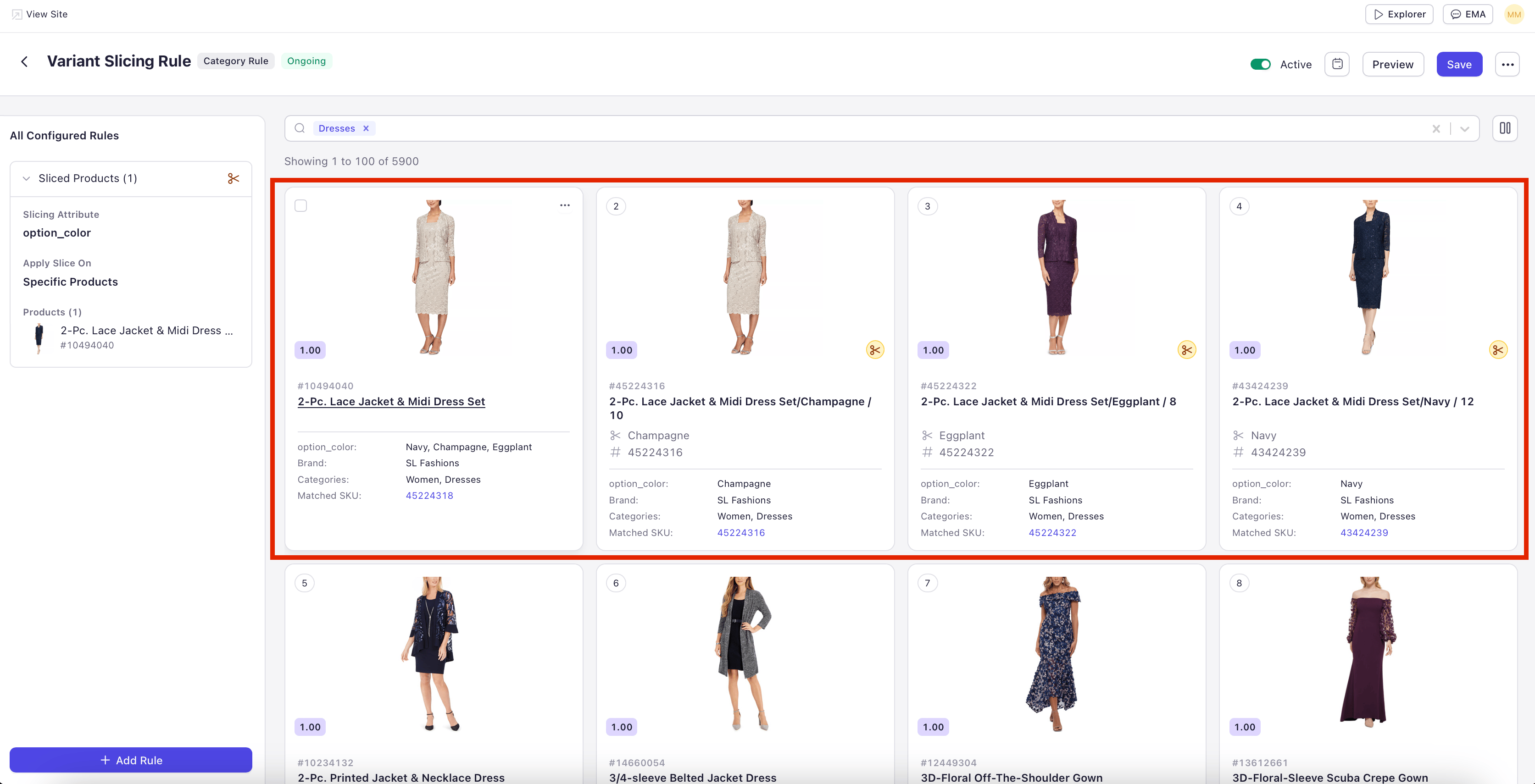
When to Use a Variant Slicing Rule
- Seasonal campaigns — Show the lightweight variant of a jacket on warm-weather search queries and the insulated variant during winter promotions.
- Color-led merchandising — Lead with the trending color on category pages without removing other variants from search.
- Inventory-driven display — Surface variants with healthy stock instead of letting low-inventory variants take the lead tile.
Creating a Variant Slicing Rule
1
Open the Add Rule pop-up and choose scope
Click Add Rule and choose the scope in the pop-up (Global, Category, or Search) following the standard scope selection flow described in Configuring Rules.
2
Choose Variant Slicing as the rule type
Provide a Rule Name and Description, then select Variant Slicing as the rule’s functionality.
3
Choose the variant attribute to slice on
Select the variant attribute that determines which variant leads the tile. Common attributes include color, size, and material. Only attributes defined as variant-level in your catalog appear in the list.
4
Define the variant priority order
Set the order of values for the chosen attribute. The first value that matches a product’s available variants becomes the lead tile. For example, with attribute color and priority order Red, Navy, Black: a product available in Red and Navy displays Red; a product available only in Navy and Black displays Navy. Use the filter panel to narrow the product list while building the rule.
5
Set duration and save
Set a start and end date if the rule is time-bound. Save the rule. It will be created as Inactive — toggle to Active when you’re ready for it to apply on the storefront.
Catalog Setup Prerequisites
Before a Variant Slicing Rule can take effect on the storefront, the catalog itself must be set up to support variant slicing. The rule operates on top of catalog-level configuration — without that foundation, the rule has nothing to act on.- Mark the slicing attribute as a Variant Option. In Field Settings, the field you want to slice on (color, size, metal type, material) must be marked as a Variant Option so Experro recognizes it as a variant-level attribute.
- Ensure values are populated. Every product you want the rule to affect must have values for the chosen variant attribute. Products missing values fall back to default tile behavior.
- Configure a Hero Variant field (recommended). Mark one variant per product as the default lead variant using a Boolean field at the variant level. This gives the algorithm a reliable fallback when no rule or search signal dictates which variant to surface.
How Variant Slicing Resolves on the Storefront
A Variant Slicing Rule does not decide the lead variant in isolation. It participates in a priority order that combines explicit search intent, active rules, personalization, and catalog defaults. When multiple signals are in play, Experro applies them in this order (highest priority first):1
Explicit search intent
If the user’s search query contains an NLP-tagged value matching the slicing attribute — for example, “red dress” on a color-sliced rule — that value wins. Experro surfaces the red variant regardless of what the rule says, because the user explicitly asked for red.
2
Active Variant Slicing Rule
If a Variant Slicing Rule is active for the current scope (search term or category), its priority order determines which variant leads the tile. The first value in the rule’s priority list that matches a product’s available variants is selected.
3
Personalization signal
If no rule applies and the user has built up a strong affinity for a specific value (for example, a long history of viewing navy products), personalization may surface the navy variant on relevant queries.
4
Hero Variant
If a Hero Variant is marked on the product, it is shown as the default lead. This is the typical behavior on category pages and unspecific search queries where no other signal is present.
5
System default
If none of the above apply — no rule, no signal, no Hero Variant — Experro picks the best-performing variant based on its internal ranking model.
Working With Hero Variant
Hero Variant and Variant Slicing Rules are designed to work together, not in conflict. The Hero Variant field is the catalog-level default — the variant a merchandiser has marked as the preferred lead. A Variant Slicing Rule is a contextual override that only fires for specific search queries or category pages. A common pattern: mark the best-selling color of each product as Hero Variant in the catalog so it leads by default everywhere. Then add a Variant Slicing Rule scoped to specific seasonal searches (“winter coats,” “summer dresses”) to override the default with a seasonally-appropriate variant on those queries only.Key Considerations
Catalog Requirements: Variant Slicing requires variant-level attributes in your catalog. If a product has no variants for the chosen attribute, the rule has no effect on that product and it falls back to default tile behavior.